Flutter Charts: Pick a Package, Then Build Line and Bar Charts With fl_chart
Compare fl_chart, Syncfusion, graphic and community_charts_flutter, then build a themed fl_chart line and bar chart with tooltips. Tested on Flutter 3.47.
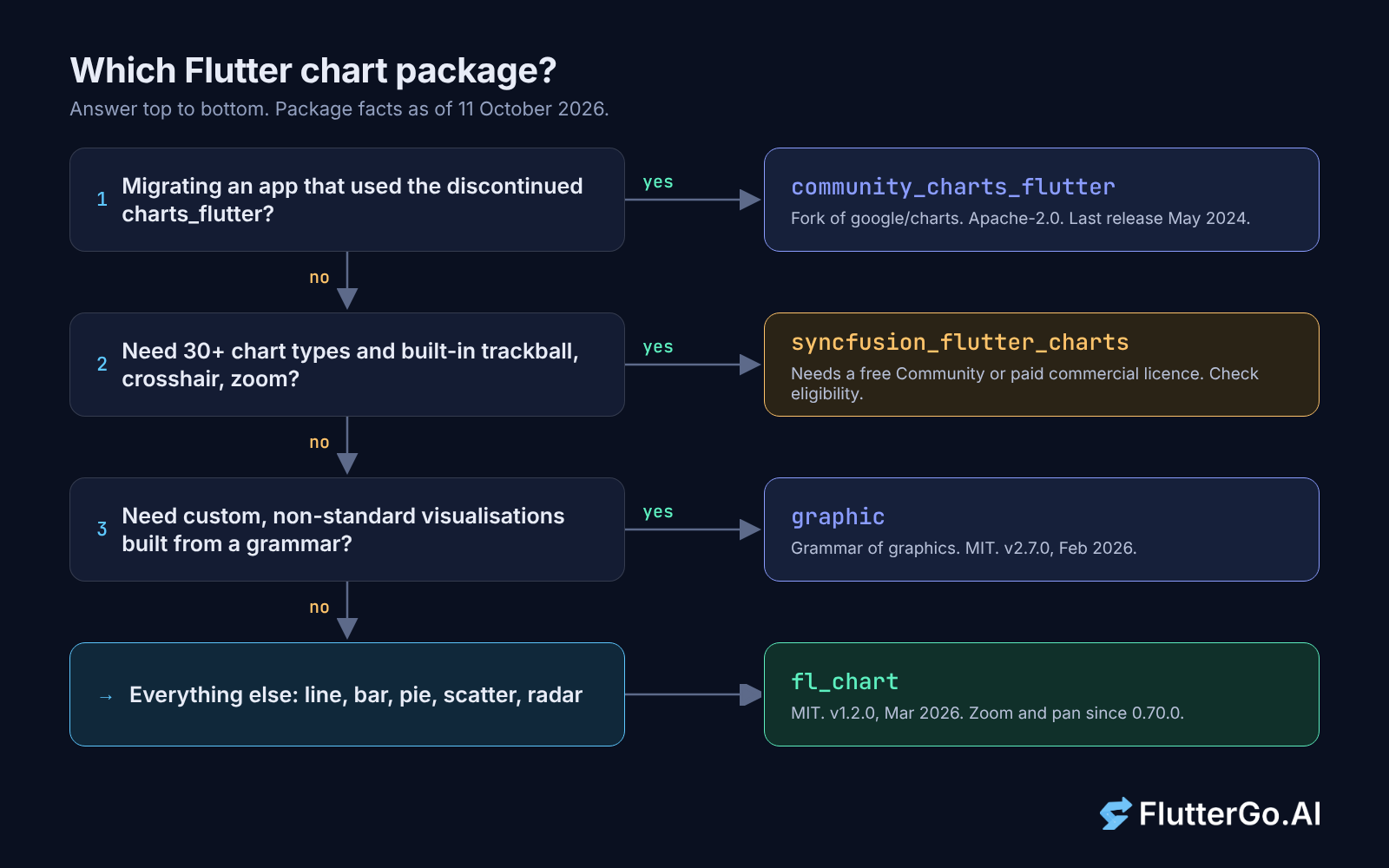
If you need Flutter charts in an ordinary app (a line, bar or pie chart), use fl_chart. It's MIT-licensed, actively released (1.2.0 came out in March 2026), and it covers the everyday chart types with touch tooltips, animation and, since version 0.70.0, zoom and pan. Reach for syncfusion_flutter_charts when you need its much wider catalogue and built-in trackball and crosshair, and your team either qualifies for Syncfusion's free Community License or will pay for a commercial one. graphic suits custom visualisations built from a grammar of graphics, and community_charts_flutter is mainly for apps moving off the discontinued charts_flutter.
The second half of this guide is a complete fl_chart example: a weekly line chart and a bar chart with tooltips, axis titles, an empty state and colours that follow light and dark mode. After that comes a troubleshooting section for the problems people hit most: a chart that doesn't appear, labels that collide, animation on data change and large datasets.
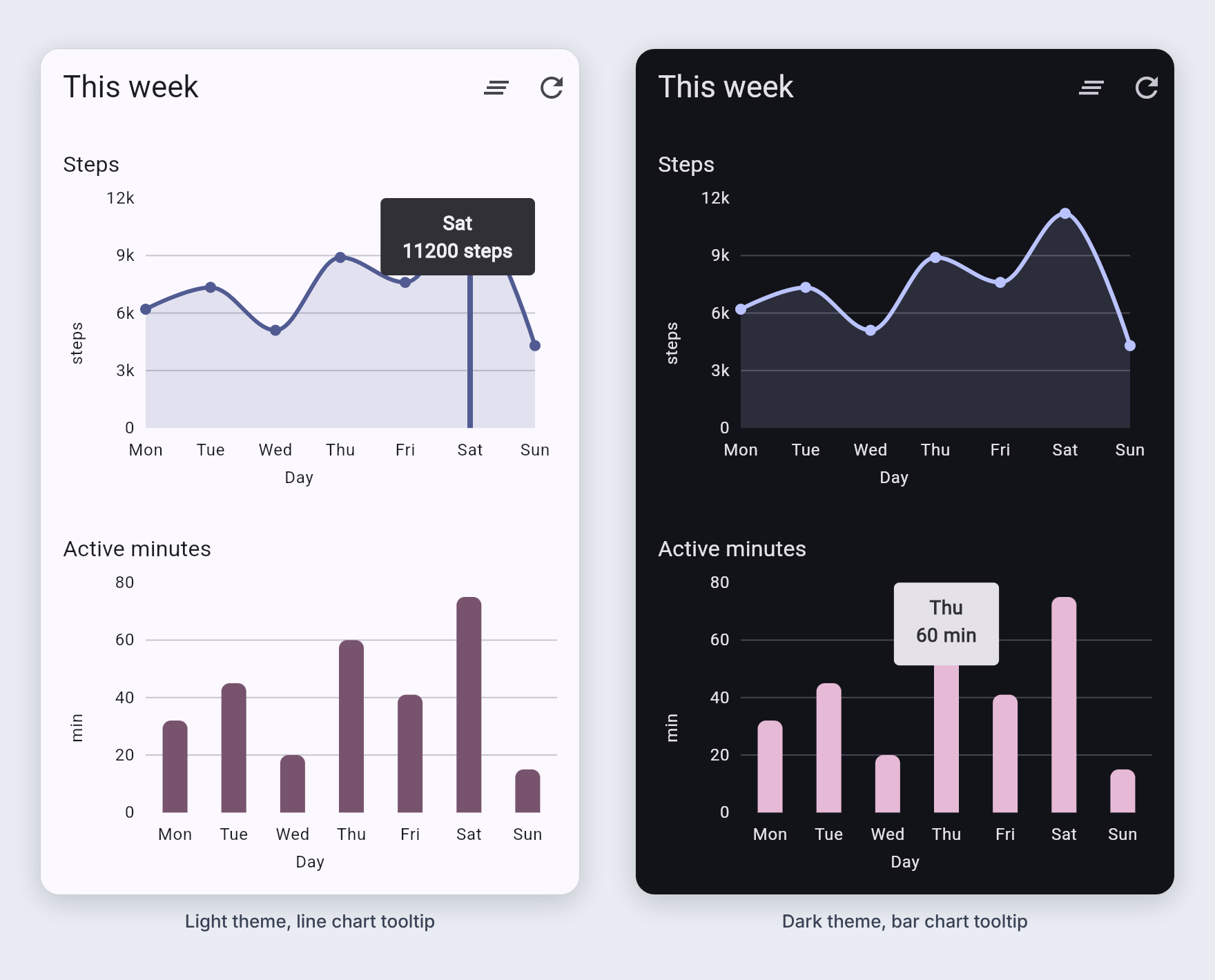
fl_chart 1.2.0. All the code on this page passed flutter analyze with no issues and eight widget and unit tests in flutter test. We also built it for the web and captured the screenshot below from that build in headless Chromium. We didn't run it on a phone or simulator. Package versions, dates and licences were checked on pub.dev and the vendors' own sites on 11 October 2026.
Flutter chart packages compared
Four packages come up again and again when you search for Flutter charts. Here's where each one stood on 11 October 2026, according to its pub.dev page and its maintainer's own site:
| Package | Latest version | Licence | Best for | Watch out for |
|---|---|---|---|---|
| fl_chart | 1.2.0 (13 Mar 2026) | MIT | Line, bar, pie, scatter, radar and candlestick charts in most apps | You write the axis labels and tooltip text yourself; breaking changes still land in minor versions |
| syncfusion_flutter_charts | 35.1.39 (7 Oct 2026) | Commercial, or free Syncfusion Community License if eligible | Dashboards that need many chart types, trackball, crosshair, zoom and selection out of the box | You need a licence before you use it, and the free one has eligibility limits |
| graphic | 2.7.0 (25 Feb 2026) | MIT | Custom or unusual visualisations described declaratively | Smaller community; a different mental model from "pick a chart type" |
| community_charts_flutter | 1.0.4 (15 May 2024) | Apache-2.0 | Migrating code written for Google's charts_flutter |
No release in over two years at the time of writing |
charts_flutter, Google's original chart library, is marked discontinued on pub.dev. Its last release, 0.12.0, dates from November 2021, so don't start new work on it.
fl_chart
fl_chart is published by the verified publisher flchart.dev under the MIT licence. Its pubspec describes it as "A highly customizable Flutter chart library that supports Line Chart, Bar Chart, Pie Chart, Scatter Chart, and Radar Chart", and the source also ships a CandlestickChart. Every chart is one widget (LineChart, BarChart, PieChart and so on) that takes a data object, which makes it easy to read and easy to theme.
The tradeoff is that you assemble more of the chart yourself. Axis labels come from a builder function, tooltip text from another, and the defaults (titles on all four sides, a blue-grey tooltip, cyan lines) need overriding in almost every real app. The API also keeps moving. The changelog lists breaking changes in 0.67.0, 0.70.0, 0.70.1, 1.0.0 and even the minor release 1.1.0. That's the main reason old fl_chart tutorials fail to compile, and we cover the common breakages in the troubleshooting section below.
One older complaint no longer applies. Version 0.70.0 added scaling and panning for LineChart, BarChart and ScatterChart through FlTransformationConfig, so zoom alone is no longer a reason to switch packages.
syncfusion_flutter_charts
Syncfusion's package says it renders "30+ chart types" and lists widgets such as SfCartesianChart, SfCircularChart, SfPyramidChart, SfFunnelChart and a set of sparkline charts. Its feature list includes tooltips, trackball, crosshair, selection, zooming and panning, and auto-scrolling. If you're building an analytics screen with many chart styles, that's a lot you won't have to build.
The licence decides whether it's an option for you. pub.dev lists the licence as "unknown" and the package description says plainly: "This is a commercial package." You need either a commercial licence or the free Syncfusion Community License. On 11 October 2026, Syncfusion's community licence page said it covers "Companies and individuals with less than $1 million USD in annual gross revenue", with "5 or fewer developers, and 10 or fewer total employees". It also says an organisation "may not have ever received more than $3,000,000 USD in capital from an outside source", and that government bodies funded by tax dollars are not eligible. Commercial apps are allowed, and the licence lasts until you stop qualifying.
The licence file on pub.dev words the developer limit slightly differently ("fewer than five developers"), so read the current terms and register before you ship, especially if you're an agency building for clients or your company is growing.
graphic
graphic calls itself "a grammar of data visualization and Flutter charting library", based on Leland Wilkinson's The Grammar of Graphics. Instead of choosing a chart type, you describe how data maps to marks, positions and colours, and combine those pieces. That's powerful when you need something no chart library ships, and it supports selections, tooltips and transition animations. For a plain weekly bar chart it's more concept than you need. It's MIT-licensed, at version 2.7.0, and pub.dev lists it under an unverified uploader rather than a verified publisher.
community_charts_flutter
community_charts_flutter describes itself as a "Material Design charting library for flutter. Forked from google/charts." If you have screens written against charts_flutter, it's the shortest path to keeping them alive. For a new project, its last release (1.0.4, May 2024) makes fl_chart or Syncfusion the safer long-term bet.
Build a Flutter line chart and bar chart with fl_chart
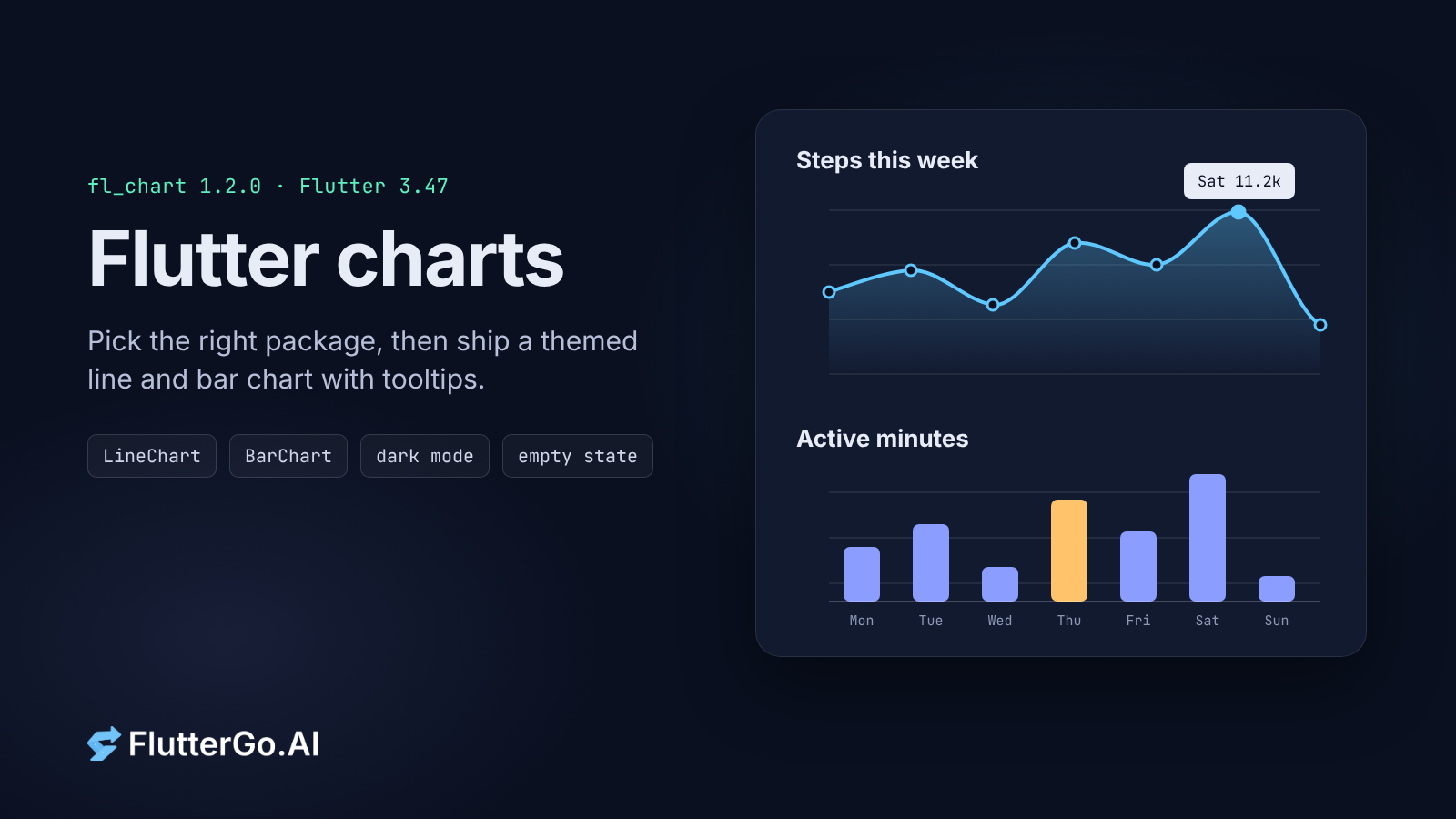
The example below draws two charts on one screen: daily steps as a curved line chart and active minutes as a bar chart. Both show a tooltip on touch (or mouse hover on the web), have named axes, fall back to an empty state when there's no data, and take every colour from the app's ColorScheme, so dark mode works without extra code.
1. Add the package
flutter pub add fl_chart
This adds fl_chart: ^1.2.0 to pubspec.yaml at the time of writing. fl_chart 1.2.0 needs Flutter 3.27.4 or newer and Dart 3.6.2 or newer.
2. Shared axis helpers
Both charts use the same weekday labels, axis setup and empty state, so put them in lib/chart_helpers.dart:
import 'dart:math' as math;

import 'package:fl_chart/fl_chart.dart';
import 'package:flutter/material.dart';

const weekdayLabels = ['Mon', 'Tue', 'Wed', 'Thu', 'Fri', 'Sat', 'Sun'];

/// Picks a tidy axis maximum that splits into four even steps,
/// e.g. 7340 -> 8000 (2k steps), 75 -> 80 (20 steps).
double niceMax(double value) {
  if (value <= 0) return 4;
  final rawStep = value / 4;
  final magnitude =
      math.pow(10, (math.log(rawStep) / math.ln10).floor()).toDouble();
  const tidy = [1.0, 2.0, 2.5, 3.0, 4.0, 5.0, 10.0];
  final step = tidy.firstWhere((t) => t * magnitude >= rawStep) * magnitude;
  return step * 4;
}

/// 7500 -> "7.5k", 120 -> "120".
String formatCompact(double value) {
  if (value >= 1000) {
    final k = value / 1000;
    return '${k.toStringAsFixed(k == k.roundToDouble() ? 0 : 1)}k';
  }
  return value.toStringAsFixed(value == value.roundToDouble() ? 0 : 1);
}

/// Shared axis setup: weekday labels at the bottom, four value labels on
/// the left, axis names on both, nothing on the top or right.
FlTitlesData weeklyTitles(
  BuildContext context, {
  required double maxY,
  required String yAxisName,
}) {
  final style = Theme.of(context).textTheme.bodySmall;
  return FlTitlesData(
    topTitles: const AxisTitles(),
    rightTitles: const AxisTitles(),
    bottomTitles: AxisTitles(
      axisNameWidget: Text('Day', style: style),
      sideTitles: SideTitles(
        showTitles: true,
        interval: 1,
        reservedSize: 28,
        getTitlesWidget: (value, meta) {
          final index = value.toInt();
          if (value != index || index < 0 || index >= weekdayLabels.length) {
            return const SizedBox.shrink();
          }
          return SideTitleWidget(
            meta: meta,
            child: Text(weekdayLabels[index], style: style),
          );
        },
      ),
    ),
    leftTitles: AxisTitles(
      axisNameWidget: Text(yAxisName, style: style),
      axisNameSize: 20,
      sideTitles: SideTitles(
        showTitles: true,
        interval: maxY / 4,
        reservedSize: 40,
        getTitlesWidget: (value, meta) => SideTitleWidget(
          meta: meta,
          child: Text(formatCompact(value), style: style),
        ),
      ),
    ),
  );
}

/// Takes the same space as a chart, so the layout doesn't jump when data
/// arrives.
class ChartEmptyState extends StatelessWidget {
  const ChartEmptyState({super.key, required this.message});

  final String message;

  @override
  Widget build(BuildContext context) {
    final colors = Theme.of(context).colorScheme;
    return AspectRatio(
      aspectRatio: 1.7,
      child: Center(
        child: Column(
          mainAxisSize: MainAxisSize.min,
          children: [
            Icon(Icons.insights_outlined, size: 40, color: colors.outline),
            const SizedBox(height: 8),
            Text(message, style: TextStyle(color: colors.onSurfaceVariant)),
          ],
        ),
      ),
    );
  }
}
Most of this file exists to head off layout problems you'd otherwise meet later.
By default FlTitlesData shows titles on all four sides, which is rarely what you want. Passing an empty AxisTitles() for the top and right hides them.
On the bottom axis, interval: 1 puts exactly one label under each day, and the value != index check skips any in-between value fl_chart asks about.
niceMax picks the top of the y-axis. Without an explicit maxY, fl_chart uses your largest value, so the top label might read "11.2k" and the grid lines land on awkward numbers. Rounding up to a value that splits into four tidy steps gives labels like 3k, 6k, 9k and 12k.
reservedSize is the space fl_chart sets aside for labels. If your values get longer (say "120k"), raise it on the left axis or the labels will clip. Finally, the empty state uses the same aspect ratio as the charts, so the screen doesn't jump when data loads.
3. The line chart
Put this in lib/weekly_line_chart.dart:
import 'dart:math' as math;

import 'package:fl_chart/fl_chart.dart';
import 'package:flutter/material.dart';

import 'chart_helpers.dart';

/// Daily totals for one week, Monday first. Fewer than seven values is
/// fine: a week in progress just ends early.
class WeeklyLineChart extends StatelessWidget {
  const WeeklyLineChart({super.key, required this.values, required this.unit});

  final List<double> values;
  final String unit;

  @override
  Widget build(BuildContext context) {
    if (values.isEmpty || values.every((v) => v == 0)) {
      return const ChartEmptyState(message: 'Nothing logged this week yet');
    }

    final colors = Theme.of(context).colorScheme;
    final maxY = niceMax(values.reduce(math.max));

    return AspectRatio(
      aspectRatio: 1.7,
      // Right padding leaves room for the "Sun" label, which is centred on
      // the chart's right edge.
      child: Padding(
        padding: const EdgeInsets.only(right: 16),
        child: LineChart(
          LineChartData(
            minX: 0,
            maxX: 6,
            minY: 0,
            maxY: maxY,
            titlesData: weeklyTitles(context, maxY: maxY, yAxisName: unit),
            gridData: FlGridData(
              drawVerticalLine: false,
              horizontalInterval: maxY / 4,
              getDrawingHorizontalLine: (_) =>
                  FlLine(color: colors.outlineVariant, strokeWidth: 1),
            ),
            borderData: FlBorderData(show: false),
            lineTouchData: LineTouchData(
              touchTooltipData: LineTouchTooltipData(
                getTooltipColor: (_) => colors.inverseSurface,
                fitInsideHorizontally: true,
                fitInsideVertically: true,
                getTooltipItems: (spots) => [
                  for (final spot in spots)
                    LineTooltipItem(
                      '${weekdayLabels[spot.x.toInt()]}\n'
                      '${spot.y.toStringAsFixed(0)} $unit',
                      TextStyle(
                        color: colors.onInverseSurface,
                        fontWeight: FontWeight.w600,
                      ),
                    ),
                ],
              ),
            ),
            lineBarsData: [
              LineChartBarData(
                spots: [
                  for (var i = 0; i < values.length; i++)
                    FlSpot(i.toDouble(), values[i]),
                ],
                isCurved: true,
                preventCurveOverShooting: true,
                color: colors.primary,
                barWidth: 3,
                belowBarData: BarAreaData(
                  show: true,
                  color: colors.primary.withValues(alpha: 0.15),
                ),
              ),
            ],
          ),
          duration: const Duration(milliseconds: 400),
          curve: Curves.easeOutCubic,
        ),
      ),
    );
  }
}
Setting minX, maxX, minY and maxY yourself keeps the axes stable. With maxX: 6, a week in progress (say three values) still shows Monday to Sunday along the bottom, and the line stops on Wednesday.
preventCurveOverShooting: true stops the curved line from dipping below zero or bulging above a peak between two points, which can otherwise make a smooth line suggest values that never happened.
The tooltip uses colors.inverseSurface for its background and colors.onInverseSurface for its text, so it's dark on a light theme and light on a dark one. In fl_chart 1.2.0 the background colour is a callback, getTooltipColor, which receives the touched spot. If you copied tooltipBgColor from an older tutorial, that's why it doesn't compile.
4. The bar chart
Put this in lib/weekly_bar_chart.dart:
import 'dart:math' as math;

import 'package:fl_chart/fl_chart.dart';
import 'package:flutter/material.dart';

import 'chart_helpers.dart';

class WeeklyBarChart extends StatelessWidget {
  const WeeklyBarChart({super.key, required this.values, required this.unit});

  final List<double> values;
  final String unit;

  @override
  Widget build(BuildContext context) {
    if (values.isEmpty || values.every((v) => v == 0)) {
      return const ChartEmptyState(message: 'Nothing logged this week yet');
    }

    final colors = Theme.of(context).colorScheme;
    final maxY = niceMax(values.reduce(math.max));

    return AspectRatio(
      aspectRatio: 1.7,
      child: BarChart(
        BarChartData(
          maxY: maxY,
          alignment: BarChartAlignment.spaceAround,
          titlesData: weeklyTitles(context, maxY: maxY, yAxisName: unit),
          gridData: FlGridData(
            drawVerticalLine: false,
            horizontalInterval: maxY / 4,
            getDrawingHorizontalLine: (_) =>
                FlLine(color: colors.outlineVariant, strokeWidth: 1),
          ),
          borderData: FlBorderData(show: false),
          barTouchData: BarTouchData(
            touchTooltipData: BarTouchTooltipData(
              getTooltipColor: (_) => colors.inverseSurface,
              fitInsideHorizontally: true,
              fitInsideVertically: true,
              getTooltipItem: (group, groupIndex, rod, rodIndex) =>
                  BarTooltipItem(
                '${weekdayLabels[group.x]}\n'
                '${rod.toY.toStringAsFixed(0)} $unit',
                TextStyle(
                  color: colors.onInverseSurface,
                  fontWeight: FontWeight.w600,
                ),
              ),
            ),
          ),
          barGroups: [
            for (var i = 0; i < values.length; i++)
              BarChartGroupData(
                x: i,
                barRods: [
                  BarChartRodData(
                    toY: values[i],
                    color: colors.tertiary,
                    width: 18,
                    borderRadius: const BorderRadius.vertical(
                      top: Radius.circular(6),
                    ),
                  ),
                ],
              ),
          ],
        ),
        duration: const Duration(milliseconds: 400),
        curve: Curves.easeOutCubic,
      ),
    );
  }
}
Each day is a BarChartGroupData with one rod. To show two series per day (this week and last week, say), add a second BarChartRodData to barRods. The bar tooltip callback gets the group, its index, the rod and the rod's index, so you can label each rod separately.
5. The screen
lib/main.dart wires both charts into a scrollable screen with buttons to load new random data (to see the animation) and to clear it (to see the empty state):
import 'dart:math' as math;

import 'package:flutter/material.dart';

import 'weekly_bar_chart.dart';
import 'weekly_line_chart.dart';

void main() => runApp(const ChartsDemoApp());

class ChartsDemoApp extends StatelessWidget {
  const ChartsDemoApp({super.key, this.themeMode = ThemeMode.system});

  final ThemeMode themeMode;

  @override
  Widget build(BuildContext context) {
    const seed = Colors.indigo;
    return MaterialApp(
      title: 'Weekly charts',
      themeMode: themeMode,
      theme: ThemeData(colorSchemeSeed: seed),
      darkTheme: ThemeData(colorSchemeSeed: seed, brightness: Brightness.dark),
      home: const WeeklyDashboard(),
    );
  }
}

class WeeklyDashboard extends StatefulWidget {
  const WeeklyDashboard({super.key});

  @override
  State<WeeklyDashboard> createState() => _WeeklyDashboardState();
}

class _WeeklyDashboardState extends State<WeeklyDashboard> {
  final _random = math.Random();
  List<double> _steps = [6200, 7340, 5100, 8900, 7600, 11200, 4300];
  List<double> _minutes = [32, 45, 20, 60, 41, 75, 15];

  void _shuffle() {
    setState(() {
      // New lists with the same length, so fl_chart animates between them.
      _steps = [for (var i = 0; i < 7; i++) 3000 + _random.nextInt(9000) * 1.0];
      _minutes = [for (var i = 0; i < 7; i++) 10 + _random.nextInt(70) * 1.0];
    });
  }

  void _clear() => setState(() => _steps = _minutes = const []);

  @override
  Widget build(BuildContext context) {
    final textTheme = Theme.of(context).textTheme;
    return Scaffold(
      appBar: AppBar(
        title: const Text('This week'),
        actions: [
          IconButton(
            tooltip: 'Clear data',
            onPressed: _clear,
            icon: const Icon(Icons.clear_all),
          ),
          IconButton(
            tooltip: 'New data',
            onPressed: _shuffle,
            icon: const Icon(Icons.refresh),
          ),
        ],
      ),
      body: ListView(
        padding: const EdgeInsets.all(16),
        children: [
          Text('Steps', style: textTheme.titleMedium),
          const SizedBox(height: 12),
          WeeklyLineChart(values: _steps, unit: 'steps'),
          const SizedBox(height: 32),
          Text('Active minutes', style: textTheme.titleMedium),
          const SizedBox(height: 12),
          WeeklyBarChart(values: _minutes, unit: 'min'),
        ],
      ),
    );
  }
}
Run it with flutter run. You should see the screen below: a curved line with seven points, seven bars, axis names on the left and bottom, and a tooltip when you tap (or hover over) a point or bar. Switch your device to dark mode and the colours follow.
6. Test it
Chart contents are painted on a canvas, so find.text can't see the tooltip. You can still test the parts you wrote: read the chart's data object back from the widget tree and call your own callbacks. This test checks the bar chart's tooltip text:
testWidgets('bar tooltip text shows day and value', (tester) async {
  usePhoneSize(tester);
  await tester.pumpWidget(const ChartsDemoApp());
  final data = tester.widget<BarChart>(find.byType(BarChart)).data;
  final group = data.barGroups[3];
  final item = data.barTouchData.touchTooltipData
      .getTooltipItem(group, 3, group.barRods.first, 0);
  expect(item!.text, 'Thu\n60 min');
});
Axis labels, on the other hand, are real widgets, so find.text('Mon') works. usePhoneSize sets a 360×800 test window, because the default 800×600 test window leaves the bar chart outside the ListView's visible area, where it is never built. Our full test file (eight tests, all passing) also covers dark mode, the empty state, data changes mid-animation and the axis helpers.
Troubleshooting Flutter charts
The chart doesn't show up, or you get "infinite size" errors
fl_chart's charts size themselves to the space their parent gives them; in 1.2.0 the chart's render object takes the maximum width and height it's offered. Inside a Column, a ListView or a SingleChildScrollView, the height on offer is unbounded, so the chart has nothing to measure against.
We reproduced this with a LineChart inside a Column inside a SingleChildScrollView. Flutter reported "RenderLineChart object was given an infinite size during layout", along with "Unsupported operation: Infinity or NaN toInt", and nothing useful was drawn.
The fix is to give the chart a height. Any of these work:
- wrap it in
AspectRatio(what the example does, so the chart scales with screen width); - wrap it in a
SizedBox(height: 240); - in a
Columnthat fills the screen, wrap it inExpanded.
Flutter's docs explain the same constraint problem for lists in Common Flutter errors ("Vertical viewport was given unbounded height"). The reasoning carries over to charts.
Axis labels overlap or get cut off
- Too many labels: set
intervalonSideTitles. On the bottom axis,interval: 1gives one label per x value. On the y-axis,maxY / 4gives four steps. - Labels clipped at the side: raise
reservedSize. A y-axis showing "12,000" needs more room than one showing "12k", which is one reason the example formats values compactly. - Long category names: shorten them ("Mon", not "Monday"), or rotate them with
SideTitleWidget(angle: ...)and raisereservedSizeto match. - First or last label hanging past the edge: fl_chart centres each label on its value, so the label for the last x value hangs half outside the chart. The example adds right padding to the line chart.
SideTitleWidgetalso has afitInsideoption (SideTitleFitInsideData.fromTitleMeta(meta)) that nudges edge labels inward. When we tried it on the y-axis, it pushed the "0" and "12k" labels away from their grid lines, so we left it off there. It's a better fit for an x-axis where you don't want to add padding. - Labels landing on odd numbers: set
minY/maxYyourself, asniceMaxdoes, rather than letting the chart use the raw data range.
Animating when the data changes
You don't need an AnimationController. LineChart, BarChart and the other chart widgets are ImplicitlyAnimatedWidgets: give them new data and they animate from the old values to the new ones. Control it with the duration and curve parameters (the default is 150 milliseconds, linear), or pass Duration.zero to turn it off.
Two things make it look right:
- Build new lists instead of changing the old ones. If you edit a list in place and call
setState, the old chart data and the new chart data point at the same list, so there's nothing to animate from. The example's_shufflemethod creates fresh lists insidesetState. - Keep the number of points the same when you can. In fl_chart 1.2.0's source, when the old and new lists have different lengths, the new points beyond the old list's length appear at their final position without animating. Same-length lists, like seven days, animate smoothly.
Large datasets
fl_chart draws every spot you give it. A week or a month of points is no problem, but if you feed a chart thousands of raw readings (sensor data, minute-by-minute prices), first think about what the reader can actually see. A phone chart a few hundred points wide can't show more points than it has pixels. We haven't benchmarked fl_chart, so treat these as starting points rather than measured results:
- Aggregate before you chart: sum or average to one point per hour or day in your data layer, not in
build. - Hide the dots:
dotData: const FlDotData(show: false)stops a circle being drawn on every spot. - Show a window: with
FlTransformationConfig(scaleAxis: FlScaleAxis.horizontal)users can zoom and pan through a long series. - Profile in profile mode: if scrolling stutters, run
flutter run --profileand check frame times in DevTools before you change libraries.
Code from an older tutorial doesn't compile
These breaking changes from the fl_chart changelog explain most of the errors:
| You see | Changed in | Use instead |
|---|---|---|
tooltipBgColor is not defined |
0.67.0 | getTooltipColor: (spot) => ... (a callback) |
SideTitleWidget(axisSide: meta.axisSide, ...) |
0.70.1 | SideTitleWidget(meta: meta, ...) |
tooltipRoundedRadius is not defined |
1.0.0 | tooltipBorderRadius: BorderRadius.circular(...) |
const BarChart(...) error |
0.70.0 | Drop const; BarChart is no longer a const constructor |
BarChartRodStackItem(from, to, color, borderSide) |
1.1.0 | Pass borderSide: as a named parameter |
Older code may also pass swapAnimationDuration and swapAnimationCurve to BarChart. In 1.2.0 those still work but are deprecated in favour of duration and curve. fl_chart 1.0.0 also raised the minimum Flutter version to 3.27.4, so very old projects need a Flutter upgrade first.
Where to go next
If your chart reads from data the user enters, you'll want it stored somewhere that survives a restart; our Flutter local database guide compares drift, Hive CE, Isar and sqflite. For a chart that updates as data changes elsewhere in the app, the Flutter state management comparison covers Riverpod, Bloc and Provider. And if your history screen sits under the chart and grows long, infinite scroll pagination keeps it fast.
If you'd rather start from a working app than an empty project, FlutterGo is an AI Flutter app builder: you describe the app, it generates the Flutter code and shows it running in a live preview, and you can export the project as Dart you own. Ask for a dashboard screen, then drop in the chart widgets from this guide and adjust them to your data.