Widget Tests for AI-Generated Flutter Code: Six Tests That Catch Real Bugs
AI wrote the screen, so test what it does, not how. Six Flutter widget tests, run on Flutter 3.47, that caught a duplicate-ID bug and a small-screen overflow.
When an AI tool writes your Flutter screens, you didn't write the implementation, so you can't trust your memory of how it works. You can still say what the screen should do. Widget tests are a good fit for that: they drive the real widgets the way a user would (type, tap, swipe) and check what ends up on screen, without caring how the code is arranged inside.
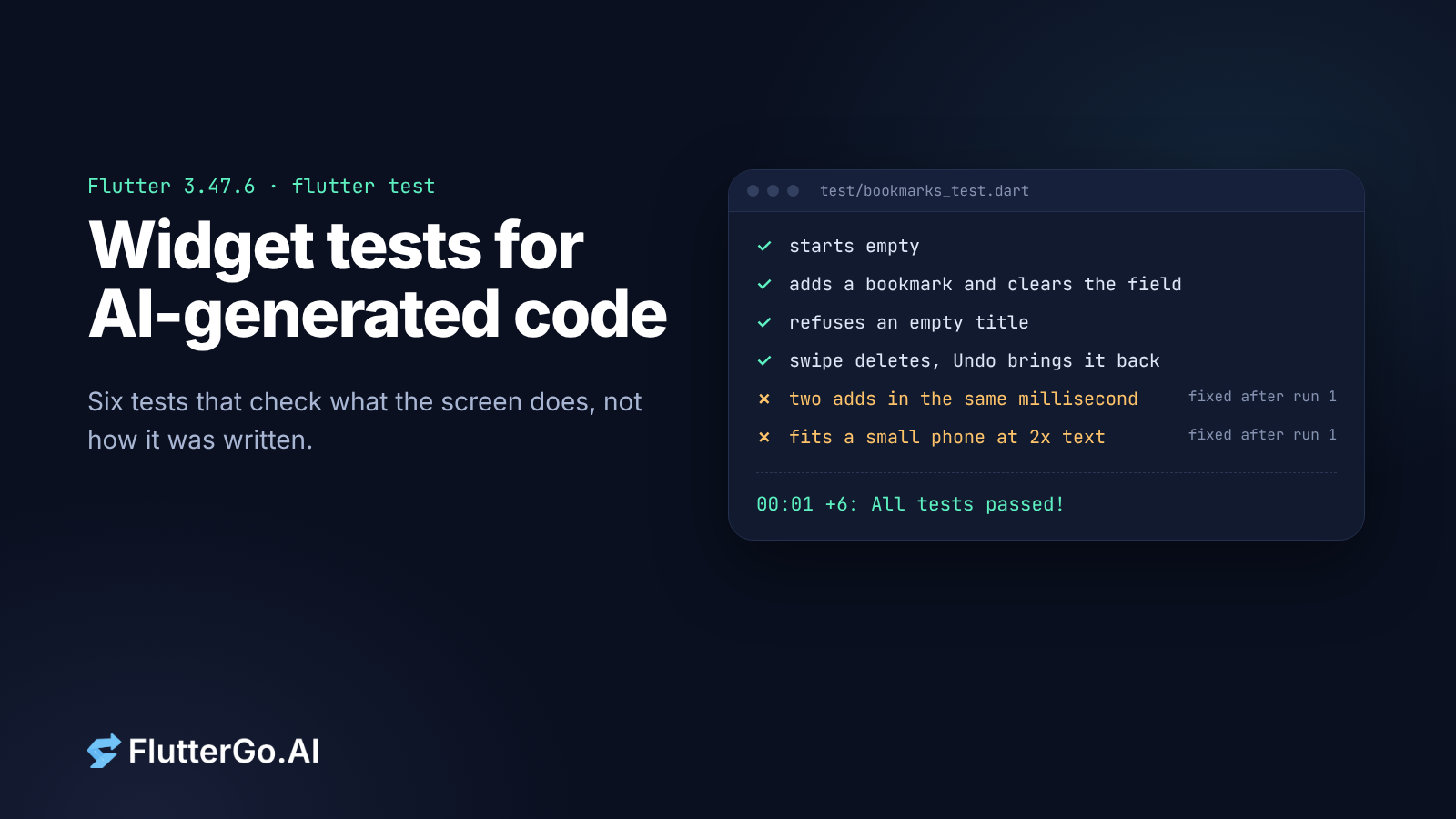
This guide walks through six widget tests we'd write first for any AI-generated screen. We ran all of them on Flutter 3.47.6 (stable, October 2026) against a small bookmarks screen written the way builders often write it. Two of the six failed on the first run, and both failures were real bugs we've seen in AI-built apps.
What you need: a Flutter project with flutter_test in dev_dependencies (new projects include it), and the clock package for one test. Tests go in the test/ folder and run with flutter test.
Why widget tests, not unit tests, for generated code
Unit tests check functions and classes. They're useful when you know which function holds the logic. With generated code, the logic might sit in a ChangeNotifier, a Riverpod provider or straight inside a State class, and the next regeneration can move it. A unit test written against today's structure can break even when the app still works.
A widget test targets the screen. Flutter's introduction to widget testing covers the basics: testWidgets() gives you a WidgetTester, pumpWidget() builds the UI, finders like find.text() locate widgets, and matchers like findsOneWidget check them. Because the test only touches the screen, it keeps passing as long as the behaviour stays the same, whatever the code underneath looks like.
The screen under test
The sample is a single bookmarks screen: a text field, an add button, a list where you swipe left to delete, and an Undo action in a snackbar. The add button carries Key('add-button') and the field carries Key('title-field'). If your generated code has no keys, finding widgets by text or type works too. Adding keys is a small, safe edit, and it makes tests easier to read.
Two details in the generated version matter later:
// ID from the clock: unique only if two adds never share a millisecond.
Bookmark(id: clock.now().millisecondsSinceEpoch.toString(), title: title)
Row(
  children: [
    Expanded(child: TextField(/* ... */)),
    const SizedBox(width: 12),
    FilledButton.icon(
      onPressed: _add,
      icon: const Icon(Icons.add),
      label: const Text('Add bookmark'),
    ),
  ],
)
The code reads clock.now() instead of DateTime.now(), so a test can control time. We'll come back to that.
A small helper keeps the tests short:
Future<void> addBookmark(WidgetTester tester, String title) async {
  await tester.enterText(find.byKey(const Key('title-field')), title);
  await tester.tap(find.byKey(const Key('add-button')));
  await tester.pump();
}
pump() rebuilds one frame after the tap. Without it, setState has run but the screen hasn't redrawn yet, so the test would look at the old UI.
1. It starts in the right state
testWidgets('starts empty', (tester) async {
  await tester.pumpWidget(const BookmarksApp());

  expect(find.text('No bookmarks yet'), findsOneWidget);
  expect(find.text('Bookmarks (0)'), findsOneWidget);
});
This looks too simple to bother with, but it catches a common failure in generated apps: a screen that throws on first build because it reads data that isn't loaded yet. If the screen loads from storage, give it a fake repository in the test (see the mocking recipe) so the test doesn't depend on a real plugin.
2. The main action works end to end
testWidgets('adds a bookmark and clears the field', (tester) async {
  await tester.pumpWidget(const BookmarksApp());

  await addBookmark(tester, 'Flutter docs');

  expect(find.widgetWithText(ListTile, 'Flutter docs'), findsOneWidget);
  expect(find.text('Bookmarks (1)'), findsOneWidget);
  final field = tester.widget<TextField>(find.byKey(const Key('title-field')));
  expect(field.controller!.text, isEmpty);
});
find.widgetWithText(ListTile, ...) matters here. A plain find.text('Flutter docs') would also match the text still sitting in the field if the code forgot to clear it, so the test could pass for the wrong reason.
3. Bad input is refused
testWidgets('refuses an empty title', (tester) async {
  await tester.pumpWidget(const BookmarksApp());

  await addBookmark(tester, '   ');

  expect(find.text('Enter a title'), findsOneWidget);
  expect(find.text('Bookmarks (0)'), findsOneWidget);
});
Generated forms often check for an empty string but not for whitespace. Three spaces is the cheapest input that tells you which one you have.
4. Delete and Undo restore the same item
testWidgets('swipe deletes one bookmark and Undo brings it back',
    (tester) async {
  await tester.pumpWidget(const BookmarksApp());
  await addBookmark(tester, 'Dart docs');

  await tester.drag(find.text('Dart docs'), const Offset(-500, 0));
  await tester.pumpAndSettle();
  expect(find.widgetWithText(ListTile, 'Dart docs'), findsNothing);

  await tester.tap(find.text('Undo'));
  await tester.pumpAndSettle();
  expect(find.widgetWithText(ListTile, 'Dart docs'), findsOneWidget);
});
drag simulates the swipe and pumpAndSettle() keeps pumping frames until the dismiss and snackbar animations finish. One warning: per the pumpAndSettle docs, it throws if the UI never settles, and the default timeout is ten minutes of simulated time. A screen with a CircularProgressIndicator spinning never settles. We checked: a bare spinner fails with pumpAndSettle timed out after about four seconds of real time. On loading screens, use pump(const Duration(milliseconds: 500)) instead.
5. Two fast actions don't collide
This is the test that found the first bug.
testWidgets('two adds in the same millisecond stay separate', (tester) async {
  await withClock(Clock.fixed(DateTime(2026, 10, 8, 9, 30)), () async {
    await tester.pumpWidget(const BookmarksApp());
    await addBookmark(tester, 'First');
    await addBookmark(tester, 'Second');

    await tester.drag(find.text('Second'), const Offset(-500, 0));
    await tester.pumpAndSettle();

    expect(find.widgetWithText(ListTile, 'First'), findsOneWidget);
    expect(find.text('Bookmarks (1)'), findsOneWidget);
  });
});
withClock and Clock.fixed come from the clock package. Freezing time makes both adds happen in the same millisecond every run, so a race that would show up only occasionally on a real device shows up every time in the test. The first run failed:
Expected: exactly one matching candidate
  Actual: _AncestorWidgetFinder:<Found 0 widgets with type "ListTile" that are ancestors of widgets
with text "First": []>
   Which: means none were found but one was expected
Both bookmarks got the same ID, and delete removes by ID, so swiping one away deleted both. This isn't a made-up example. The same pattern merged two players in our score keeper build, where the cause was "an ID built only from the clock". The fix keeps the timestamp and adds a counter:
Bookmark(id: '${clock.now().millisecondsSinceEpoch}-${_nextId++}', title: title)
If your generated code calls DateTime.now() directly, change it to clock.now() first. The code behaves the same in the app, and the test gains control of time.
6. It fits a small phone at large text sizes
testWidgets('fits a small phone at 2x text size', (tester) async {
  tester.view.physicalSize = const Size(320 * 3, 568 * 3);
  tester.view.devicePixelRatio = 3;
  tester.platformDispatcher.textScaleFactorTestValue = 2;
  addTearDown(tester.view.reset);
  addTearDown(tester.platformDispatcher.clearTextScaleFactorTestValue);

  await tester.pumpWidget(const BookmarksApp());

  expect(tester.takeException(), isNull);
});
The default test surface is 800×600 logical pixels, roomier than most phones. This test shrinks it to a 320-point-wide phone and doubles the text size. It failed too:
Expected: null
  Actual: FlutterError:<A RenderFlex overflowed by 103 pixels on the right.>
The "Add bookmark" label plus a text field doesn't fit in one row at that width. The fix was an icon button with a tooltip (IconButton.filled(tooltip: 'Add bookmark', ...)), which keeps the label for screen readers. The explicit takeException() is mostly for readability. We confirmed that a test with an overflow and no expect at all still fails, because the test framework reports layout errors it catches.
The addTearDown calls matter. Without them, the small screen and large text carry over into the next test in the file.
The result
After the two fixes, all six tests passed and flutter analyze reported no issues:
00:01 +6: All tests passed!
That's a few minutes of work for two bugs a user would have hit: one in the first week, one on the first small phone.
What these tests don't cover
Widget tests run in a simulated environment, not on a device. They won't show you real plugin behaviour (storage, camera, notifications), platform-specific rendering, or performance. For those, Flutter's integration tests run the whole app on a device or emulator. Golden tests (matchesGoldenFile) can catch visual changes, but they're sensitive to fonts and platform, so add them only after the screen design settles.
A short routine for every generated screen
- Add keys to the main input and action if the code has none.
- Swap
DateTime.now()forclock.now()wherever IDs or dates come from. - Write the six tests above, adapted to the screen: initial state, main action, bad input, delete and undo, fast repeats, small screen with large text.
- When the AI regenerates or edits the screen, run
flutter testbefore you trust the change.
If you build with an AI Flutter app builder such as FlutterGo, export the project and run these tests on it, or paste a failing test's output into your next prompt as a description of the symptom. For the wider picture of what generated apps tend to get wrong, see where AI app builders still fail.