Flutter Push Notifications with Firebase Cloud Messaging: Setup, Foreground Display and Taps
Set up Firebase Cloud Messaging in Flutter: permissions, APNs, Android channels, foreground notifications, taps and HTTP v1 sends, with analyzer-checked code.
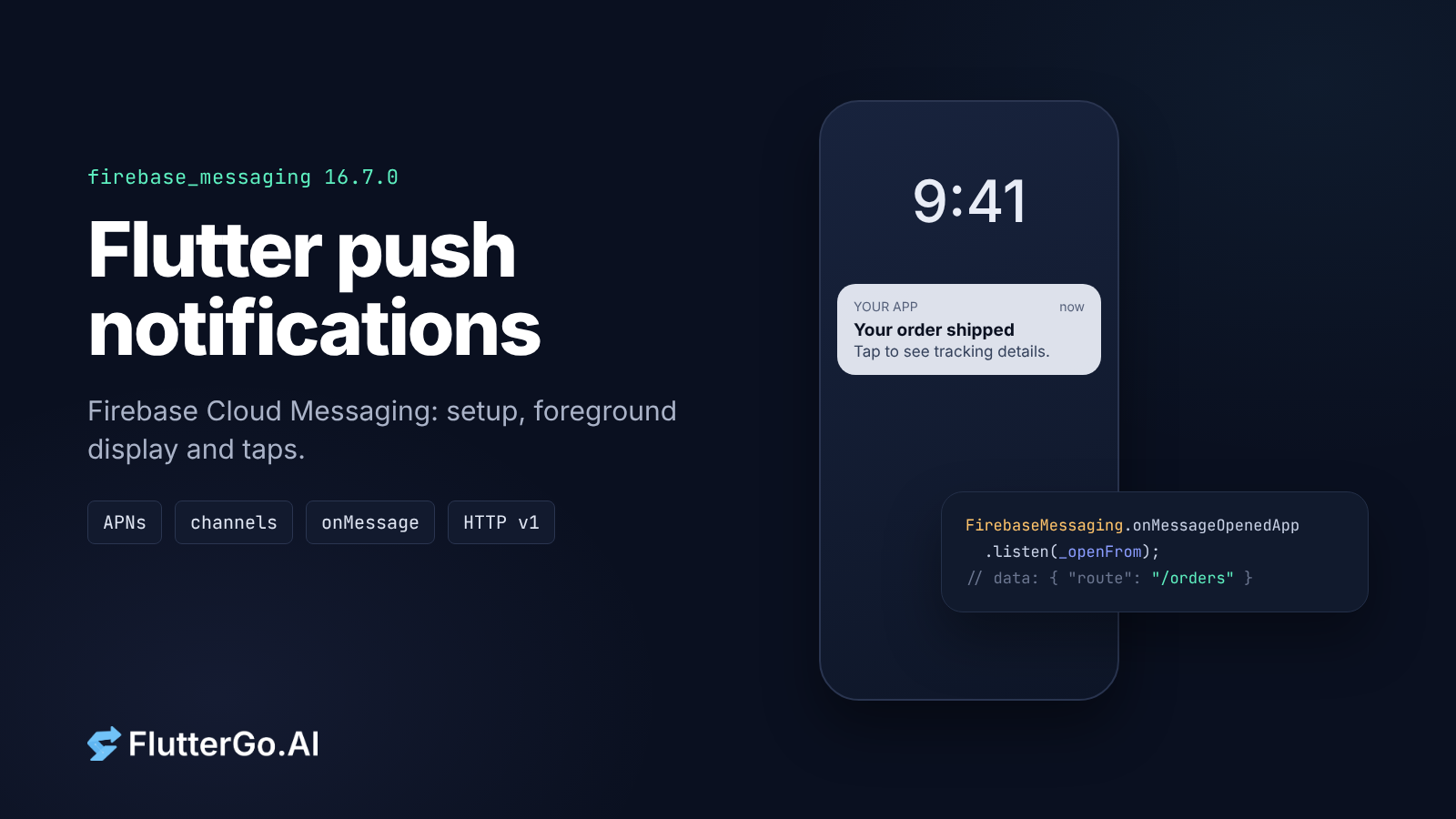
To get push notifications working in a Flutter app with Firebase Cloud Messaging (FCM), you need four things in place: a Firebase project wired in with flutterfire configure, platform setup (an APNs key and two Xcode capabilities on iOS, a notification channel on Android), Dart code that asks for permission, reads the device token and listens for messages, and a server that sends through the FCM HTTP v1 API.
Most guides stop once a notification shows up while the app is closed. The two places apps actually break come after that. A message that arrives while the app is open doesn't show at all on Android unless you display it yourself. And a tap reaches your code through a different API depending on whether the app was in the background or fully closed. This guide covers both, with code we ran through flutter analyze against the current package versions.
Versions and prerequisites
| Version used here | |
|---|---|
| Flutter | 3.47.7 stable (Dart 3.13.5) |
firebase_core |
4.15.0 |
firebase_messaging |
16.7.0 |
flutter_local_notifications |
22.3.1 (needs Flutter 3.38.1 or newer) |
| Android | API 24+ (Firebase's minimum; also the Flutter 3.47 template default) |
| iOS | 15+ (Firebase's minimum for Flutter), a paid Apple Developer account for the APNs key |
You'll need the FlutterFire CLI and a Firebase project. The code targets Android and iOS. Web push needs a service worker and a VAPID key, which this guide doesn't cover.
The token API is changing. As of 10 October 2026, Firebase's Flutter docs (last updated 7 October) mark getToken() as deprecated in favour of Firebase Installation IDs, delivered through register() and an onRegistered stream. The newest released plugin, firebase_messaging 16.7.0, doesn't include register() or onRegistered yet, so the code below uses getToken() and onTokenRefresh, which work today. Check the changelog before you copy this into a new project.
Where a push lands in your Flutter code
FCM sends two kinds of message. A notification message has a title and body that the operating system can show for you. A data message carries only your own key-value pairs (up to 4 KB) and is shown only if your code shows it. You can send both in one message, and that's what most apps do: a notification for the user, plus data such as route: /orders for the app.
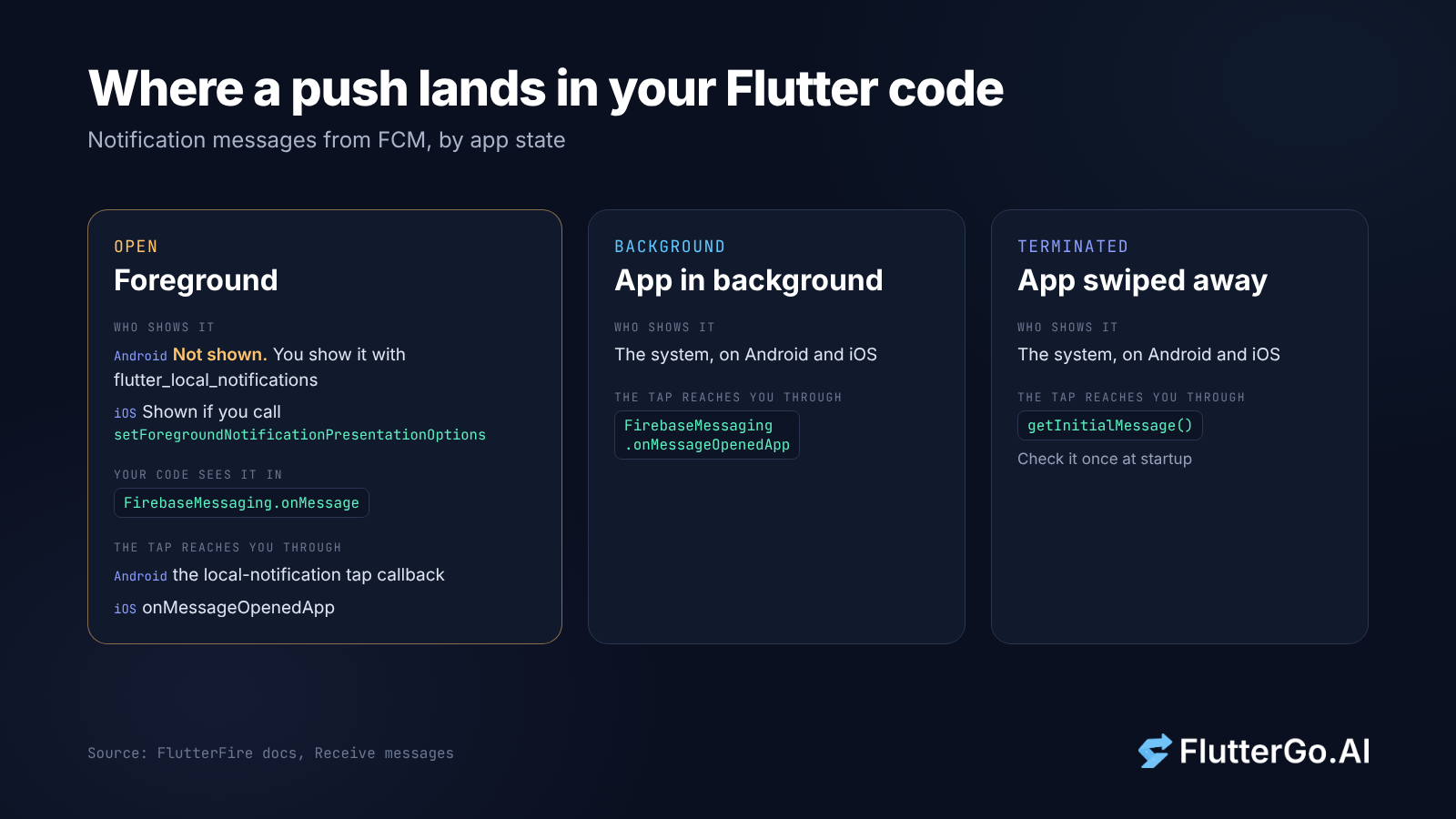
Who shows the notification, and which API sees it, depends on the app's state:
| App state | Notification message, Android | Notification message, iOS | The tap reaches you through |
|---|---|---|---|
| Open (foreground) | Not shown. onMessage fires; you show it with flutter_local_notifications |
Shown if you call setForegroundNotificationPresentationOptions; onMessage fires |
The local-notification tap callback (Android); onMessageOpenedApp (iOS) |
| Background | Shown by the system | Shown by the system | FirebaseMessaging.onMessageOpenedApp |
| Terminated | Shown by the system | Shown by the system | FirebaseMessaging.instance.getInitialMessage() |
Data that arrives while the app is in the background or terminated goes to the handler you register with FirebaseMessaging.onBackgroundMessage. On Android that handler runs in its own isolate, so it can't touch your UI, and Firebase notes that the device may kill the process if it runs for longer than 30 seconds. (FlutterFire: receive messages)
Step 1: Add Firebase and the packages
From your project root:
flutterfire configure
flutter pub add firebase_core firebase_messaging flutter_local_notifications
flutterfire configure writes lib/firebase_options.dart. Firebase describes the values in it as "unique, but non-secret identifiers", so it's fine to commit. (Firebase: add Firebase to your Flutter app)
Step 2: Android setup
Notification permission. On Android 13 (API 33) and up, notifications need the POST_NOTIFICATIONS runtime permission. You don't have to add it to the manifest yourself: Firebase says the FCM SDK (23.0.6 or higher) already includes it. You still have to ask for it at runtime, which requestPermission() does in step 4. (Firebase: Android client, Android: notification permission)
Default channel. Since Android 8, every notification belongs to a channel. FCM provides a default channel "with basic settings", but you'll want your own so you control importance and the name users see in system settings. Add this inside <application> in android/app/src/main/AndroidManifest.xml:
<meta-data
    android:name="com.google.firebase.messaging.default_notification_channel_id"
    android:value="alerts" />
FCM uses this ID whenever a message doesn't name a channel. The app has to create the channel itself (our code does it on startup). Google's v1 API reference says that if a message names a channel the app hasn't created yet, FCM falls back to the channel in the manifest.
Desugaring for flutter_local_notifications. The plugin's README says version 10 and later need core library desugaring, even if you never schedule a notification, and that compileSdk must be at least 35 (Flutter 3.47's template uses 36). In android/app/build.gradle.kts:
android {
    compileOptions {
        isCoreLibraryDesugaringEnabled = true
        sourceCompatibility = JavaVersion.VERSION_17
        targetCompatibility = JavaVersion.VERSION_17
    }
}

dependencies {
    coreLibraryDesugaring("com.android.tools:desugar_jdk_libs:2.1.4")
}
Keep the compileOptions lines your project already has and add the desugaring flag. The README also recommends Android Gradle Plugin 8.11.1 or newer.
Step 3: iOS setup
iOS push goes through Apple Push Notification service (APNs), so Firebase needs a key from Apple before anything is delivered:
- In your Apple Developer account, create an APNs authentication key (a
.p8file). - In the Firebase console, open Project settings → Cloud Messaging and upload the key with its Key ID and your Team ID.
- In Xcode, open
ios/Runner.xcworkspace, select the Runner target, and under Signing & Capabilities add Push Notifications and Background Modes, then tick Background fetch and Remote notifications.
Don't turn off method swizzling: Firebase says the FlutterFire plugin requires it on Apple platforms. (FlutterFire: get started)
You can test on the iOS Simulator. Apple's Xcode 14 release notes say the Simulator supports remote notifications on iOS 16 and later, running on macOS 13 or later on Macs with Apple silicon or a T2 chip. Pushes to the Simulator go through the APNs sandbox. (Xcode 14 release notes)
Step 4: The Dart code
The code is split into two files. main.dart sets up Firebase and the background handler before runApp. push_service.dart does everything else: permission, token, foreground display and taps.
lib/main.dart
import 'package:firebase_core/firebase_core.dart';
import 'package:firebase_messaging/firebase_messaging.dart';
import 'package:flutter/material.dart';

import 'firebase_options.dart';
import 'push/push_service.dart';

/// Runs in its own isolate when a message arrives and the app is in the
/// background or terminated. Keep it short: no UI, no navigation.
@pragma('vm:entry-point')
Future<void> firebaseMessagingBackgroundHandler(RemoteMessage message) async {
  await Firebase.initializeApp(options: DefaultFirebaseOptions.currentPlatform);
  debugPrint('Background message ${message.messageId}: ${message.data}');
}

final GlobalKey<NavigatorState> navigatorKey = GlobalKey<NavigatorState>();

Future<void> main() async {
  WidgetsFlutterBinding.ensureInitialized();
  await Firebase.initializeApp(options: DefaultFirebaseOptions.currentPlatform);
  FirebaseMessaging.onBackgroundMessage(firebaseMessagingBackgroundHandler);
  runApp(const PushDemoApp());
}

class PushDemoApp extends StatefulWidget {
  const PushDemoApp({super.key});

  @override
  State<PushDemoApp> createState() => _PushDemoAppState();
}

class _PushDemoAppState extends State<PushDemoApp> {
  late final PushService _push = PushService(
    onOpen: (route) => navigatorKey.currentState?.pushNamed(route),
    onToken: (token) async {
      // Send the token to your backend with a timestamp. Printing it is
      // only for testing from the Firebase console.
      debugPrint('FCM token: $token');
    },
  );

  @override
  void initState() {
    super.initState();
    _push.start();
  }

  @override
  Widget build(BuildContext context) {
    return MaterialApp(
      navigatorKey: navigatorKey,
      routes: {
        '/': (_) => const Scaffold(body: Center(child: Text('Home'))),
        '/orders': (_) => const Scaffold(body: Center(child: Text('Orders'))),
      },
    );
  }
}
The background handler has to be a top-level function, not a method or a closure, and it needs @pragma('vm:entry-point') so it survives tree shaking in release builds (FlutterFire's docs require the annotation from Flutter 3.3.0 onwards). It calls Firebase.initializeApp again because it runs in a separate isolate.
lib/push/push_service.dart
import 'dart:async';

import 'package:firebase_messaging/firebase_messaging.dart';
import 'package:flutter/foundation.dart';
import 'package:flutter_local_notifications/flutter_local_notifications.dart';

class PushService {
  PushService({required this.onOpen, required this.onToken});

  /// Called with a route like '/orders' when the user taps a notification.
  final void Function(String route) onOpen;

  /// Called with the current FCM token, and again whenever it changes.
  final Future<void> Function(String token) onToken;

  final FirebaseMessaging _messaging = FirebaseMessaging.instance;
  final FlutterLocalNotificationsPlugin _local =
      FlutterLocalNotificationsPlugin();

  /// Must match default_notification_channel_id in AndroidManifest.xml
  /// and android.notification.channel_id in the messages you send.
  static const AndroidNotificationChannel channel = AndroidNotificationChannel(
    'alerts',
    'Alerts',
    description: 'Order and account updates',
    importance: Importance.high,
  );

  bool get _isAndroid =>
      !kIsWeb && defaultTargetPlatform == TargetPlatform.android;
  bool get _isIOS => !kIsWeb && defaultTargetPlatform == TargetPlatform.iOS;

  Future<void> start() async {
    // 1. Local notifications: used only to show messages that arrive while
    //    the app is open on Android. Permission is requested by FCM below.
    await _local.initialize(
      settings: const InitializationSettings(
        android: AndroidInitializationSettings('@mipmap/ic_launcher'),
        iOS: DarwinInitializationSettings(
          requestAlertPermission: false,
          requestBadgePermission: false,
          requestSoundPermission: false,
        ),
      ),
      onDidReceiveNotificationResponse: (response) {
        final route = response.payload;
        if (route != null && route.isNotEmpty) onOpen(route);
      },
    );
    await _local
        .resolvePlatformSpecificImplementation<
            AndroidFlutterLocalNotificationsPlugin>()
        ?.createNotificationChannel(channel);

    // 2. Ask for permission (iOS, and Android 13+).
    final settings = await _messaging.requestPermission();
    final status = settings.authorizationStatus;
    if (status == AuthorizationStatus.denied ||
        status == AuthorizationStatus.deniedPermanently) {
      return; // Respect the answer. Offer a settings link in your UI instead.
    }

    // 3. iOS: let the system show notifications while the app is open.
    await _messaging.setForegroundNotificationPresentationOptions(
      alert: true,
      badge: true,
      sound: true,
    );

    // 4. Token. On iOS the APNs token has to exist first.
    if (_isIOS && !await _waitForApnsToken()) {
      debugPrint('No APNs token yet. Check the APNs key and capabilities.');
    } else {
      final token = await _messaging.getToken();
      if (token != null) await onToken(token);
    }
    _messaging.onTokenRefresh.listen(onToken);

    // 5. Messages that arrive while the app is open.
    FirebaseMessaging.onMessage.listen(_showWhileOpen);

    // 6. Taps: app was terminated, or app was in the background.
    final initial = await _messaging.getInitialMessage();
    if (initial != null) _openFrom(initial);
    FirebaseMessaging.onMessageOpenedApp.listen(_openFrom);
  }

  Future<bool> _waitForApnsToken() async {
    for (var attempt = 0; attempt < 5; attempt++) {
      if (await _messaging.getAPNSToken() != null) return true;
      await Future<void>.delayed(const Duration(seconds: 1));
    }
    return false;
  }

  void _showWhileOpen(RemoteMessage message) {
    final notification = message.notification;
    // Data-only messages have no notification block: handle them in app code.
    // On iOS the system already shows it (step 3), so don't show it twice.
    if (notification == null || !_isAndroid) return;

    final route = message.data['route'];
    unawaited(_local.show(
      id: (message.messageId ?? '${DateTime.now()}').hashCode & 0x7fffffff,
      title: notification.title,
      body: notification.body,
      notificationDetails: NotificationDetails(
        android: AndroidNotificationDetails(
          channel.id,
          channel.name,
          channelDescription: channel.description,
          importance: Importance.high,
          priority: Priority.high,
        ),
      ),
      payload: route is String ? route : null,
    ));
  }

  void _openFrom(RemoteMessage message) {
    final route = message.data['route'];
    if (route is String && route.isNotEmpty) onOpen(route);
  }
}
Five choices in this file are deliberate:
- One permission prompt, not two.
flutter_local_notificationscan ask for iOS permission on its own. Therequest...Permission: falseflags stop that, so the user only sees the prompt fromrequestPermission(). - No duplicate banners on iOS. With
setForegroundNotificationPresentationOptions(alert: true), iOS shows the banner itself while the app is open. If_showWhileOpenalso showed it, iOS users would get two. That's why the local notification is Android only. - The APNs token comes first. Firebase's docs say that from iOS SDK 10.4.0, the APNs token has to be available before you make FCM API requests, and that it isn't guaranteed to have arrived yet. Calling
getToken()too early is a common reason iOS returns no token. The five-second wait is our own choice; tune it for your app. - Taps carry a route, not a screen. The message's
data.routedecides where to go, so the same handler works for all three tap paths. If you already use go_router or deep links, pass the route to the same place your links go (see our deep linking guide). - Permission timing. This sample asks on first launch to keep it short. In a real app, ask when the user does something that makes notifications useful, such as turning on order updates. Our Flutter permissions guide covers when and how to ask.
AuthorizationStatus.deniedPermanently is in firebase_messaging 16.7.0's platform interface. On Android 13+ it means the system won't show the prompt again, so the only way back is your app's page in system settings.
Step 5: Send a test message
The quickest test needs no server. Run the app, copy the token from the debug console, and put the app in the background. In the Firebase console, open Messaging, start a new Notifications campaign, enter a title and text, choose Send test message, paste the token under Add an FCM registration token and select Test. (FlutterFire: send a test message)
From your own server, use the HTTP v1 API. The legacy API and server keys are gone: Firebase deprecated them on 20 June 2023 and began shutting them down on 22 July 2024. HTTP v1 requests use a short-lived OAuth 2.0 access token instead of a server key. The Firebase Admin SDK handles that for you; anywhere else, you mint the token from a service account JSON file with the https://www.googleapis.com/auth/firebase.messaging scope. (Firebase: migrate to HTTP v1, Firebase: send with HTTP v1)
curl -X POST \
  -H "Authorization: Bearer $ACCESS_TOKEN" \
  -H "Content-Type: application/json" \
  https://fcm.googleapis.com/v1/projects/YOUR_PROJECT_ID/messages:send \
  -d '{
    "message": {
      "token": "DEVICE_TOKEN",
      "notification": {
        "title": "Your order shipped",
        "body": "Tap to see tracking details."
      },
      "data": { "route": "/orders" },
      "android": { "notification": { "channel_id": "alerts" } }
    }
  }'
Two details in the request trip people up. Every value in data must be a string, so send "count": "3", not 3. And channel_id has to match a channel the app has already created; otherwise FCM uses the manifest default.
Then test all three states on a real phone: app open, app in the background, and app swiped away. Tap the notification each time and check that you land on Orders.
Troubleshooting
| Symptom | Likely cause | What to check |
|---|---|---|
| Nothing shows on Android while the app is open | Expected: Android doesn't display FCM notifications in the foreground | onMessage → flutter_local_notifications with a high-importance channel |
| Banner shows twice on iOS while the app is open | Both the system (presentation options) and your local notification showed it | Show the local notification on Android only |
iOS getToken() returns null or throws |
APNs token not ready, APNs key missing, or capabilities missing | getAPNSToken() first; the .p8 key in Firebase; Push Notifications + Remote notifications in Xcode |
| Background handler never runs in release builds | Handler is a closure or class method, or lacks the annotation | Top-level function with @pragma('vm:entry-point') |
| Tap from a closed app opens the home screen | Only onMessageOpenedApp is handled |
Also handle getInitialMessage() at startup |
| Android notification arrives silently, no heads-up | Low-importance channel | Create the channel with Importance.high before the first message. Android won't let an app change a channel's importance after it exists, so reinstall while testing. |
| Server gets 401 or 403 | Legacy server key, or an expired access token | HTTP v1 with a fresh OAuth token from a service account |
| No pushes on Android 13+ | Permission denied, or never requested | settings.authorizationStatus; the app's notification settings |
Token housekeeping. Firebase recommends saving each token on your server with a timestamp. FCM treats a registration as stale if its app instance hasn't connected for a month, and on Android it expires registrations after 270 days of inactivity. Drop tokens that FCM reports as unregistered so your send counts stay honest. (Firebase: manage tokens)
What we tested, and what we didn't
We ran the two Dart files above through flutter analyze on Flutter 3.47.7 with firebase_core 4.15.0, firebase_messaging 16.7.0 and flutter_local_notifications 22.3.1. It reported no issues, which confirms every call matches the current APIs. We didn't run the app on a phone or send a real message for this article, so the behaviour described in the table and the troubleshooting section comes from Firebase's, Apple's and Android's documentation, not from our own device tests.
Next step
If you're starting a new app, our AI Flutter app builder generates a Flutter project you can connect to Firebase, open and edit. Push is the part you add yourself: run flutterfire configure on the exported project and follow the steps above.