Flutter Responsive Layouts for Phones and Tablets: A Practical Guide
Build a Flutter responsive layout for phones and tablets: Material 3 breakpoints, NavigationRail, two-pane list-detail and widget tests at real widths.
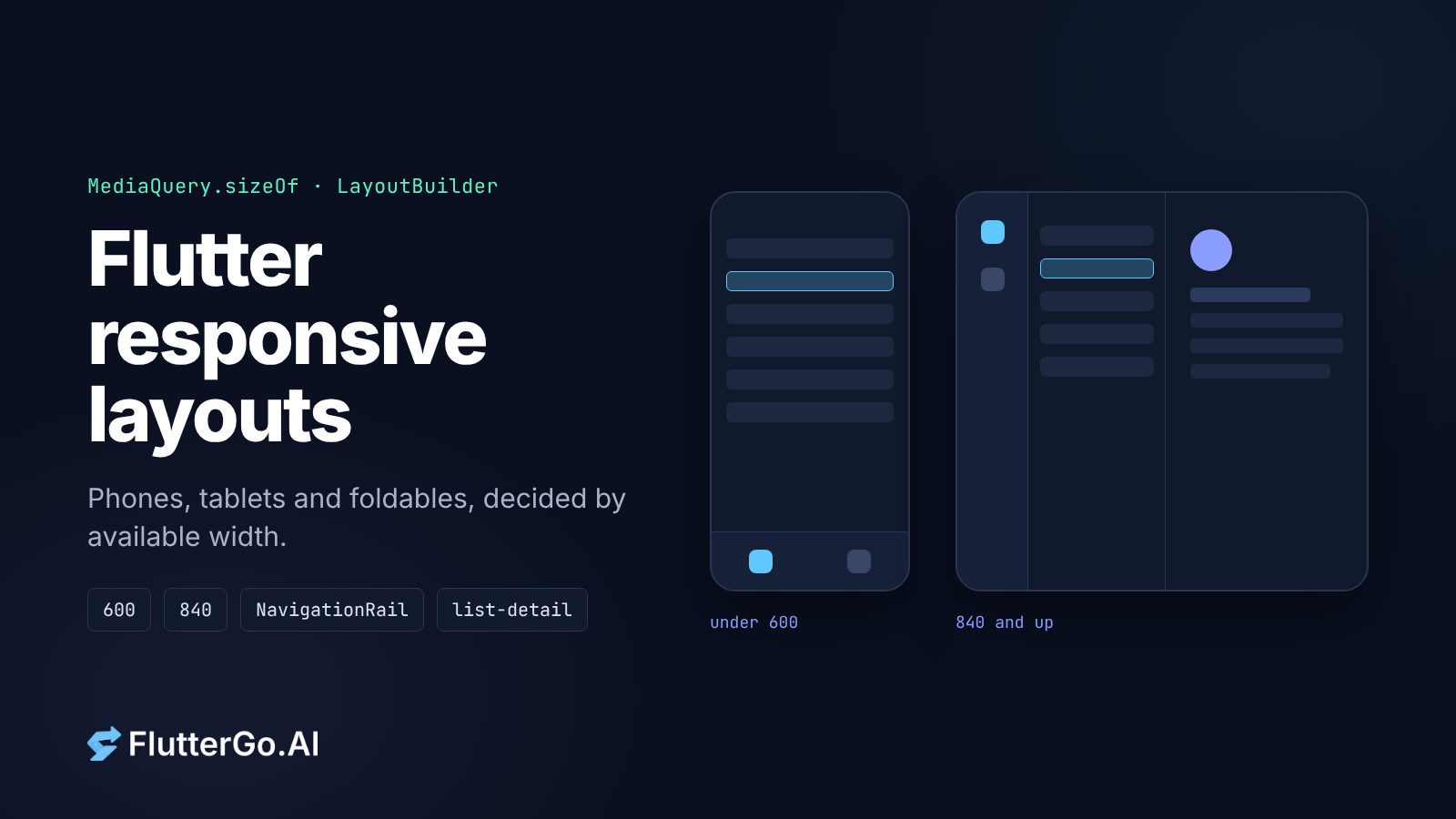
A Flutter responsive layout should change based on the width your app actually has, not on whether the device is a phone or a tablet. Read the window width with MediaQuery.sizeOf(context), map it to a small set of breakpoints (Material 3 uses 600 and 840 as the first two), and use LayoutBuilder when a single widget needs to react to the space its parent gives it. The rest of this guide builds on that.
We built a small sample app for this post: an inbox that is a single list on a phone and a list next to a detail pane on a tablet, plus a photo grid and a bottom bar that turns into a navigation rail. It uses only the Flutter SDK, no packages. We ran flutter analyze and five widget tests against it on Flutter 3.47.7 stable. One of those tests failed on our first version, and the bug it caught is one of the easiest ways to break a layout like this. More on that below.
Key takeaways
- Decide layouts from available width. Device type and orientation are poor proxies, especially with multi-window and foldables.
- Use
MediaQuery.sizeOffor app-level decisions andLayoutBuilderfor widget-level ones.- Keep the widget tree shape stable across breakpoints, or Flutter throws away the
Stateunderneath.- Apps targeting Android 16 (API 36) can no longer rely on orientation locks on large screens (smallest width 600dp or more).
- Test at real widths with
tester.view.physicalSizein widget tests.
Responsive vs adaptive: what's the difference?
Flutter's docs put it in one line: "responsive design is about fitting the UI into the space and adaptive design is about the UI being usable in the space" (Flutter docs: Adaptive and responsive design).
A grid that adds columns as the window widens is responsive. Swapping a bottom navigation bar for a navigation rail, or showing a detail pane next to a list, is adaptive, because the layout itself changes to suit the space. The same page notes that people often say "adaptive" to mean both. You will need both on tablets, so this guide covers both.
Why branch on available width, not device type or orientation
The tempting check is "is this a tablet?" Flutter's best-practices page tells you to avoid it: device type and window size "aren't really strongly connected" (Best practices for adaptive apps). A tablet in split screen can give your app a phone-sized window, and a foldable is narrow when closed but close to tablet width when open. On desktop, the window is whatever size the user drags it to.
Orientation is no better. The same page advises against switching layouts with MediaQuery's orientation field or OrientationBuilder near the top of the tree, because orientation "doesn't necessarily inform you of how much space your app window has." OrientationBuilder also reports the orientation of its parent widget, "distinct from the device orientation" (OrientationBuilder API). A landscape phone and a landscape tablet are both "landscape" and need very different layouts.
Width measures the horizontal room your app has right now, and that is the input a layout decision needs.
Which breakpoints should a Flutter app use?
Use the Material 3 window size classes unless your design team has its own. Android's developer docs list them like this (Use window size classes, Android Developers):
| Width class | Width (dp, equal to Flutter logical pixels) | Typical case |
|---|---|---|
| Compact | under 600 | Phones in portrait |
| Medium | 600 to 839 | Tablets in portrait, many unfolded foldables in portrait |
| Expanded | 840 to 1199 | Tablets in landscape |
| Large | 1200 to 1599 | Large tablet displays |
| Extra-large | 1600 and up | Desktop displays |
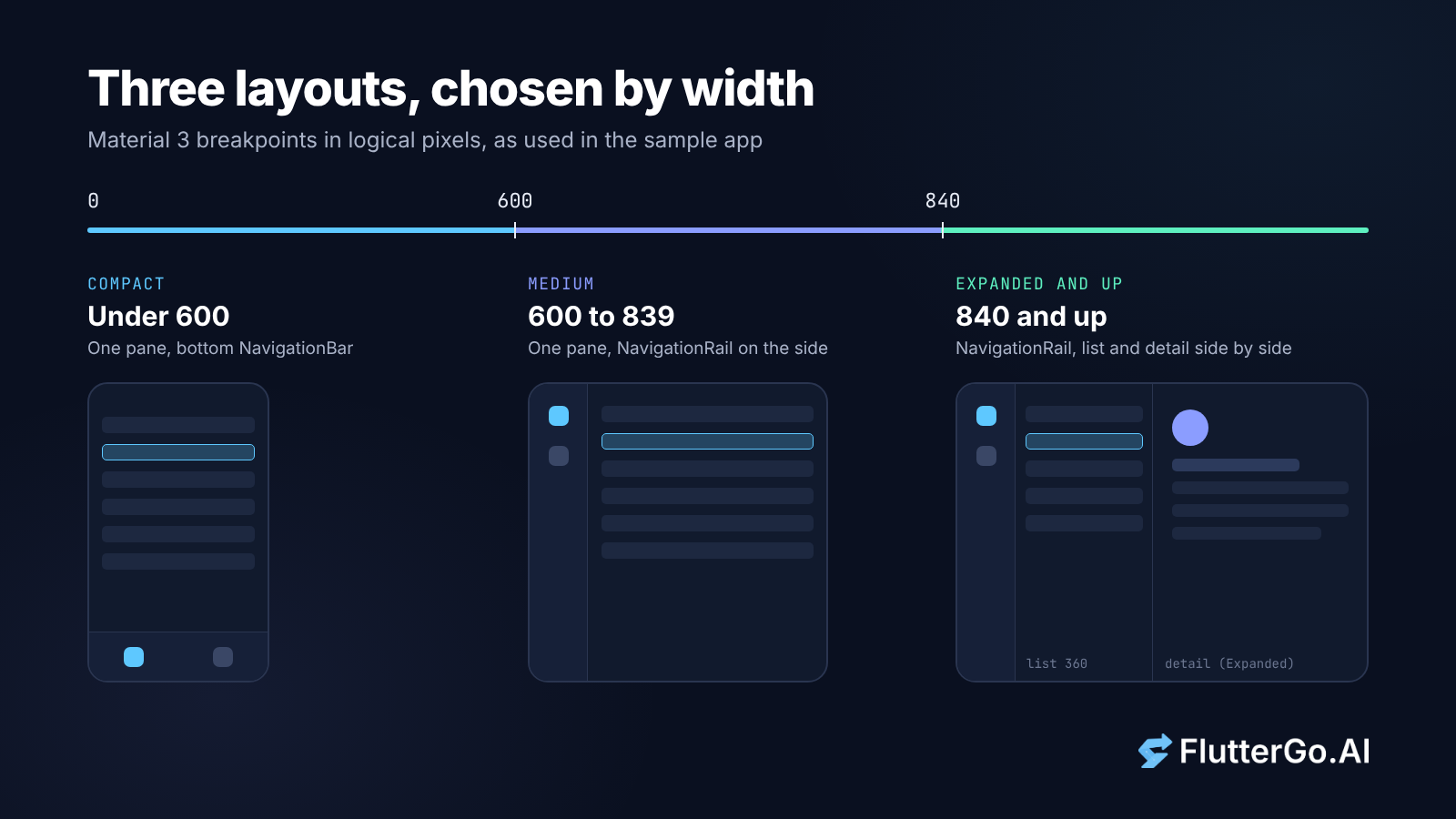
Flutter's "General approach" page uses the same first cut: a bottom navigation bar under 600 logical pixels and a navigation rail at 600 or wider (General approach). In the sample app we use three rules:
- Under 600: one pane, bottom
NavigationBar. - 600 to 839: one pane,
NavigationRailon the side. - 840 and up:
NavigationRailplus list and detail side by side.
Put the breakpoints in one place so the whole app agrees on them:
/// Width breakpoints from the Material 3 window size classes, in logical pixels.
enum WindowSize {
  compact, // < 600
  medium, // 600 to 839
  expanded, // 840 to 1199
  large, // 1200 to 1599
  extraLarge; // 1600 and up

  static WindowSize fromWidth(double width) {
    if (width < 600) return WindowSize.compact;
    if (width < 840) return WindowSize.medium;
    if (width < 1200) return WindowSize.expanded;
    if (width < 1600) return WindowSize.large;
    return WindowSize.extraLarge;
  }

  bool get isCompact => this == WindowSize.compact;
  bool get showsTwoPanes => index >= WindowSize.expanded.index;
}
MediaQuery.sizeOf or LayoutBuilder?
Use both. They answer different questions.
MediaQuery.sizeOf for app-level decisions
MediaQuery.sizeOf(context) gives you the size of the app window. Prefer it over MediaQuery.of(context).size. The API docs explain why: using sizeOf "will only rebuild the context when this specific attribute changes, not when any attribute changes" (MediaQuery.sizeOf API). MediaQuery.of registers a dependency on the whole MediaQueryData, so a change to padding, text scaling or the keyboard inset also rebuilds anything that only wanted the width. The General approach page gives the short version: "for performance reasons."
Window width is the right input for things like "bar or rail?" and "one pane or two?", because those choices are about the whole screen.
LayoutBuilder for local decisions
LayoutBuilder gives you the constraints from the parent, not the window. The framework calls its builder at layout time with the parent's BoxConstraints, and calls it again when those constraints change (LayoutBuilder API).
That makes it the right tool inside a pane. In the sample, the detail view lays out the sender header in a row when its pane is at least 480 wide and in a column when it is narrower. On a 1000-wide tablet, the detail pane is much narrower than the window, so a window check would get this wrong.
class MessageDetail extends StatelessWidget {
  const MessageDetail({super.key, required this.message});

  final Message message;

  @override
  Widget build(BuildContext context) {
    // A local decision: depends on the space this pane gets, not the window.
    return LayoutBuilder(
      builder: (context, constraints) {
        final header = [
          CircleAvatar(child: Text(message.sender[0])),
          const SizedBox(width: 12, height: 12),
          Text(message.sender, style: Theme.of(context).textTheme.titleMedium),
        ];
        return SingleChildScrollView(
          key: const ValueKey('message-detail'),
          padding: const EdgeInsets.all(24),
          child: Center(
            child: ConstrainedBox(
              constraints: const BoxConstraints(maxWidth: 720),
              child: Column(
                crossAxisAlignment: CrossAxisAlignment.start,
                children: [
                  constraints.maxWidth >= 480
                      ? Row(children: header)
                      : Column(
                          crossAxisAlignment: CrossAxisAlignment.start,
                          children: header,
                        ),
                  const SizedBox(height: 16),
                  Text(message.subject,
                      style: Theme.of(context).textTheme.headlineSmall),
                  const SizedBox(height: 12),
                  Text(message.body),
                ],
              ),
            ),
          ),
        );
      },
    );
  }
}
Message is a plain data class with id, sender, subject and body. The ConstrainedBox in the middle comes up again in the section on capping width.
Worked example: a list that becomes list-detail on tablets
The shell: NavigationBar on phones, NavigationRail on tablets
Flutter's General approach page suggests abstracting the data the two navigation widgets share, such as a list of destinations with an icon and a label. The NavigationRail API describes the rail as "meant for layouts with wide viewports" and usually the first or last child of a Row (NavigationRail API).
Our first version of the shell returned two different Scaffold trees, one with a bottom bar and one with a Row containing a rail. It looked fine on both sizes. Then the widget test that selects a message at 1000 wide, shrinks the window to 390 and widens it again failed: the selection was gone.
What our test caught: In version one, the compact branch put the page directly inside
SafeArea, while the wide branch put aRowthere. When the width crossed 600, the widget at that position changed type, so Flutter discarded the page'sState, selection included.
The fix is to keep the tree the same shape at every width and change only the navigation chrome:
@override
Widget build(BuildContext context) {
  // Rebuilds only when the window size changes, not on every MediaQuery change.
  final width = MediaQuery.sizeOf(context).width;
  final windowSize = WindowSize.fromWidth(width);

  final page = switch (_index) {
    0 => const ListDetailPage(),
    _ => const PhotoGridPage(),
  };

  final compact = windowSize.isCompact;

  // One Scaffold for every width. Only the navigation chrome changes,
  // so the page keeps its State when the window crosses a breakpoint.
  return Scaffold(
    body: SafeArea(
      child: Row(
        children: [
          if (!compact) ...[
            NavigationRail(
              selectedIndex: _index,
              onDestinationSelected: (i) => setState(() => _index = i),
              labelType: NavigationRailLabelType.all,
              destinations: [
                for (final d in destinations)
                  NavigationRailDestination(
                    icon: Icon(d.icon),
                    selectedIcon: Icon(d.selectedIcon),
                    label: Text(d.label),
                  ),
              ],
            ),
            const VerticalDivider(width: 1),
          ],
          // The page stays the last child of the same Row at every width.
          // The key makes that match explicit if more children are added.
          Expanded(key: const ValueKey('page'), child: page),
        ],
      ),
    ),
    bottomNavigationBar: compact
        ? NavigationBar(
            selectedIndex: _index,
            onDestinationSelected: (i) => setState(() => _index = i),
            destinations: [
              for (final d in destinations)
                NavigationDestination(
                  icon: Icon(d.icon),
                  selectedIcon: Icon(d.selectedIcon),
                  label: d.label,
                ),
            ],
          )
        : null,
  );
}
With that change the resize test passed. We also tried removing the ValueKey and the test still passed, because the page remains the last child of the same Row and Flutter matches it. We kept the key so the match does not depend on child order.
Flutter's best-practices page makes the same point from the user's side: apps "should retain or restore app state as the device rotates, changes window size, or folds and unfolds." If you keep state in a store above the layout, as covered in our Flutter state management guide, you are protected from this class of bug too. Local State is where it bites.
Two panes at 840 and up, one pane below
The list-detail page holds the selected message ID in its own State, above the branch, so both layouts read the same value:
@override
Widget build(BuildContext context) {
  final windowSize = WindowSize.fromWidth(MediaQuery.sizeOf(context).width);

  if (windowSize.showsTwoPanes) {
    final selected = _selectedId == null ? null : messages[_selectedId!];
    return Row(
      children: [
        SizedBox(
          width: 360,
          child: MessageList(
            selectedId: _selectedId,
            onTap: (m) => setState(() => _selectedId = m.id),
          ),
        ),
        const VerticalDivider(width: 1),
        Expanded(
          child: selected == null
              ? const Center(child: Text('Select a message'))
              : MessageDetail(message: selected),
        ),
      ],
    );
  }

  return MessageList(
    selectedId: null,
    onTap: (m) {
      setState(() => _selectedId = m.id);
      Navigator.of(context).push(
        MaterialPageRoute<void>(
          builder: (_) => Scaffold(
            appBar: AppBar(title: Text(m.subject)),
            body: SafeArea(child: MessageDetail(message: m)),
          ),
        ),
      );
    },
  );
}
On a tablet, a tap fills the right pane and nothing is pushed. On a phone, a tap pushes a full-screen detail route with a back button. The list has a fixed 360 width and the detail pane takes the rest through Expanded.
One limit worth knowing: if a phone user opens a detail route and then unfolds the device, the pushed route stays on top. Handling that well usually means driving the detail view from your router or app state rather than an imperative push. If you use go_router, plan for it early. Our Flutter deep linking guide shows a basic go_router setup with path parameters.
Cap content width on big screens
Full-width text and form fields look wrong on a 1200-wide window. Flutter's large-screen page cites the Android large screen app quality guidelines and their iOS equivalent: neither text nor boxes should take up the full screen width. One fix it suggests is wrapping content in a ConstrainedBox with a maxWidth (Large screens & foldables). The detail view above does exactly that: Center plus ConstrainedBox(constraints: const BoxConstraints(maxWidth: 720)) keeps the reading column in the middle of a wide pane.
720 is our choice for a reading column, not a framework value. Pick a number that keeps line length comfortable for your typography.
Grids that reflow instead of counting devices
For card or photo collections, swap a ListView.builder for a GridView.builder with SliverGridDelegateWithMaxCrossAxisExtent. You give it a maximum tile width and it works out the column count. The API docs give an example: a 500-wide grid with a 150 maximum extent gets 4 columns of 125 (SliverGridDelegateWithMaxCrossAxisExtent API).
Center(
  child: ConstrainedBox(
    // Stop the grid from stretching edge to edge on very wide windows.
    constraints: const BoxConstraints(maxWidth: 1200),
    child: GridView.builder(
      padding: const EdgeInsets.all(16),
      gridDelegate: const SliverGridDelegateWithMaxCrossAxisExtent(
        maxCrossAxisExtent: 200, // no tile wider than 200
        mainAxisSpacing: 12,
        crossAxisSpacing: 12,
      ),
      itemCount: 60,
      itemBuilder: (context, i) => Card(
        key: ValueKey('photo-$i'),
        child: Center(child: Text('#$i')),
      ),
    ),
  ),
)
The large-screen docs warn against the other approach, picking a fixed column count because the device "is a tablet": "The number of columns should be based on the size of the window and not the size of the physical device."
SafeArea and system insets
Wrap the Scaffold body in SafeArea, not the whole Scaffold. Flutter's docs recommend that starting point because AppBar already handles the status bar itself (SafeArea & MediaQuery). SafeArea also adjusts the MediaQuery its children see, so nested SafeAreas don't double the padding. Adding MediaQuery padding by hand gives you no such protection.
When a phone rotates, a notch or cutout that sat at the top can end up on a side, so check your wide layouts with SafeArea in place too, not only portrait. If you need one value, use the specific getter, such as MediaQuery.paddingOf(context), for the same rebuild reason as sizeOf.
Foldables, multi-window and the Android 16 change
Locking orientation used to be a shortcut for "we only designed the phone layout." On large Android screens, that shortcut is going away.
Android's behavior-change notes for Android 16 say: "For apps targeting Android 16 (API level 36), orientation, resizability, and aspect ratio restrictions no longer apply on displays with smallest width >= 600dp" (Android 16 behavior changes). screenOrientation, resizableActivity, minAspectRatio, maxAspectRatio and setRequestedOrientation() are ignored on those screens in full-screen and multi-window modes. Games are exempt, as are users who choose the app's default behavior in the device's aspect ratio settings. There is an opt-out property, but Android says it "is temporary and won't apply when targeting API level 37."
For Flutter that means SystemChrome.setPreferredOrientations will not keep a portrait-only phone layout on a large Android screen once you target API 36. Our Android 16 and target API 36 checklist covers the deadline and the other changes.
Flutter's own large-screen page describes the foldable version of this problem: with orientation locked, an unfolded app can end up letterboxed, and "MediaQuery never receives the larger window size that allows the UI to expand." Its first suggested fix is to support all orientations. If you truly need physical display dimensions, the page points to the Display API. That's one of the rare cases where you want the screen size instead of the window size.
How to test responsive layouts in Flutter
You don't need a tablet on your desk to catch most layout bugs. A widget test can set the test window size, pump your app and assert on what it finds. tester.view.physicalSize sets the size of the test view, and setting it "also sets physicalConstraints to tight constraints based on the given size" (TestFlutterView.physicalSize API). Set devicePixelRatio to 1.0 so physical pixels equal logical pixels, and reset the view after each test:
/// Sets the test window to [width] x [height] logical pixels.
void setWindowSize(WidgetTester tester, double width, double height) {
  tester.view.devicePixelRatio = 1.0;
  tester.view.physicalSize = Size(width, height);
  addTearDown(tester.view.reset);
}

testWidgets('390 wide: bottom bar and one pane', (tester) async {
  setWindowSize(tester, 390, 844);
  await tester.pumpWidget(const ResponsiveDemoApp());

  expect(find.byType(NavigationBar), findsOneWidget);
  expect(find.byType(NavigationRail), findsNothing);
  expect(find.text('Select a message'), findsNothing);
});

testWidgets('1000 wide: rail and two panes', (tester) async {
  setWindowSize(tester, 1000, 800);
  await tester.pumpWidget(const ResponsiveDemoApp());

  expect(find.byType(NavigationRail), findsOneWidget);
  expect(find.byType(NavigationBar), findsNothing);
  expect(find.text('Select a message'), findsOneWidget);
});
The older binding.setSurfaceSize still works, but its own doc comment in the Flutter 3.47.7 source suggests "setting TestFlutterView.physicalSize" instead, because that works for any view. In our suite, five tests cover 390, 700, 1000 and 1800 wide, the resize-and-back case, and a check that grid tiles stay at most 200 wide inside a grid capped at 1200. On Flutter 3.47.7 stable, flutter analyze reported no issues and all five tests passed.
For a visual check while you build, Flutter widget previews let you render a widget at a fixed size, which is a quick way to look at the compact and expanded versions side by side.
Common responsive layout mistakes in Flutter
- Checking for "tablet". Size and device type are not the same thing. Branch on width.
- Switching layouts on orientation. Orientation says nothing about how many pixels you have.
- Calling
MediaQuery.of(context).sizeeverywhere. It rebuilds on anyMediaQuerychange. UsesizeOf. - Using window width inside a pane. Inside a split view, use
LayoutBuilder. - Swapping whole widget trees at a breakpoint. It can reset
State. Keep the tree shape stable or keep state above the branch. - Hardcoding grid columns. Use a max tile width and let the grid count columns.
- Letting text run edge to edge. Cap the width of reading content.
- Locking orientation to avoid the work. On Android 16 large screens with target API 36, it no longer holds.
- Only testing on one emulator. Add widget tests at a few widths. Our five ran in about two seconds.
Start with width
Measure width, branch on a few named breakpoints, and keep the tree stable when you cross them. Rails, panes, grids and width caps are ordinary Flutter layout on top of that.
If you generate an app with the AI Flutter app builder FlutterGo, the same checks apply to the code you get back. Drop the setWindowSize helper into its test folder, pump the app at 390 and 1000 wide, and see what changes. Our article on judging AI app builders by the repo has more checks in the same spirit.