Home Pricing Explore MCP Docs Create a project

Booking app builder

AI Booking App Builder for Service Appointments

Create a booking application around your services, staff and scheduling rules. Generate editable Flutter screens, connect your booking data and test the appointment journey before launch.

Free to start with 5 credits, no card. The booking app builder writes a standard Flutter project, yours to download on Pro and up.

Explore a Booking App Built with FlutterGo

Kora is a local home-services booking app the FlutterGo team built in FlutterGo. Every screen below is a capture of the live preview.

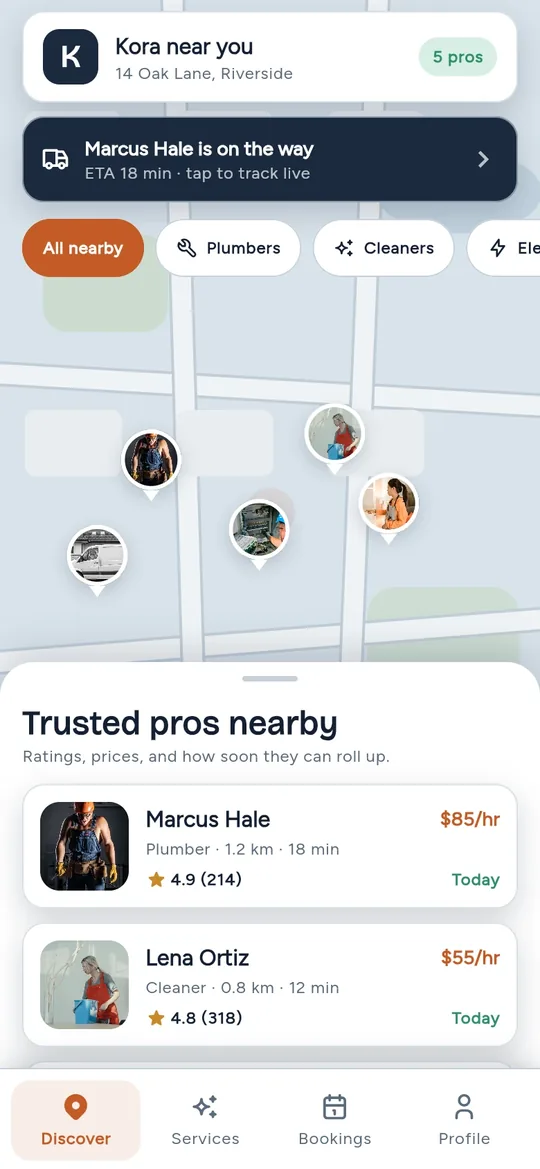
Kora home screen: a map of nearby pros, a live job banner with an 18 minute ETA, trade chips and a list of trusted pros with rating, hourly rate and next availability
Discover nearby pros, live job ETA
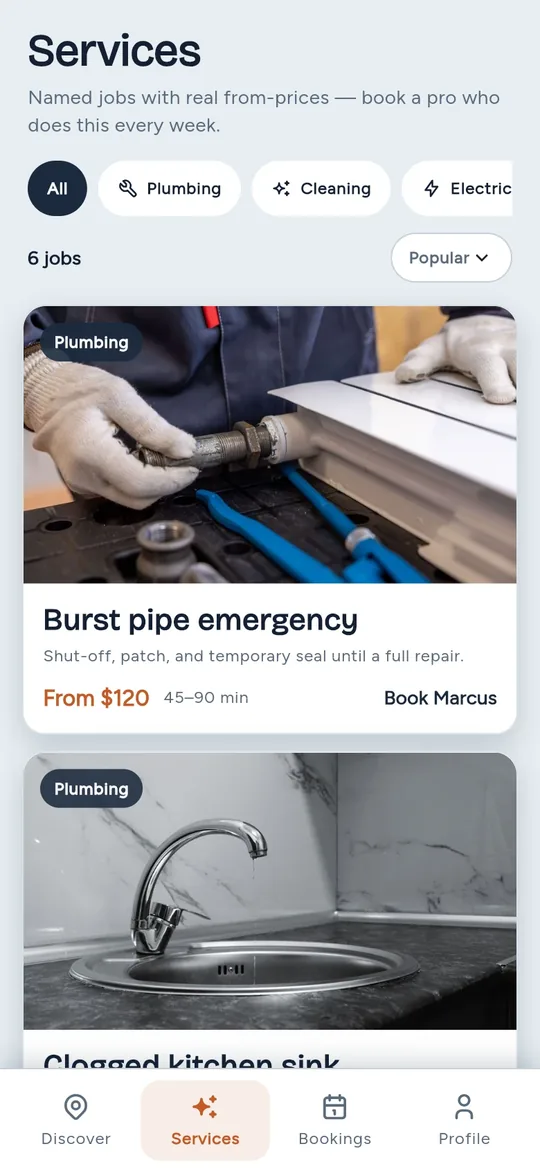
Kora services screen: named jobs such as a burst pipe emergency with a from-price, a duration and a Book button, sorted by popular
Services named jobs, prices, durations
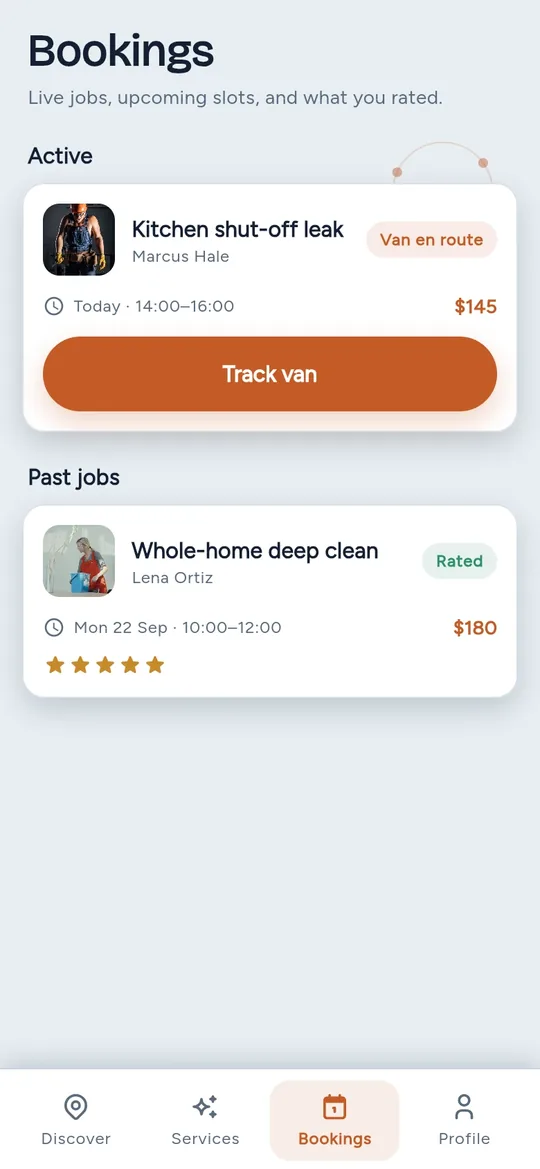
Kora bookings screen: an active kitchen leak job with a time window, price, van en route status and a Track van button, above past jobs with a five star rating
Bookings active job, past jobs

Sample data: the pros, prices, ratings and live job are placeholders.

Most service businesses need one journey. Pick a service, a pro and a time, and confirm. Then view, cancel or reschedule the booking. In the captures, Discover shows nearby pros with ratings and hourly rates under a live job banner. Services lists named jobs with from-prices and durations. Bookings shows an active job and past jobs.

A slot picker, cancel and reschedule are not in these captures. The agent builds them when you ask. Selling products rather than appointments? See the ecommerce app builder.

Build the Appointment Features Your Business Needs

FlutterGo works as an appointment booking app builder: the agent builds the screens you describe, and more as you ask for them. Cards tagged Live with Supabase need your booking data connected.

Services, Durations and Pricing

The agent builds a services catalogue with categories, a from-price and a duration per item, as the Kora Services tab shows. Ask for a Supabase services table and a price change becomes a data edit, not a code change.

Generated screens

Staff Profiles and Availability

Kora lists each pro with photo, trade, distance, ETA, rating, hourly rate and next availability. Ask for a staff table with working hours and days off. Ask for next availability to be worked out from it and the booked appointments, then check it against real bookings.

Live with Supabase

Appointment Selection and Confirmation

Kora's active card shows a job booked into a time window, today 14:00 to 16:00. The captures do not show how that time is picked. Ask for a slot picker and the agent builds one from the staff schedule. Confirming writes an appointments row; your server-side rule decides if the slot is still free.

Live with Supabase

Customer Accounts and Booking History

With Supabase connected, the agent wires sign-in, registration and forgot-password, so bookings follow the customer's account. The Bookings tab keeps active and past jobs together. Ask for row-level security so each customer sees only their own rows, then test it before launch.

Live with Supabase

Cancellation and Rescheduling

Neither cancel nor reschedule is in the captures; the agent builds both when you ask. A cancellation should mark the row and free the slot; a reschedule should rerun the availability check.

Live with Supabase

How to Create a Booking App with AI

Here is how to build an appointment booking app in three steps, from a written brief to a tested workflow. The preview needs no Mac or emulator. Already have the screens in Figma? Start from your Figma file and connect the booking data afterwards.

  1. Define Your Services and Booking Rules

    List what customers book: each service with a duration and a price, who delivers it and when they work. Add the rules: how far ahead people can book, the buffer between jobs and whether cancelling is free. Paste that brief into the composer on the FlutterGo home page and press Start building.

  2. Generate and Refine the Flutter Application

    The agent turns your brief into screens and writes the Dart code. The phone preview in your browser updates as it works. Each command spends 1 credit. Ask for one clear change per message, such as a slot picker, a staff filter or a cancel button. That keeps each result easy to check.

  3. Connect Scheduling Data and Test the Workflow

    Connect Supabase from Settings and ask for customers, staff, services and appointments tables with row-level security. Ask for the overlap rule that runs when a booking is confirmed. Then book the same slot from two devices to check only one booking gets through. From Starter, build an Android test APK and run the journey on a real phone.

Reusable prompt
Build a local home-services booking app with four tabs: Discover, Services, Bookings and Profile. Discover shows nearby pros on a map, each with a photo, trade, distance, ETA, rating, hourly rate and next availability. Services lists named jobs with a from-price, a duration and a Book button. Booking picks a day and a time window, then confirms. Bookings shows the active job with a status label (van en route), a Track van button and past jobs with a rating. Use sample data.

Store Booking Data and Handle Conflicts

An appointment scheduling app builder can draw the screens. The rules that stop two customers taking one slot live in your database.

Persist Customers, Staff and Appointments

Connect Supabase in Settings and approve it in the window that opens; each app links or creates its own Supabase project. Ask for customers, staff, services and appointments tables and the agent writes them with row-level security and an RLS-safe client.

Live with Supabase

Enforce Availability When a Booking Is Confirmed

A greyed-out slot is no guarantee: two customers can open the same free slot and both press Confirm. The rule must live server-side. Use a unique constraint on staff and slot if every booking fills one fixed slot. When jobs vary in length, use a Postgres function that checks for overlap at confirm time. Test it with two simultaneous bookings before you advertise it.

Live with Supabase

Handle Time Zones, Buffers and Cancellations

Store appointments in UTC, convert for display and test a time zone change on the phone. Put the buffer between jobs inside the overlap check, so a 90-minute job plus a 15-minute gap blocks the right slots. Treat a cancellation as a status change, not a delete, so history survives.

Live with Supabase

Add Reminders and Payment Workflows

Both run on accounts you hold with outside providers. FlutterGo is not the payment processor or the messaging service. Stripe connects through a setup form; a reminder provider is one you add by API.

Deposits and payments. Ask for a deposit and a Stripe setup form appears in the project console's Setup list. The publishable key goes in the app. The secret key stays server-only in .env.server and is never pushed to GitHub.

Charges run through your own Stripe account. A checkout that succeeds in the preview does not prove a real payment. Confirm a test charge in your Stripe dashboard before launch.

Reminders. Email, SMS and WhatsApp reminders are not built in, and neither is calendar sync. A common setup is a Supabase Edge Function that reads tomorrow's appointments and calls your provider's API. Collect consent on the booking screen and keep the provider's keys server-side. Log every send, so a failed reminder shows in your data, not as a no-show.

Adapt Your Booking App to Your Business

The same screens and tables adapt to many service businesses. Change the nouns in your brief and the rules in your data.

Salons and Personal Services

Services with a duration and a price per stylist, and a staff list the customer picks from. A deposit against no-shows runs through your own Stripe account.

Generated screens, Stripe is yours

Consultants and Coaching

Session types such as a 30-minute discovery call and a 60-minute paid session, a few staff members, and booking history per client. Payment for the paid session runs through your own Stripe account.

Generated screens, Stripe is yours

Fitness Sessions and Classes

Classes with a capacity instead of one-to-one slots, a trainer per session, and a waiting list if you ask for one. Store capacity on the session and have the confirm check count bookings against it.

Live with Supabase

Own and Extend Your Flutter Booking Project

Your Flutter booking app is a standard Flutter project, not a page inside someone else's scheduling service. Read and edit every file on any plan. Download it or sync it to your own GitHub on Pro and up.

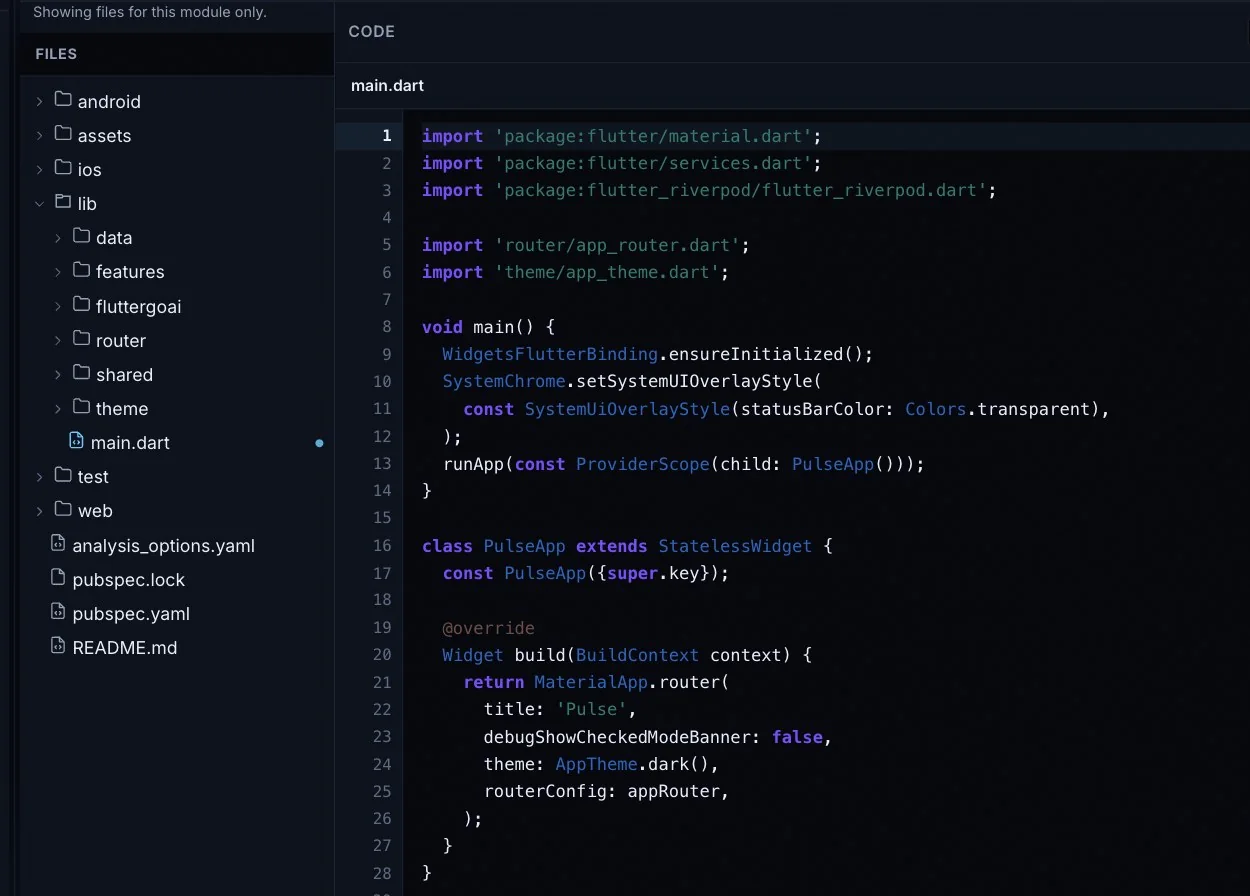
  • Standard Flutter. Dart with Material 3, Riverpod state and go_router navigation, in one codebase for iOS and Android.
  • Export on Pro and up. Download code, under Ship, gives a ZIP of the whole project. GitHub sync pushes to a private repository in your own account.
  • No lock-in. Cancel and the code you already synced or downloaded is still yours. Open it in Android Studio or VS Code and run flutter run.
  • An admin panel for the front desk. On Pro and up, FlutterGo builds a website and an admin panel on the same Supabase backend, in the app's theme. Staff sign in to manage services, appointments and users, and you can publish it to your own Vercel account.
The FlutterGo studio with the project tree open and main.dart in the editor
Show code: the generated project with main.dart open, every file editable.

Test Your Booking App Before Launch

A booking app fails in the gaps between screens. Run these cases on the preview, then on a phone, before customers do.

  • Two bookings, one slot. Confirm the same slot from two devices at once. Exactly one must succeed; the other gets a clear message.
  • Stale availability. Open the slot picker, book that slot elsewhere, then confirm from the first screen. The server must refuse it.
  • Time zone change. Book at 14:00, switch the phone's time zone and reopen the app. The appointment must show the same moment, converted, not shifted.
  • Cancellation. Cancel a booking. The slot must be free again and the row must keep its history.
  • Permissions. Sign in as a second customer. They must not see, edit or cancel the first customer's booking, even by direct request.
  • Duplicate submissions. Double-tap Confirm on a slow connection. One appointment, not two.
  • Failed reminders. Point the reminder function at a bad key. The booking must stand and the failure must be logged.

Booking App Builder Questions

Short answers on what is generated, what needs your backend and which plan you need.

Can I create a booking app with AI?

Yes. Describe the services, staff and rules in chat; the agent writes the Flutter screens and shows them in a phone preview. The result is a custom booking app with source code, not a page inside a scheduling service. On Pro and up you can download the code or sync it to GitHub.

Can customers choose a particular staff member?

Yes. The Kora demo lists each pro with a rating, hourly rate and next availability, and the customer books that person. With Supabase connected, ask for a staff table with working hours and days off. Ask for next availability to be calculated from it and existing bookings, then check it against real bookings.

How are appointments stored?

Once you connect Supabase, they live in your own Supabase project, in customers, staff, services and appointments tables with row-level security. Store times in UTC and convert them for display. The backends chapter covers connecting Supabase and the setup forms.

How can double bookings be prevented?

Not by the screen alone. Ask the agent for a server-side rule: a unique constraint on staff and slot if every booking fills one fixed slot. When jobs vary in length, use a Postgres function that checks for overlap at confirm time. Test it with two simultaneous bookings before you promise it to customers.

Can I add reminders or deposits?

Deposits run through your own Stripe account. When you ask for one, a Stripe setup form appears in the project console's Setup list for your keys. Reminders are not built in: connect your own email, SMS or WhatsApp provider, often through a Supabase Edge Function. Record consent first.

Can users cancel or reschedule?

Yes, when you ask; the Kora captures do not show them. Describe the rules you want, such as a cut-off time or a cancellation fee, which needs your Stripe setup. The agent adds the screens and the status change on the appointment row. Ask for a reschedule to rerun the same availability check, then test it.

Can the project target iOS and Android?

Yes, one Flutter codebase targets both, and Starter adds an Android test APK. On Pro and up, FlutterGo uploads a signed App Bundle to your chosen Google Play track. On the same plans, a cloud Mac runner in your GitHub repository builds, signs and uploads the iOS app to TestFlight, so no Mac is needed. You need Google Play and Apple Developer accounts, plus a connected GitHub repo.

Your services, staff and rules, as a booking app you can test.Five credits at sign-up, no card needed.