Home Pricing Explore MCP Docs Create a project

Shopping apps with AI

AI Ecommerce App Builder for iOS and Android

Turn your store idea into an editable Flutter shopping app. Describe your products, customer journey and design, then generate screens, preview the app and connect the services your business needs.

Free to start, no card needed. Standard Flutter code, yours to download and sync on Pro and up.

See a Shopping App Built with FlutterGo

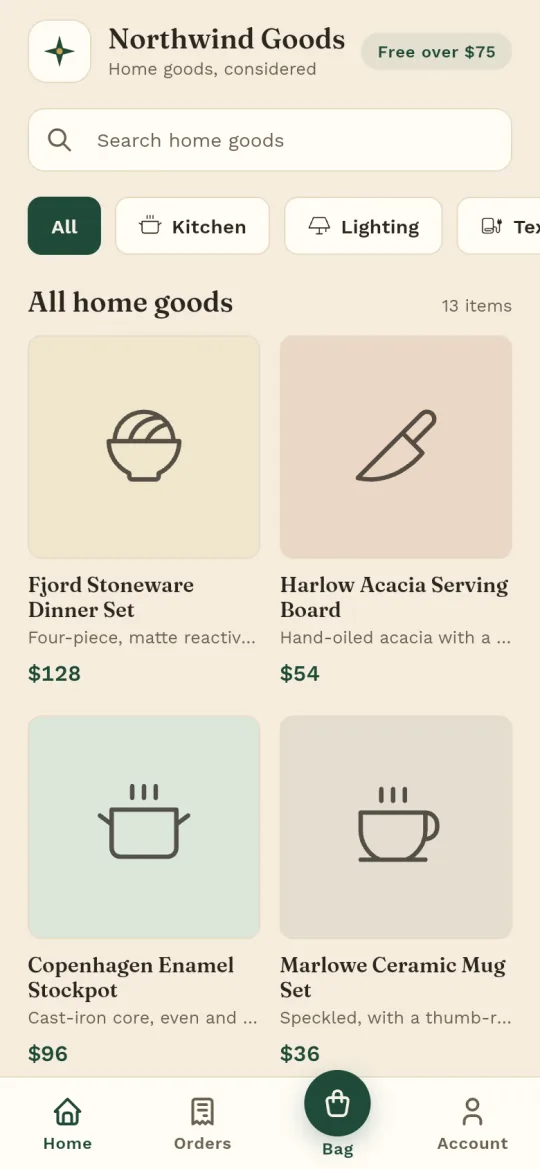
Northwind Goods is a demo home goods shop built in FlutterGo from one chat. Every screen below is a capture of its live preview: browse the catalogue, choose a variant, check the bag, pay and follow the order.

Northwind Goods home screen: search, category chips and a grid of home goods with prices
Catalogue search, categories, prices
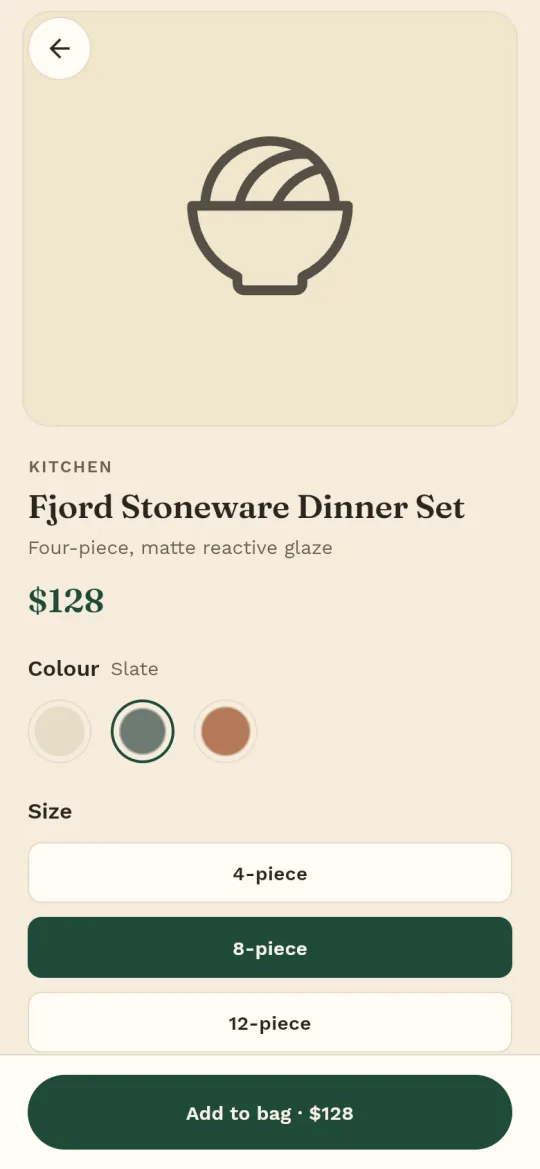
Fjord Stoneware Dinner Set product screen with colour swatches, size options and an Add to bag button
Product detail colour and size variants
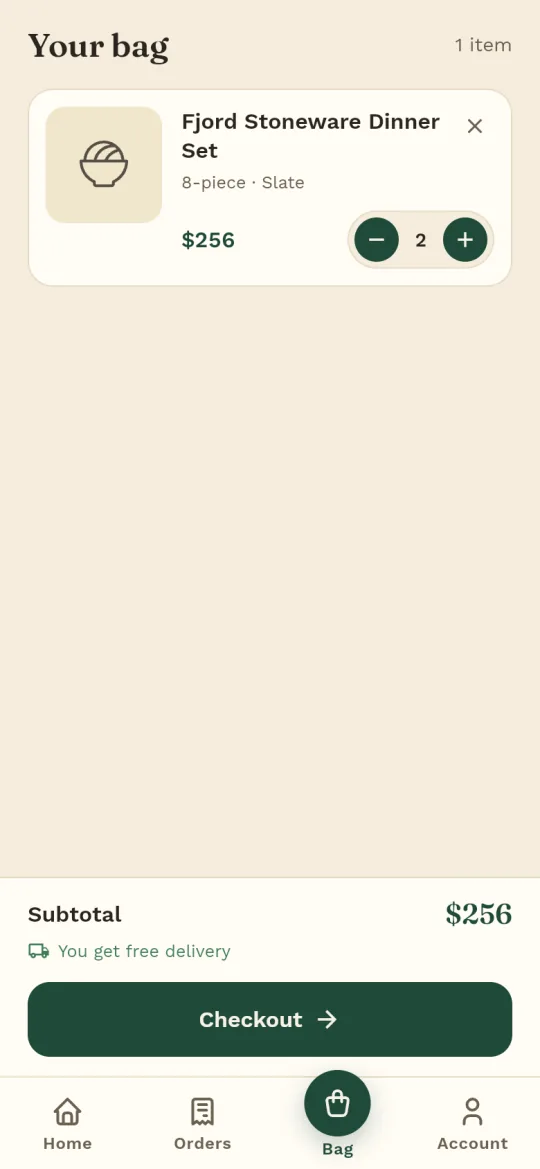
Bag with the dinner set in Slate, 8-piece, quantity 2, a $256 subtotal and a Checkout button
Bag quantity controls, subtotal
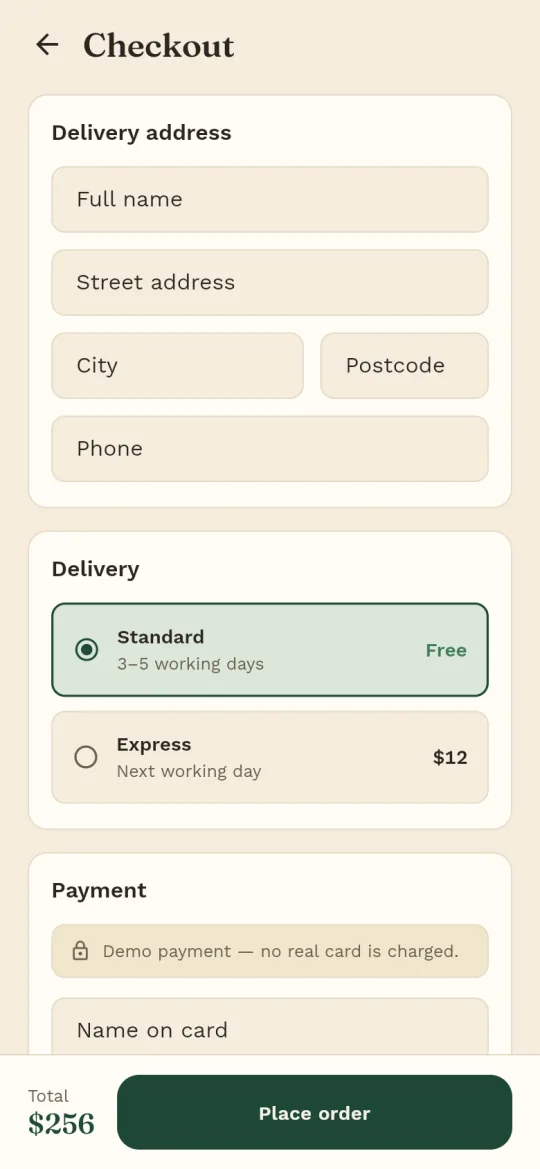
Checkout with a delivery address form, Standard or Express delivery and a demo payment notice
Checkout address, delivery, demo payment
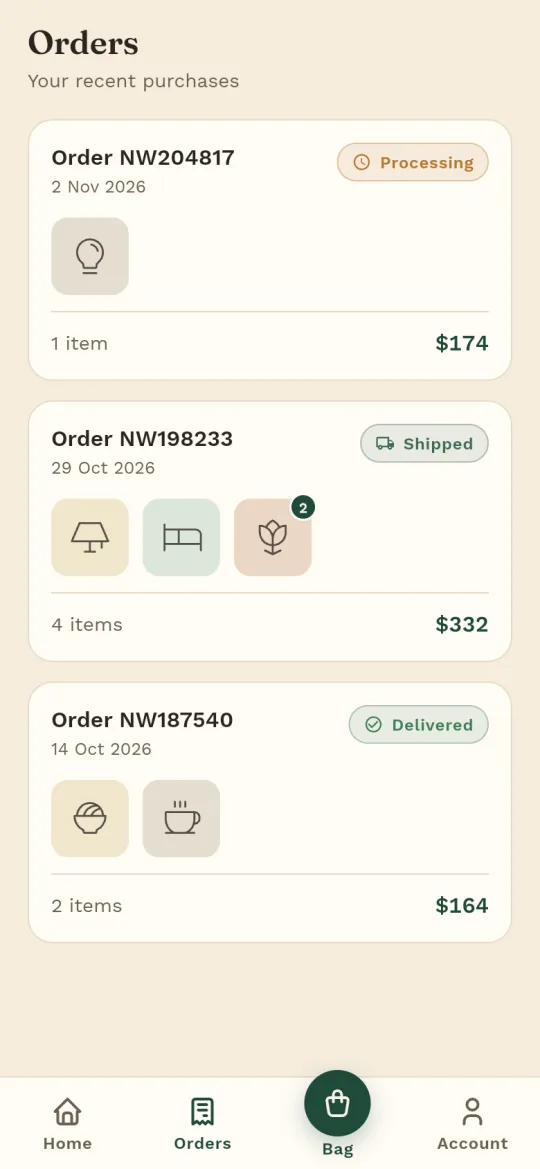
Orders screen listing three orders marked Processing, Shipped and Delivered
Order history a status on every order

Sample data: the products, prices, addresses and orders are placeholders. The payment step is a labelled demo and charges nothing; real payments need your own Stripe account, set up below.

The prompt under How to Build an Ecommerce App with AI started this build, and a few short follow-ups in the same chat finished the remaining screens. Each screen hot-reloaded into the phone preview as the agent wrote the Dart, with no Mac or emulator.

Have a design already? Attach screenshots or an HTML page, or start from a Figma file. Browse the Explore gallery for more projects, or see Kora, a booking app also built in FlutterGo, on the booking app builder page.

Create the Shopping Experience Your Customers Need

An ecommerce mobile app builder is judged on four screen sets: catalogue, detail, cart and account. The agent generates each from your description; the tag separates generated screens from parts that run live on your backend.

Product Catalogues, Categories and Search

Customers need to reach a product in a few taps. The agent builds the product list, category navigation and search as real Flutter widgets. With sample data the screens work in the preview before any backend is connected. Connect Supabase and ask for real data. The agent models the product, category and price tables, wires the same screens to them, and you confirm the rules.

Generated screens

Product Variants and Detail Screens

A detail screen has one job: show the product clearly and make add to cart obvious. Ask for variants and the agent adds size and colour choices. Variants, stock levels and prices live in your Supabase tables when you ask for them. The agent models those tables and you confirm the rules.

Generated screens

Shopping Cart and Checkout Flow

The cart lists line items with designed quantity controls and shows an empty state. Checkout collects the address, takes a payment step and ends in a place-order control. Until Stripe is set up, the payment step is a mock. Real cards go through your Stripe account; its keys go in the setup form once, and the secret key stays server-only.

Generated screens, Stripe is yours

Customer Accounts and Order History

Returning customers expect to sign in and see what they ordered. Sign-in, registration and forgot-password come from the auth flow. Order history is a screen the agent builds over your Supabase orders table when you ask for it. It reads through an RLS-safe client. The row-level security policies on your orders table decide what a signed-in customer may see. Test them before launch.

Live with Supabase

How to Build an Ecommerce App with AI

Building a shopping app with AI takes three steps: describe, refine, connect. Each AI command spends 1 credit; Free includes 5 at sign-up.

  1. Describe Your Store and Product Structure

    In the home composer, describe what you sell, your categories and each product's variants. If you already have a design, attach screenshots or an HTML page, or pick From Figma and paste the file link. Send it, and the agent starts planning the screens and writing the Dart.

  2. Generate and Refine Your Flutter Screens

    Watch the catalogue, detail, cart, checkout and account screens hot-reload into the phone preview in your browser. Ask for changes in chat: another layout, filter or colour. Use Show code to read any file, or Edit mode for small visual tweaks.

  3. Connect Data, Test Checkout and Prepare Your Release

    Connect Supabase from Settings and ask the agent to model products, customers and orders as real tables. Ask the agent to add Stripe payments and fill in the Stripe setup form that appears in the project console. Then run the pre-launch checks on this page. On Pro and up, download the code or sync it to GitHub and build the signed Android bundle. With a connected GitHub repository and an Apple Developer account, send the iOS build to TestFlight.

The prompt behind the demo
Build a shopping app for Northwind Goods, a small home goods store. Screens: a home screen with a search bar, category chips (Kitchen, Lighting, Textiles, Decor) and a product grid; a product detail screen with a photo, price, size and colour variants, quantity and an Add to bag button; a bag screen with line items, quantity controls, a subtotal and a Checkout button; a checkout screen with a delivery address, a payment step and a Place order button; and an Orders screen that lists past orders with their status. Customers sign in with email. Use sample products with real-looking names and prices in a warm, minimal style with a cream background and a deep green accent.

Connect Products, Payments and Orders

Each part needs its own setup before the app takes real orders.

Product and Inventory Data

Supabase is the primary backend. Connect it once in Settings, approve the connection in the window that opens, then link or create this app's Supabase project from the project console. The agent wires Postgres tables for products, variants and stock when you ask for them, plus storage, realtime and an RLS-safe client. Existing product data comes in through Supabase, a REST API, or a CSV or JSON import the agent writes for you. There is no store-platform connection.

Live with Supabase

Authentication and Customer Records

Once Supabase is connected, the agent wires sign-in, registration and forgot-password to its auth. Customer records and order rows sit in your Postgres tables. With row-level security policies in place, the app reads only what the signed-in user may see. The checklist below shows how to test that.

Live with Supabase

Payment Confirmation and Order Creation

There is no built-in payment processor; the provider is yours. When the agent adds payments, a Stripe setup form appears in the project console. The publishable key goes in the app; the secret key stays server-only in .env.server, never pushed to GitHub. A checkout screen in the preview does not prove a real payment. Confirm the charge on the server, in a Supabase Edge Function for instance, before the order row is written.

Your provider

On Pro and up, FlutterGo builds a website and a real admin panel on the same Supabase backend. The panel lets you sign in, then add, edit and delete products and orders. For an e-commerce app, that is the difference between editing rows by hand and running a store.

Own Your Flutter Ecommerce Source Code

This is an ecommerce app builder with source code. The result is a standard Flutter project, not a hosted page you rent. On Pro and up you download it or sync it and open it anywhere. One codebase targets iOS and Android.

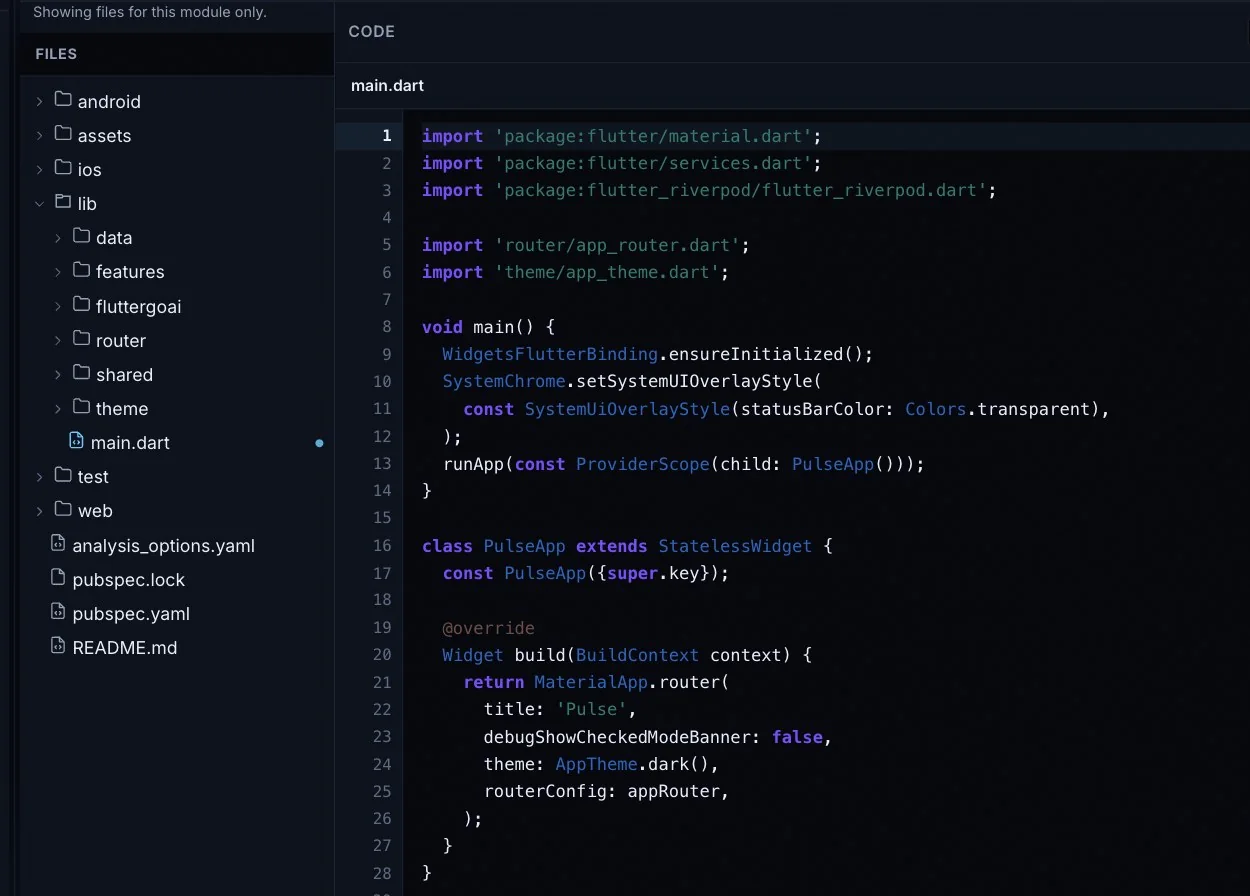
  • Standard Flutter project. What a Flutter ecommerce app builder must leave behind: Dart, Material 3, Riverpod and go_router, in android/, ios/, lib/, test/ and web/ with a pubspec.yaml.
  • Every file is yours to read. Show code opens every file in the studio; edit by hand or ask in chat.
  • Download code. On Pro and up, Ship offers a ZIP of the whole project (export and download).
  • GitHub sync. On Pro and up, sync to a private repository in your own GitHub account (GitHub sync).
  • Run it locally. Open it in Android Studio or VS Code and run flutter run. Synced or downloaded code stays yours if you cancel. No lock-in.
The FlutterGo studio in Show code view: a generated Flutter project tree with android, ios, lib, test, web and pubspec.yaml, and main.dart open in the editor
Show code in a FlutterGo project, with main.dart open. The same files go into the ZIP and the GitHub repository.

What to Test Before Launching Your Shopping App

A shopping app builder can make a screen look right; a shop that works is another matter. Run these cases in the preview, then on an Android test APK on a real phone (Starter and up).

  • Quantities. Add the same product twice, then set the quantity to zero. The lines must merge, the total must follow, and zero must remove the line and show the empty state.
  • Variants. Add one product in two sizes or colours. They must appear as two lines with their own prices, never merged into one.
  • Price calculations. Check subtotal, discount and shipping against a calculator for three carts. Totals must come from one place, not from each widget.
  • Unavailable stock. Set a variant's stock to zero in Supabase. The detail screen must block add to cart, and a cart that already holds it must say so at checkout.
  • Failed payments. Use a Stripe test card that declines. The app must show the failure, keep the cart and create no order row.
  • Duplicate submissions. Tap place order twice on a slow connection. Exactly one order must exist; enforce that on the server, not only by disabling the button.
  • Access to order records. Sign in as a second customer and request the first customer's order by its id. Supabase must return nothing; that is what the row-level security policies are for.

Ecommerce App Builder Pricing and Requirements

FlutterGo is priced by plan and credits. Your backend, payment provider and store accounts are yours.

Plans. Free, $0: 5 credits at sign-up, kept until you use them, up to two projects, build and live preview. Starter, $19 a month: 50 credits and an Android test APK for your phone.

Pro, $49 a month: 150 credits, publishing to Google Play and the App Store, Download code and GitHub sync. It adds the website and admin panel, your own AI and MCP, and teams. Business, $99 a month: 500 credits, everything in Pro, larger teams, priority support and the Secrets Vault. See plans and included features. These are monthly list prices in US dollars; some countries get a regional price at checkout, and the pricing page shows yours.

Credits. One credit per AI command in chat. One per APK build, refunded if it fails. A store deploy is 2.5 credits, or 5 for both stores. Fix with AI costs nothing; see plans and billing.

Costs that are not FlutterGo's. Your Supabase plan. Stripe's fees. The Apple Developer Program and a Google Play developer account, with store review up to Apple and Google.

What you need to create an ecommerce app that takes real orders. Supabase, connected in Settings. A Stripe account with its keys in the setup form. For publishing, both store developer accounts and a connected GitHub repository for the iOS build. See deploy to Android and deploy to iOS.

Ecommerce App Builder Questions

Short answers for merchants, founders and developers. More in the FAQ.

Can I build an ecommerce app without writing every screen manually?

Yes. Describe the store in chat to build a shopping app with AI. You watch the agent plan each screen and write its Dart. A shop brief yields catalogue, product detail, cart, checkout and auth screens in a live phone preview.

Does FlutterGo generate Flutter source code?

Yes. The output is a standard Flutter project: Dart, Material 3, Riverpod and go_router. Show code lets you read and edit every file. On Pro and up, download it as a ZIP or sync it to a private GitHub repository you own (see export and download).

Can I use my existing product database?

Yes, by one of three routes. Point the app at your existing REST API, or connect Supabase and let the agent model your tables. For a spreadsheet export, ask the agent to write a CSV or JSON import. There is no store-platform connection.

Can I connect a payment provider?

Yes, Stripe. Ask the agent for payments and a Stripe setup form appears in the project console. The publishable key goes in the app; the secret key stays server-only and never reaches GitHub. The Stripe account and its fees are yours; FlutterGo has no built-in payment processor.

Can the project target both iOS and Android?

Yes: one Flutter codebase targets both. Publishing starts on Pro, with a signed Android App Bundle for the Google Play track you choose. The iOS app is built and signed on a cloud Mac runner in your GitHub repository, then sent to TestFlight. No Mac is needed; the Google Play and Apple developer accounts are yours (see deploy to iOS).

What must I configure before accepting real orders?

Connect Supabase in Settings and ask the agent to model products, customers and orders as tables with row-level security. Ask the agent to add Stripe payments, then enter your keys in the Stripe setup form. Confirm each payment on the server before an order row is written; a preview checkout does not prove a real charge. Then run the pre-launch checks on this page.

Describe your store. Watch the shopping app take shape.Five credits at sign-up, no card. Download or sync the code on Pro and up.