
Publishing a Flutter App to Google Play, Start to Finish
Learn how to publish flutter app to google play from start to finish with our complete step-by-step guide, covering App Bundle generation, app signing, and store submission.
Building a gorgeous cross-platform app with Flutter is an incredible milestone, but getting your creation into the hands of real users through the Google Play Store can feel daunting for first-time developers. From generating a signed App Bundle to passing Google's strict policy checks, the release process requires careful execution.
In this step-by-step guide, we will walk through everything you need to know to successfully publish flutter app to google play from scratch.
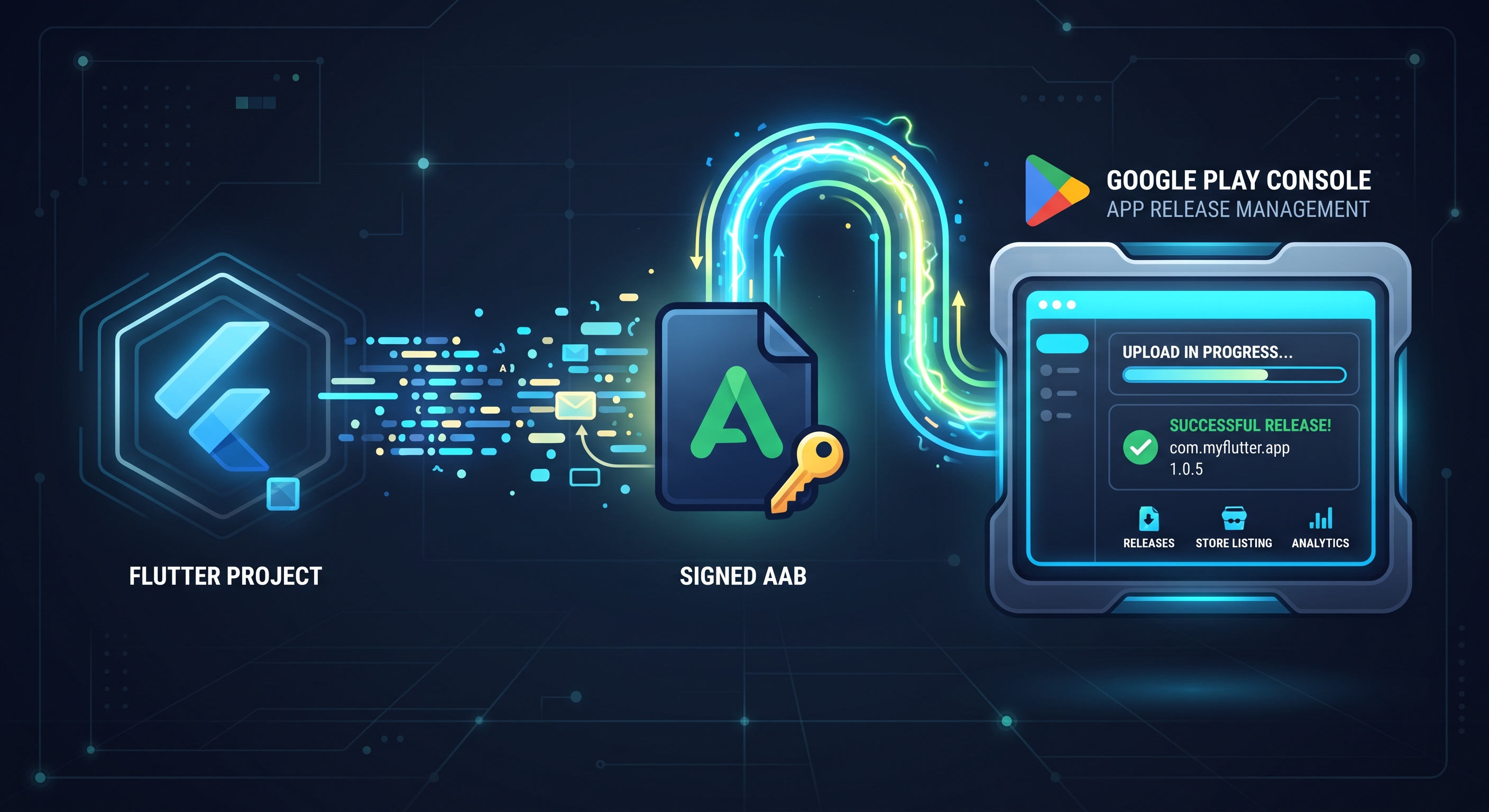
Step 1: Prepare Your App for Production Release
Before touching the Play Console, you need to ensure your app is optimized and polished for production.
Update App Metadata and Versioning
- Open your
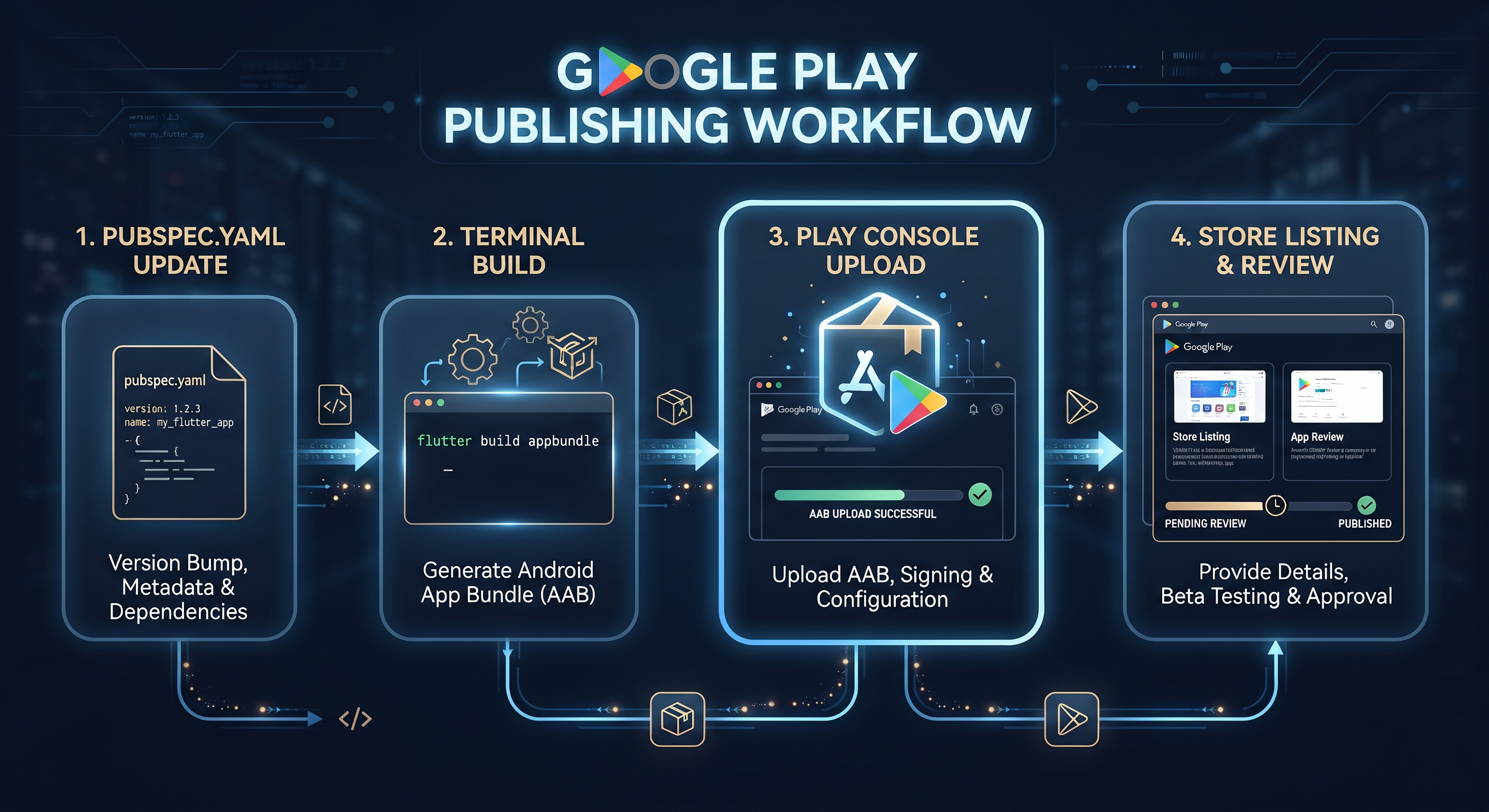
pubspec.yamlfile and update yourversionfield (e.g.,1.0.0+1, where the number after the+is your build number). - Configure your app name, launcher icons, and permissions inside your Android manifest files.
Step 2: Generate an Android App Bundle (AAB)
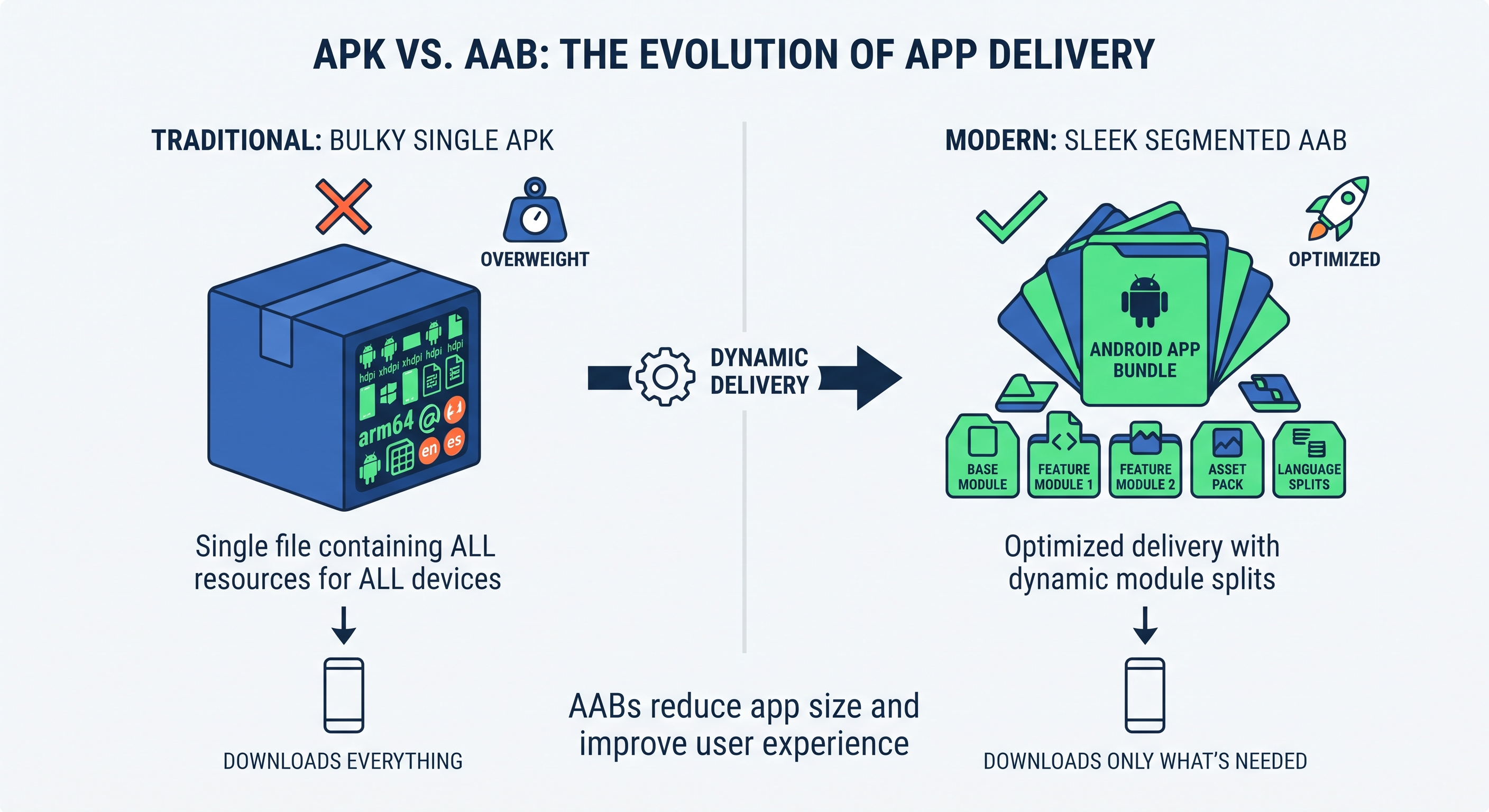
Google Play no longer accepts traditional APKs for new apps; you must upload an Android App Bundle (.aab).
H3: Why AAB Replaced APKs
AABs dynamically generate optimized APK splits tailored specifically to each user's device configuration, drastically reducing download sizes.
Step 3: Set Up Your Google Play Console Account
If you haven't already, sign up for aGoogle Play Consoledeveloper account, pay the one-time registration fee, and complete your identity verification.
H3: Creating Your Store Profile
- Create a new application profile inside the console.
- Fill out your store listing details, including app descriptions, high-resolution icons, feature graphics, and screenshots.
Step 4: Configure App Signing and Submit for Review
Google Play app signing ensures that Google manages and protects your app’s signing key securely.
- Upload your compiled
.aabfile to the Production or Internal Testing track in your Play Console dashboard. - Complete the required safety questionnaires, content ratings, and privacy policy links, then submit for review.
Automating Your Release Pipeline
To make future updates effortless, you can automate this entire workflow using cloud pipelines or modern AI tools likeFlutterGo AIto handle your builds and deployment without manual friction.