Home Pricing Explore MCP Docs Create a project

Grocery app builder

AI Grocery App Builder for Delivery and Pickup

Build a grocery app around your aisles, stock and delivery windows. Generate editable Flutter screens for weighed items, slots and substitutions, connect your product data and test the basket before launch.

Free to start, no card needed. The Flutter project is yours to download or sync on Pro and up.

See a Grocery App Built with FlutterGo

Market Lane is a demo neighbourhood grocer built in FlutterGo from the prompt on this page. Every screen below is a capture of its live preview: shopping by aisle, buying by weight, the £20 minimum, choosing a delivery slot and tracking an order with its swaps.

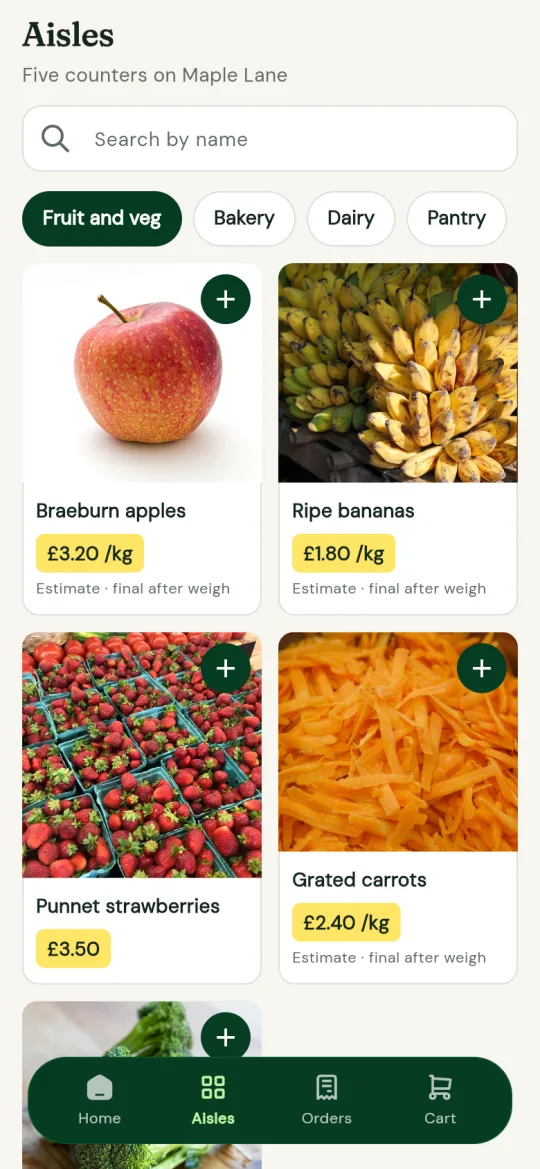
Market Lane aisles with Fruit and veg selected and items priced per kilo with an estimate
Aisles departments, price per kilo
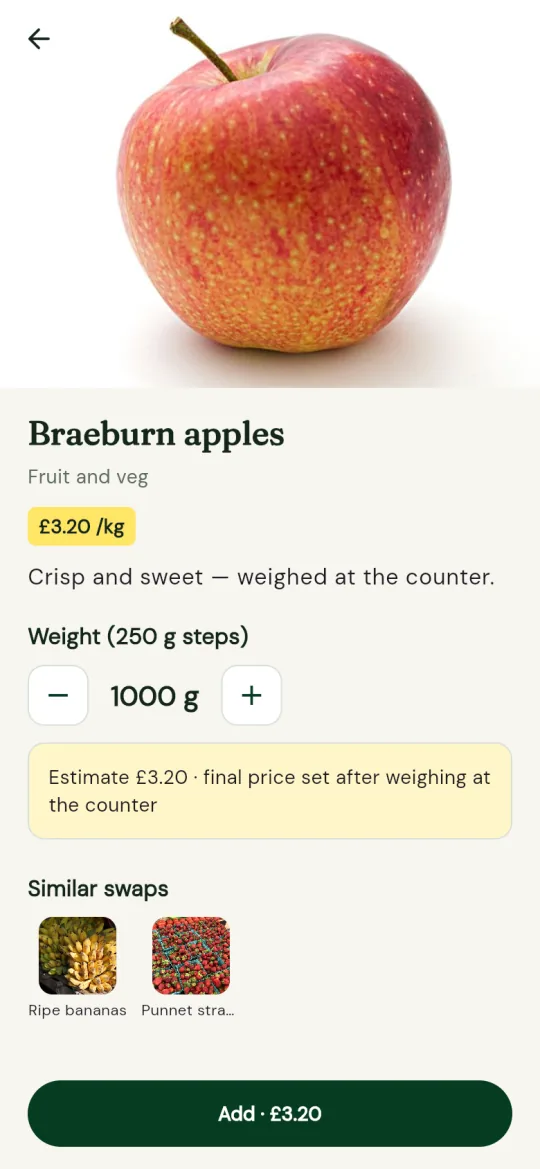
Braeburn apples set to 1000 g in 250 g steps, with an estimate of £3.20 and the final price set after weighing
Weighed items 250 g steps, estimate
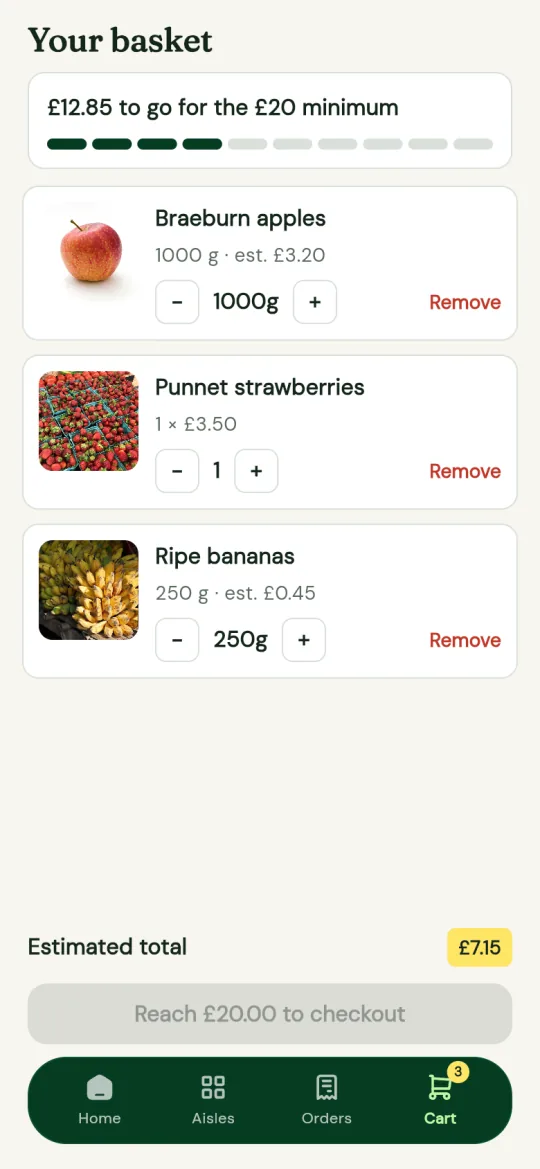
Basket showing £12.85 to go for the £20 minimum, with checkout locked until it is reached
Basket the £20 minimum
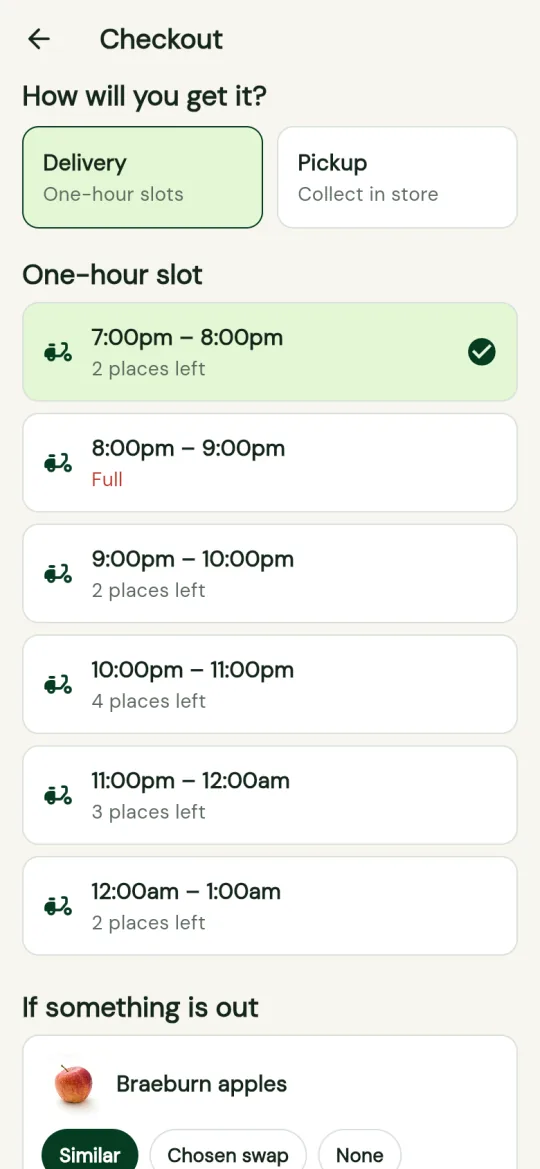
Checkout with one-hour delivery slots, the places left on each and the 8pm slot full
Delivery slots places left, a full slot
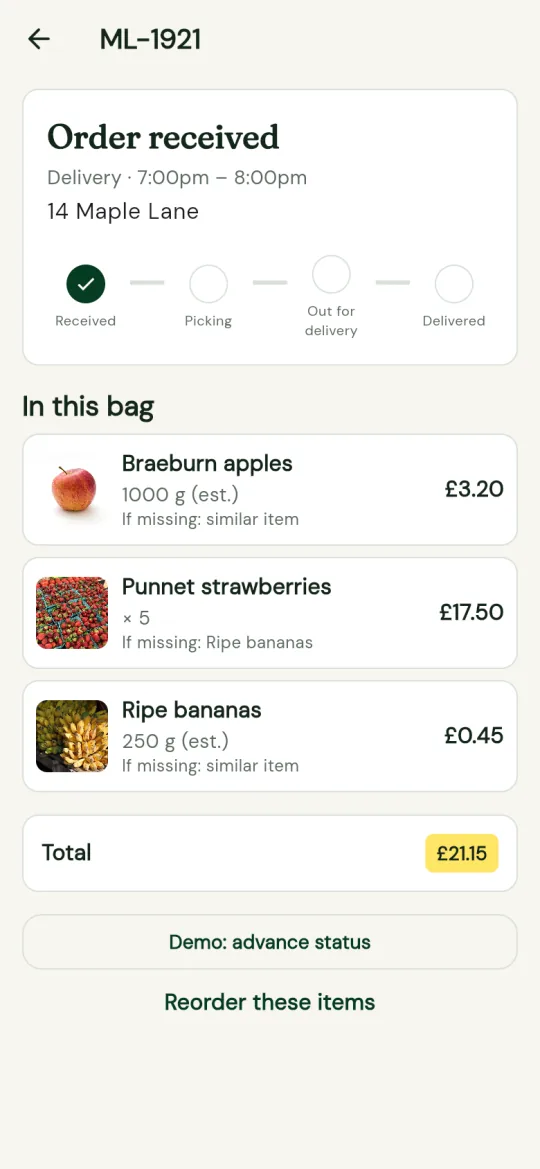
Order ML-1921 received for 7pm delivery, each item listed with its substitution choice
Tracking status and each item's swap

Sample data: the products, prices, slots and address are placeholders, and the payment step is a labelled demo that charges nothing.

The prompt under How to Build a Grocery App with AI built this app in one go, and each screen ran in the phone preview as the agent wrote the Dart, with no Mac or emulator. In the demo, stock and slot places are sample numbers in the app; in your app they live in your database and are checked when the order is placed, as described below.

Grocery is not general retail. A tin of beans has one price; loose apples are weighed at picking, can sell out by lunchtime and may be swapped. For goods that are packed and posted, the ecommerce app builder covers general shops. Hot meals ordered for a set time belong with the restaurant app builder.

Build the Grocery Features Your Customers Expect

A grocery shopping app builder must handle what a general shop rarely meets: items sold by weight, shelves that empty during the day and slots that fill up. Each tag shows whether a feature runs on sample data or needs your Supabase backend.

Aisles, Search and Repeat Orders

Regular shoppers buy much the same things each time, browsing aisles such as Bakery and Dairy or searching by name. The agent builds the aisle tabs, product lists and search as Flutter widgets that run on sample data. A Buy again list, when you ask, reads each shopper's past orders from Supabase.

Generated screens

Quantities, Weights and Unit Prices

Milk sells by the bottle, cheese by weight and apples either way. Tell the agent which items are weighed, and it builds quantity controls that step in units or grams, with a unit price such as per kilo on each line. A weighed line shows an estimate until picking. You confirm the steps and rounding.

Generated screens

Stock and Out-of-Stock Items

Shoppers should never pay for an empty shelf. Ask for stock levels and the agent models them in your Supabase tables, so every phone reads the same count. Items at zero show as out of stock and cannot be added, and a low count can warn “Only 3 left”. The server has the final word at order time, as explained below.

Live with Supabase

Delivery Slots and Substitutions

Shoppers pick a delivery or pickup window and say what should happen if an item is missing. Ask for slots and the agent builds a picker that lists each window with its places left, from a Supabase slots table. Every basket line can carry a substitution choice: a similar item, a named alternative or no substitute. Both answers are saved with the order.

Live with Supabase

How to Build a Grocery App with AI

Using FlutterGo as your grocery delivery app builder takes three moves: describe your range and delivery rules, shape the screens in the preview, then wire in real stock and slots. Each chat command uses 1 credit; Free gives you 5 credits at sign-up.

  1. Describe Your Range and Delivery Rules

    In the home composer, list your aisles, say which items sell per unit and which by weight, and explain how delivery and pickup slots work, including how many orders each can take and any minimum order. Add how substitutions should be offered. Send it, and the agent plans the screens and starts writing the Dart.

  2. Generate and Refine the Shopping Screens

    The aisle, product, basket, slot and checkout screens appear in the phone preview in your browser as the agent writes them. Ask in chat for changes such as bigger product photos, a finer weight step or a clearer slot picker. Open Show code to read any file, or use Edit mode for small visual tweaks.

  3. Connect Stock and Slot Data, Then Test

    Connect Supabase in Settings and ask the agent to model products, stock, slots and orders as tables, with a Postgres function that checks stock and slot capacity when an order is placed. When you are ready for real payments, ask for Stripe and fill in the setup form that appears in the project console. Then run the checklist on this page before your first delivery.

The prompt behind the demo
Build a grocery app for a neighbourhood grocer with delivery and pickup. Shoppers browse aisles (Fruit and veg, Bakery, Dairy, Pantry, Frozen), search by name and reorder past orders. Items sell per unit or by weight; weighed items step in 250 g and show a price per kilo and an estimate, with the final price set after weighing. Checkout offers one-hour delivery or pickup slots with limited places, a substitution choice per item (similar, a chosen swap or none), a minimum order value and a demo payment step. Customers then track the order by status: received, picking, out for delivery, delivered or collected. Use sample products.

Keep Stock, Slots and Substitutions Accurate

A screen shows what it read a moment ago. The checks that protect an order run in your Supabase project when it is placed, usually as a Postgres function the agent writes on request.

Stock Levels Live in Your Database

Counts sit in a stock column in Supabase, not in the app, so a sale on one phone shows on every other. The function that saves an order checks each line against stock and reduces the count in one step. Build it so that when two baskets hold the last loaf, one gets it and the other line falls back to its substitution choice.

Live with Supabase

Slot Capacity Is Checked When the Order Is Placed

Each slot is a row: start, end, delivery or pickup, and how many orders it can take. The picker shows the places left, but that number can change before payment. The screen alone cannot stop two customers taking the last slot. The order function must count again, refuse a full slot and send the shopper back to choose another, basket intact.

Checked on the server

Substitution Choices Travel with the Order

Keep the choice on each order line, not just on the phone, so whoever picks the order sees it beside the item, in the admin panel on Pro and up. Decide what a refused swap does to the line and the total before the final charge. Swap messages by SMS, push or email are not built in; add a provider by API.

Saved with the order

Weighed items and the final charge. An estimate becomes a real price only after picking. You can authorise a little more than the estimate and capture the final amount, or charge once the order is picked. Either way it runs through your own Stripe account; FlutterGo has no built-in payment processor.

Adding payments puts a Stripe setup form in the project console's Setup list. The app gets the publishable key; the secret key is kept server-only in .env.server, away from GitHub. A successful checkout in the preview proves the flow, not that money moved.

On Pro and up, FlutterGo also builds a website and admin panel on the same Supabase backend. Staff sign in there to edit products and stock, open new slots and move each order from picking to delivered.

Own Your Flutter Grocery App Code

An online grocery app keeps changing: new lines, new areas, new developers. FlutterGo leaves you a standard Flutter project, not a rented page, and on Pro and up you can take it anywhere. One codebase covers iOS and Android.

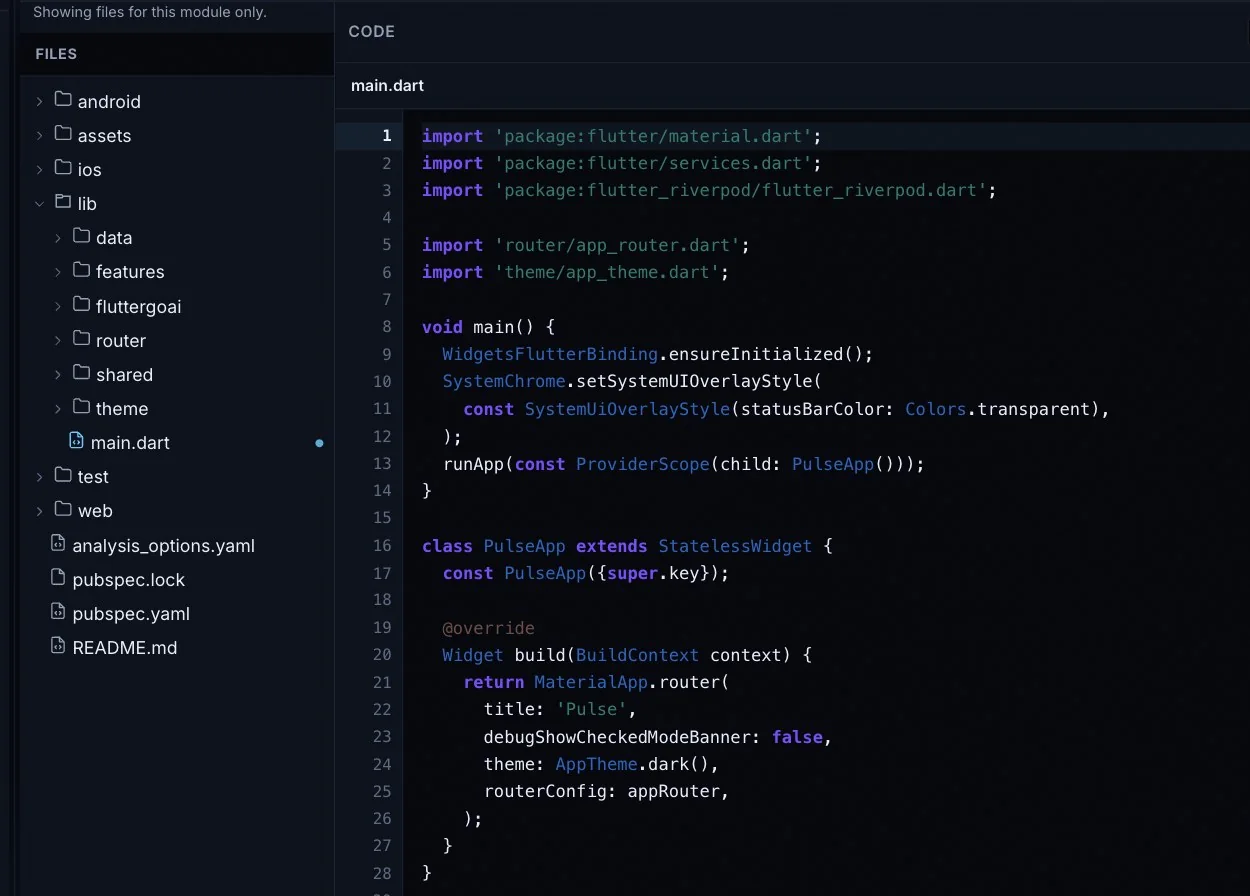
  • Plain Flutter. Dart, Material 3, Riverpod for state and go_router for navigation, in android/, ios/, lib/, test/ and web/ with a pubspec.yaml.
  • Grocery logic you can read. Screens and basket code sit in lib/, under data, features, router, shared and theme; open any file in Show code and edit it by hand or by chat.
  • A ZIP when you want one. On Pro and up, Download code under Ship packs the full project (export and download).
  • Your own repository. On Pro and up, GitHub sync pushes to a private repository under your GitHub account (GitHub sync).
  • Runs on your machine. Open it in Android Studio or VS Code and start it with flutter run. Code you have downloaded or synced stays yours if you cancel, so there is no lock-in.
FlutterGo's Show code view listing a Flutter project's android, ios, lib, test and web folders and pubspec.yaml, with main.dart open in the editor pane
Show code lists every file in a FlutterGo project; the ZIP and GitHub sync carry the same tree.

What to Test Before Your First Delivery

Grocery orders go wrong quietly: a rounding slip, a slot sold twice, an unwanted swap. Run each case in the preview, then on a phone with the Android test APK (Starter and up).

  • Weighed-item price rounding. Add 0.35 kg of an item priced per kilo and check the line with a calculator. Round once, the same way in app and server, so receipt and charge agree.
  • Stock drops while the basket is open. Leave an item in a basket, then zero its stock in Supabase. Checkout must flag it, apply the substitution choice or drop it, and never charge for it.
  • The slot fills during checkout. Leave one place in a slot and let two shoppers check out for it together. One order goes through; the other picks a new slot and keeps the basket.
  • A refused substitution. Mark an item as no substitute, then make it unavailable at picking. The line drops off and the final charge matches the lower total.
  • Minimum order value. Build a basket just under the minimum. The app should say how much more is needed and hold back Place order; the server must refuse it too.
  • Delivery fee threshold. Cross the free delivery threshold, then remove an item to fall below it. The fee must return, on screen and in the saved order.
  • Failed payment. Pay with a Stripe test card set to decline. The shopper keeps the basket and slot, no order is saved and no place is used up.
  • Double tap on Place order. On a slow connection, press Place order twice. You must end with one order, one slot place and one charge, enforced by the server rather than a disabled button.
  • Customers see only their own orders. Sign in as a second shopper and request the first shopper's order by its id. Supabase must return nothing; your row-level security policies see to that.

Grocery App Builder Pricing and Requirements

You pay for the grocery app builder by plan and credits. Supabase, Stripe and the store accounts are separate and stay in your name.

Plans. Free is $0: 5 credits at sign-up, kept until used, up to 2 projects, with build and live preview. Starter is $19 a month for 50 credits and an Android test APK for your phone.

Pro is $49 a month for 150 credits, publishing to Google Play and the App Store, Download code and GitHub sync, the website and admin panel, and your own AI and MCP. Business is $99 a month for 500 credits, everything in Pro and the Secrets Vault. These are monthly list prices in US dollars; some countries get a regional price at checkout, and the pricing page shows yours. See plans and included features.

Credits. Each AI command in chat uses 1 credit. An APK build uses 1 credit, refunded if it fails. Publishing costs 2.5 credits for one store or 5 for both; Fix with AI costs nothing (plans and billing).

Bills that are not FlutterGo's. Your Supabase plan, Stripe's fees and the Apple and Google Play developer accounts. Apple and Google decide store review.

Before you create a grocery app for real shoppers. Connect Supabase in Settings and have the agent model products, stock, slots and orders as tables with row-level security (backends). Add your Stripe keys in the setup form. Publishing needs both developer accounts and, for iOS, a connected GitHub repository: see deploy to Android and deploy to iOS.

Grocery App Builder Questions

Quick answers for grocers and their developers. The FAQ covers the rest.

Can I build a grocery delivery app with AI?

Yes. Describe your aisles, weighed items, delivery slots and substitution rules in chat, and the agent plans the screens and writes the Flutter code while you watch the phone preview. Stock, slots and orders become real data once you connect Supabase and ask the agent to model them as tables. See create a project for the first steps.

Can it sell items by weight?

Yes, once you say which items are weighed. The agent builds quantity controls that step in grams or kilos, with a price per kilo and an estimated line price, and you confirm the steps and rounding. Because the final price is only known after picking, decide whether to authorise a little more than the estimate and capture the final amount, or charge after picking, through your own Stripe account.

How do delivery slots work?

Each delivery or pickup window is a row in your Supabase project with a start, an end and a capacity, and the slot picker shows the places left. That figure can change while a shopper pays, so ask the agent for a Postgres function that counts again when the order is placed and refuses a full slot. Test it with two shoppers taking the last place at the same moment.

Can customers choose substitutions?

Yes. Ask for it and each basket line gets a choice, such as a similar item, a named alternative or no substitute, stored on the order line so whoever picks the order sees it. On Pro and up, staff can read it in the admin panel built on the same Supabase backend. Telling the shopper about a swap by SMS, push or email is not built in, so add a provider by API.

Can I use my existing product list?

Yes. Have the agent write a CSV or JSON import into Supabase, or point the app at your existing REST API. There is no built-in connection to a stock system or another store platform, so products, prices and stock arrive through one of those routes.

Can I connect a payment provider?

Yes, through your own Stripe account. When the agent adds payments, the project console's Setup list gains a Stripe form: the app uses the publishable key, and the secret key stays server-only in .env.server, out of GitHub. Stripe's fees are yours, and a successful checkout in the preview does not prove that money was taken.

Can the app run on iOS and Android?

Yes, from one Flutter codebase. On Pro and up, FlutterGo builds a signed Android App Bundle for the Google Play track you pick, and builds and signs the iOS app on a cloud Mac runner in your GitHub repository before sending it to TestFlight, so you do not need a Mac. The developer accounts are yours and store review is up to Apple and Google; see deploy to iOS.

Describe your aisles and delivery windows. Then shop your own app.Free to start, no card needed. Take the Flutter code with you on Pro and up.