Home Pricing Explore MCP Docs Create a project

Restaurant app builder

AI Restaurant App Builder for Food Ordering

Turn your menu into an editable Flutter ordering app. Describe your dishes, options and how customers collect their food, then generate the screens, preview the app and connect the services your kitchen needs.

Free to start, no card needed. The app is real Flutter code, and on Pro and up you can download it or sync it to GitHub.

See a Food Ordering App Built with FlutterGo

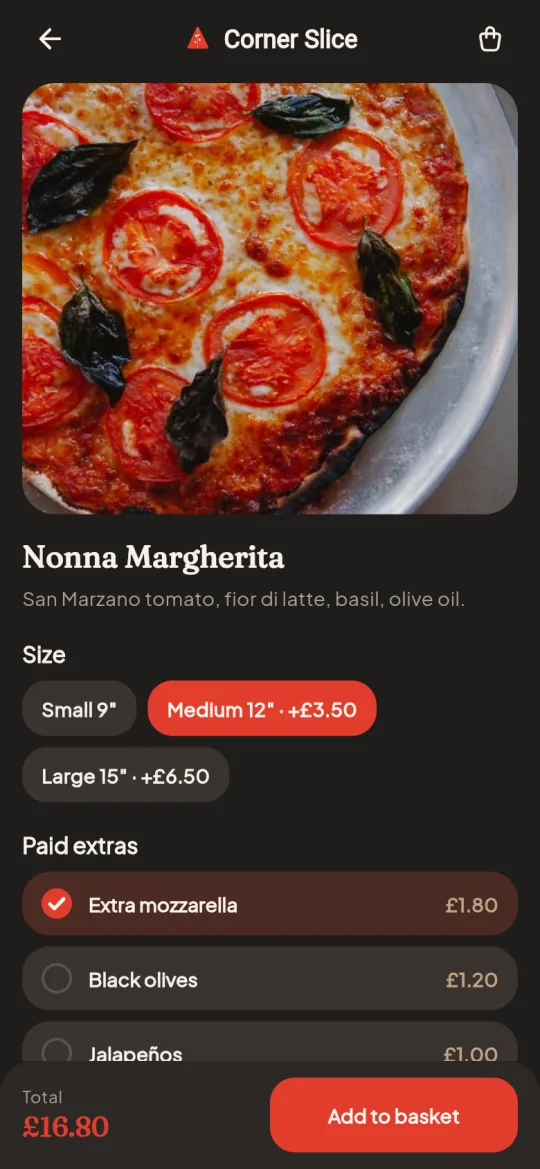
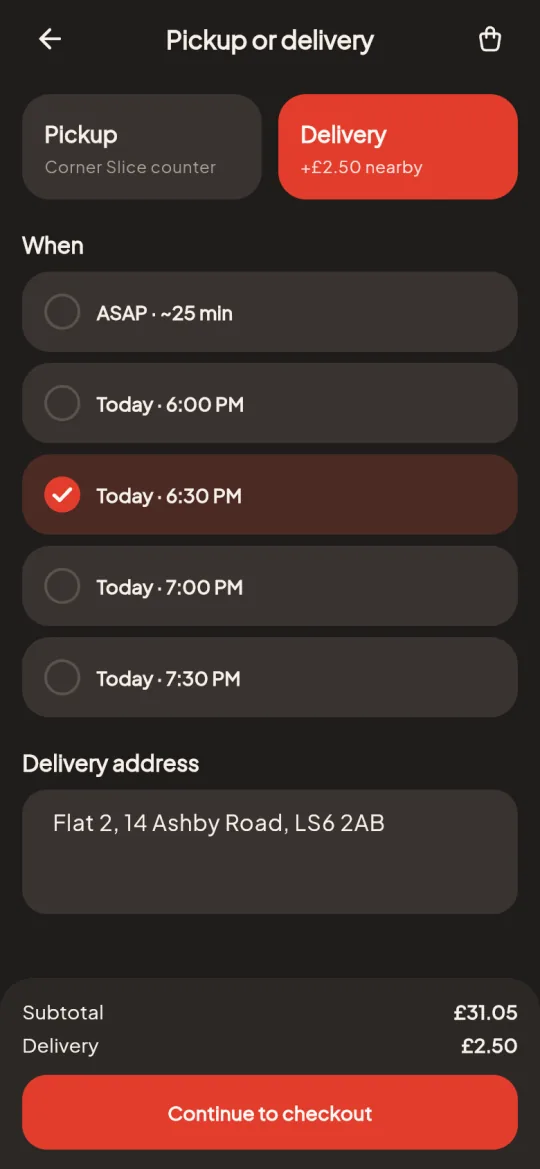
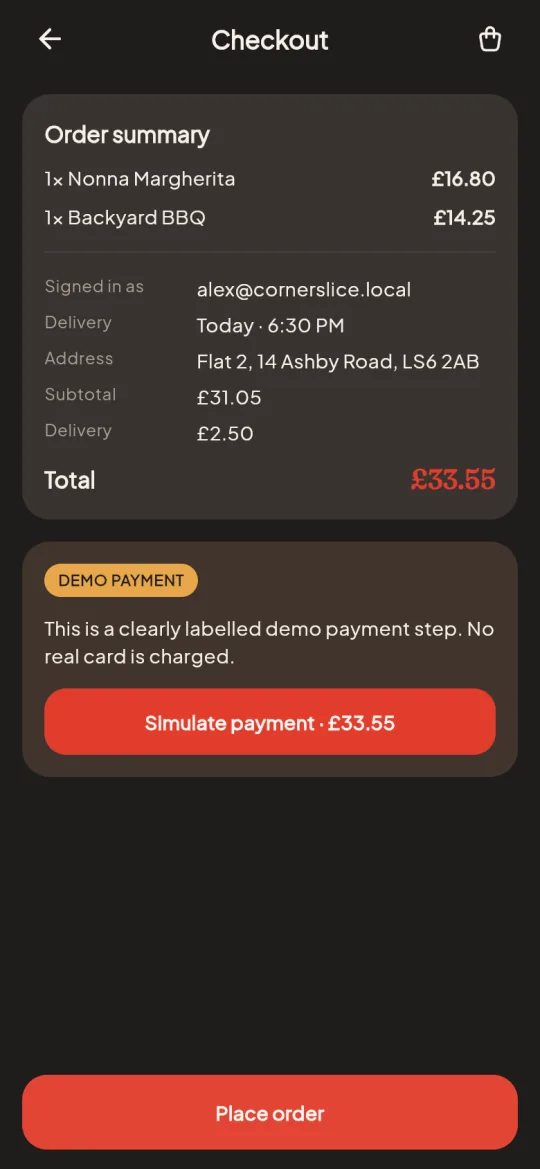
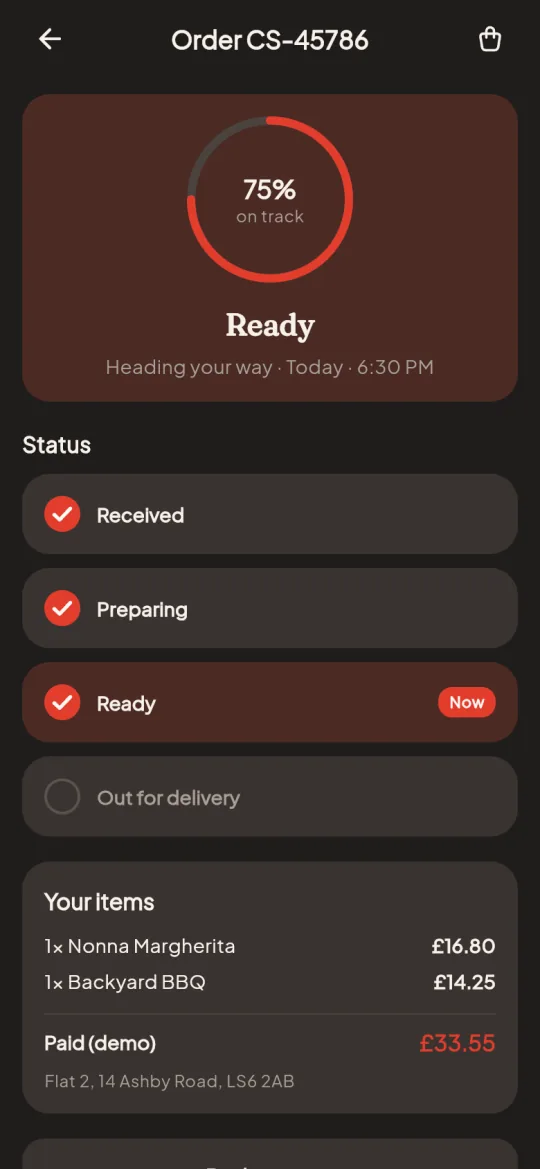
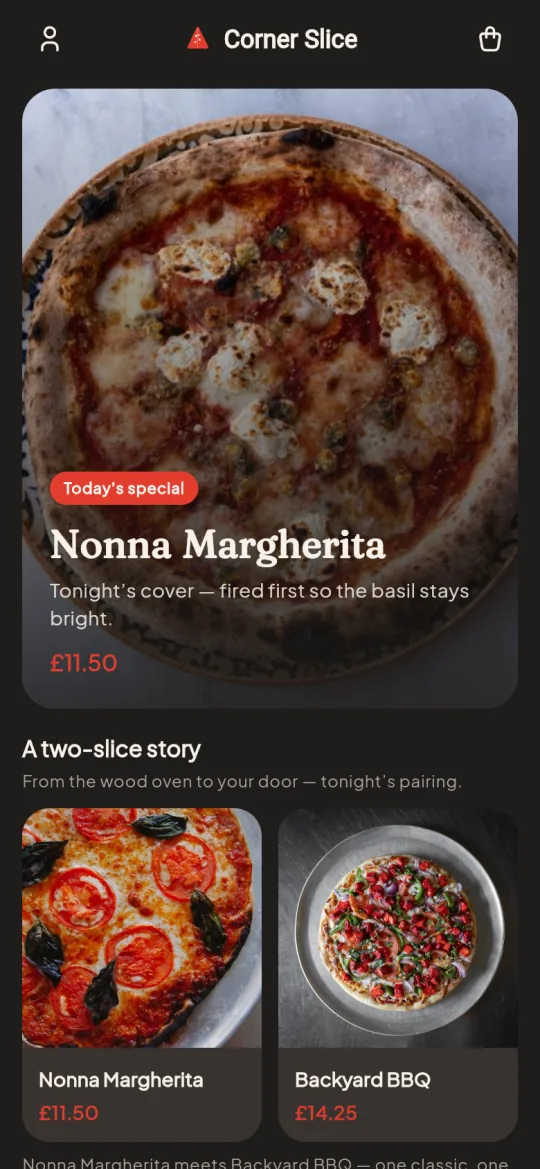
Corner Slice is a demo pizzeria built in FlutterGo from the prompt on this page. Every screen below is a capture of its live preview: the menu, a dish with its options, delivery with a time and an address, checkout and the order status.

Corner Slice menu with today's special, the Nonna Margherita, and a two-pizza pairing
Menu today's special, pairings
Nonna Margherita dish screen with Medium selected, extra mozzarella ticked and the total at £16.80
Dish options size, extras, live total
Pickup or delivery screen with Delivery chosen, a 6:30 PM slot and a delivery address
Pickup or delivery a time and an address
Checkout with the order summary, a £33.55 total and a labelled demo payment step
Checkout demo payment, Place order
Order status at Ready, with Received and Preparing ticked and Out for delivery next
Order status received to ready

Sample data: the dishes, prices, sign-in and address are placeholders. The payment step is a labelled demo and charges nothing; real payments need your own Stripe account.

The prompt under How to Build a Restaurant App with AI built this app in one go: the agent planned the screens, wrote the Dart and ran it in the phone preview, with no Mac or emulator. In the demo the order status moves on by itself; in your app, staff move it from the admin panel, as described below.

For other FlutterGo apps, see Northwind Goods on the ecommerce app builder page and Kora on the booking app builder page. Have a designed menu already? FlutterGo can also start from screenshots, an HTML page or a Figma file.

Build the Ordering Features Your Restaurant Needs

A food ordering app builder has to cover four moments: finding a dish, choosing how it is made, deciding how it arrives and following the order. FlutterGo generates the screens, and each card's label shows what also needs your backend.

Menus, Categories and Daily Specials

Hungry customers scan a menu; they rarely read it. Describe your sections, such as starters, mains and drinks, and the agent builds category tabs, a search, dish cards with prices and a specials row. Sample dishes work in the preview before any backend exists. Load the menu from your Supabase tables later, and a new special becomes a data edit, not a code change.

Generated screens

Dish Options, Extras and Notes

A margherita is rarely just a margherita. Describe each dish's choices, such as size, paid extras, spice level and a note for the kitchen, and the agent builds them into the dish screen, with the price following every pick. In Supabase, option groups and their prices become tables the agent models; you confirm the rules, such as required choices or a limit on extras.

Generated screens

Pickup or Delivery Selection

How the food arrives shapes the rest of checkout. The agent builds the pickup or delivery choice, a time picker for as soon as possible or later, and an address form for delivery. All three are saved with the order. Delivery areas, fees and minimum order values are rules in your data; check them on the server when the order is placed. No delivery platform is connected; getting the food to the door is your operation.

Generated screens, rules in your data

Checkout and Order Status

Checkout gathers the basket, the collection details and a payment step, which stays a labelled mock until Stripe is set up, then ends with Place order. A status screen reads the order's row in your Supabase orders table and, with Supabase realtime, can update while the customer watches. Sign-in comes from the auth flow, and order history for regulars uses the same table when you ask for it.

Live with Supabase

Taking table bookings too? Slots and capacity are a different problem, covered on the booking app builder page.

How to Build a Restaurant App with AI

To create a restaurant app with FlutterGo, you describe it, shape it in the preview and wire it to real orders. Every AI command in chat uses 1 credit, and the Free plan gives you 5 credits at sign-up.

  1. Describe Your Menu and Service Style

    In the home composer, list your menu categories, your dishes and the options each one takes, such as size, extras and spice level. Say whether customers collect their food, get it delivered or can choose, and when the kitchen is open. The agent turns that description into a plan for the ordering screens and writes the Dart while you watch.

  2. Generate and Refine the Ordering Screens

    The menu, dish, basket, checkout and status screens appear in a live phone preview in your browser as the agent builds them, with no emulator to install. Ask in chat for anything you want changed, for example a specials row, larger dish photos or prices shown beside each extra. Show code opens every file, and Edit mode handles small visual changes such as text, colours and spacing.

  3. Connect Orders and Test the Kitchen Flow

    Connect Supabase in Settings and ask the agent to keep the menu, orders and order statuses in real tables, then ask for payments and fill in the Stripe setup form in the project console. Place a test order, move it from received to ready and check that the customer's status screen follows. Work through the checks on this page before you accept a real order.

The prompt behind the demo
Build a food ordering app for a neighbourhood pizzeria. Screens: a menu with category tabs (Pizzas, Sides, Desserts, Drinks) and a row of daily specials; a dish screen with a size choice, paid extras, a spice level and a note for the kitchen, with the price updating as options change; a basket with quantities and a running total; a pickup or delivery choice with a time, plus an address for delivery; a checkout with a clearly labelled demo payment step and a Place order button; and an order status screen that moves through Received, Preparing, Ready and Collected or Out for delivery. Customers sign in with email. Use sample dishes with realistic names and prices, in a warm style with a charcoal background and a tomato red accent.

Run the Restaurant's Order Workflow

A restaurant ordering app is half the job; the rest happens behind the counter. Here is how an order moves through the kitchen, where the rules live and how the money is handled.

From New Order to Ready

Each order is a row in your Supabase orders table with a status: received, preparing, ready, then collected or out for delivery. On Pro and up, FlutterGo builds a website and admin panel on the same Supabase, where signed-in staff open the order and move it along as the food is cooked and handed over. The customer's status screen reads that same field, so the counter and the customer see the same thing.

Live with Supabase

Opening Hours, Prep Times and Sold-Out Items

Opening hours, prep times and a sold-out flag belong in your Supabase tables, not baked into the screens. The app reads them to grey out dishes and suggest pickup times. The final say belongs to the server: a customer who opened the menu at 9.55 pm can still press Place order at 10.05 pm. Ask the agent for a check at order time, in a Postgres function or a Supabase Edge Function, confirming the kitchen is open, the time is still ahead and every dish is available.

Rules in your data

Payments, Tips and Receipts

FlutterGo has no payment processor of its own: payments run through your Stripe account, and its fees are yours. When the agent adds payments, a Stripe setup form in the project console takes your publishable key, which ships in the app, and your secret key, which stays on the server in .env.server. A tip choice is a screen you can ask for, added to the charge. A receipt screen can read the order row; emailed receipts need an email provider added by API. A preview checkout is not a payment, so confirm the charge on the server before the kitchen sees the order.

Your provider

Notifications are not built in: a text when the food is ready, a push alert or an email to the kitchen each needs a provider added by API, often through a Supabase Edge Function. There is also no built-in POS or delivery-platform connection; if your system has an API, the agent can point the app at it. For the wider trade-offs, read your own restaurant app vs delivery platforms.

Own Your Flutter Restaurant App Code

An AI restaurant app builder is only worth it if the result is yours. FlutterGo writes a standard Flutter project for iOS and Android from one codebase, and on Pro and up it leaves with you.

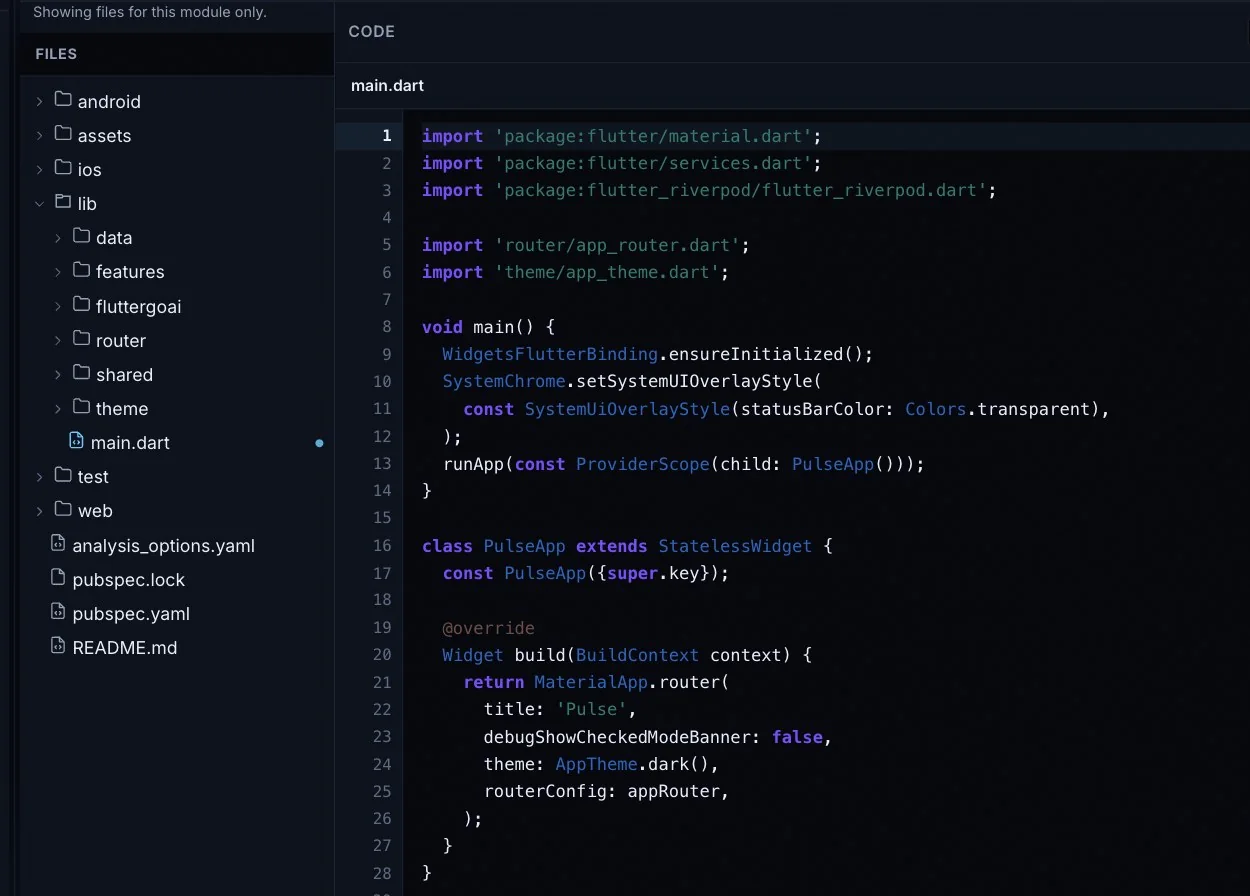
  • A normal Flutter project. Dart with Material 3, Riverpod for state and go_router for navigation, in android/, ios/, lib/, test/ and web/ beside a pubspec.yaml.
  • Open any file in the studio. Show code lists the whole project; edit by hand or ask in chat.
  • Take a ZIP. On Pro and up, Download code under Ship packs the full project (export and download).
  • Keep it on GitHub. On Pro and up, sync to a private repository in your own GitHub account (GitHub sync).
  • Build it on your own machine. Open it in Android Studio or VS Code and run flutter run. Downloaded or synced code stays yours if you cancel.
The FlutterGo studio's Show code view: the folders of a generated Flutter project, with main.dart open in the editor
The studio's Show code view, with main.dart open. A download or a GitHub sync carries this same file tree.

What to Test Before Taking Real Orders

A menu can look finished long before ordering works. Try each case in the preview, send the Share link to a colleague, then repeat on a real phone with an Android test APK (Starter and up).

  • Option prices add up. Order a large pizza with two paid extras. The line price must equal the base plus every option, and the server's total must match the screen.
  • An item sells out mid-order. Put a dish in the basket, then mark it sold out in Supabase. Checkout must stop with a clear message, not send the order to the kitchen.
  • Ordering while closed. Set the hours so the kitchen is shut and try to order. The app should refuse or offer a later time, and the server must refuse too.
  • A pickup time in the past. Pick a time, let it pass, then place the order. It must be rejected or moved forward, never accepted for a moment already gone.
  • A failed payment. Use one of Stripe's declining test cards. The customer should see why, the basket must stay untouched and no new order row may appear.
  • A double tap on Place order. Press it twice quickly on a throttled connection. The kitchen must receive one order; a disabled button helps, but the server has to enforce it.
  • Status updates reach the customer. Move a test order from preparing to ready in the admin panel or in Supabase. The customer's status screen must show the change.
  • Orders stay private. Log in with a second account and try to load someone else's order. Nothing may come back; the row-level security policies on your orders table are what stop it.

Restaurant App Builder Pricing and Requirements

You pay FlutterGo for a plan, and credits pay for the AI's work. Supabase, Stripe and the app store accounts are separate, and they are yours.

Plans. Free costs $0, with 5 credits at sign-up that stay until you use them, up to 2 projects, building and live preview. Starter is $19 a month for 50 credits and an Android test APK you can install on a phone in the kitchen.

Pro is $49 a month for 150 credits, with publishing to Google Play and the App Store, Download code and GitHub sync, the website and admin panel, and your own AI and MCP. Business is $99 a month for 500 credits, everything in Pro and the Secrets Vault. See plans and included features. These are monthly list prices in US dollars; some countries get a regional price at checkout, and the pricing page shows yours.

Credits. An AI command in chat costs 1 credit. An APK build costs 1 credit, refunded if it fails. A store deploy costs 2.5 credits, or 5 credits for both stores. Fix with AI costs nothing; see plans and billing.

Bills that come from others. Your Supabase plan, Stripe's fees, the Apple Developer Program and a Google Play developer account. Store review is up to Apple and Google.

What you need before the first real order. Supabase connected in Settings, with your menu, hours and orders in tables, and a Stripe account with its keys in the setup form. To publish, both store developer accounts and a connected GitHub repository for the iOS build; see deploy to Android and deploy to iOS.

Restaurant App Builder Questions

Quick answers for restaurant owners, café teams and the developers who build for them. More in the FAQ.

Can I build a restaurant ordering app with AI?

Yes. Describe your menu, the options on each dish and how customers get their food, and the agent plans the screens and writes the Dart while you watch them run in a live phone preview. You refine the result by chat. Real orders also need Supabase for the data and your own Stripe account for payments.

Can customers customise dishes?

Yes. Ask for sizes, paid extras, a spice level and a free-text note, and the agent builds them into the dish screen with the price following each choice. In Supabase, option groups and their prices become tables the agent models while you confirm the rules, such as required choices or a limit on extras. Recalculate the total on the server when the order is placed, so the kitchen sees the price that was actually charged.

Does it support pickup and delivery?

Yes. The agent builds a pickup or delivery choice with a time, plus an address form for delivery, and stores the choice with the order. Delivery areas, fees and minimum order values are rules in your data, and the server should check them when the order is placed. FlutterGo does not supply drivers or connect to delivery platforms; the delivery itself is up to you.

Can staff update the order status?

Yes. The status is a field on your Supabase orders table, moving from received to preparing, ready, and collected or out for delivery. On Pro and up, FlutterGo builds an admin panel on the same Supabase where signed-in staff change it, and the customer's status screen reads the new value. Alerts by SMS, push or email are not built in; add a provider by API if you want them.

Does it connect to my POS or delivery platforms?

Not out of the box. There is no built-in POS or delivery-platform connection. If your system offers an API, the agent can point the app at it or call it from a Supabase Edge Function, within whatever that API allows.

Can I take payments in the app?

Yes, through your own Stripe account. When the agent adds payments, a Stripe setup form appears in the project console: your publishable key is built into the app, while the secret key is kept server-side in .env.server and never pushed to GitHub. FlutterGo has no built-in payment processor, Stripe's fees are yours, and a checkout screen in the preview does not prove a real charge.

Can the app run on iOS and Android?

Yes, from one Flutter codebase. On Pro and up, FlutterGo signs an Android App Bundle and uploads it to the Play track you pick, and builds and signs the iOS app on a cloud Mac runner in your own GitHub repository before sending it to TestFlight. You do not need a Mac, but the Google Play and Apple developer accounts are yours, and store review is up to Apple and Google (see deploy to iOS).

Start with your menu. Test the ordering flow in your browser.Free to start, no card needed. On Pro and up, you can take the Flutter code with you.