Layouts and Flutter Widgets
Every screen is built from real widgets, never one big image with tap areas, so each label and button stays editable.
Generated screens
Figma to Flutter AI
Bring your Figma design into FlutterGo and turn supported design context into editable Flutter screens. Compare the result with your original design, refine the interface and continue building the application.
Free to start, no card needed. Figma import is on every plan, and the result is real Dart you can download on Pro and up.
Trailhead is a hiking app screen designed in Figma. Beside the frame are the Flutter screen FlutterGo built from it and the same screen after one refinement message, both captured from the live preview.
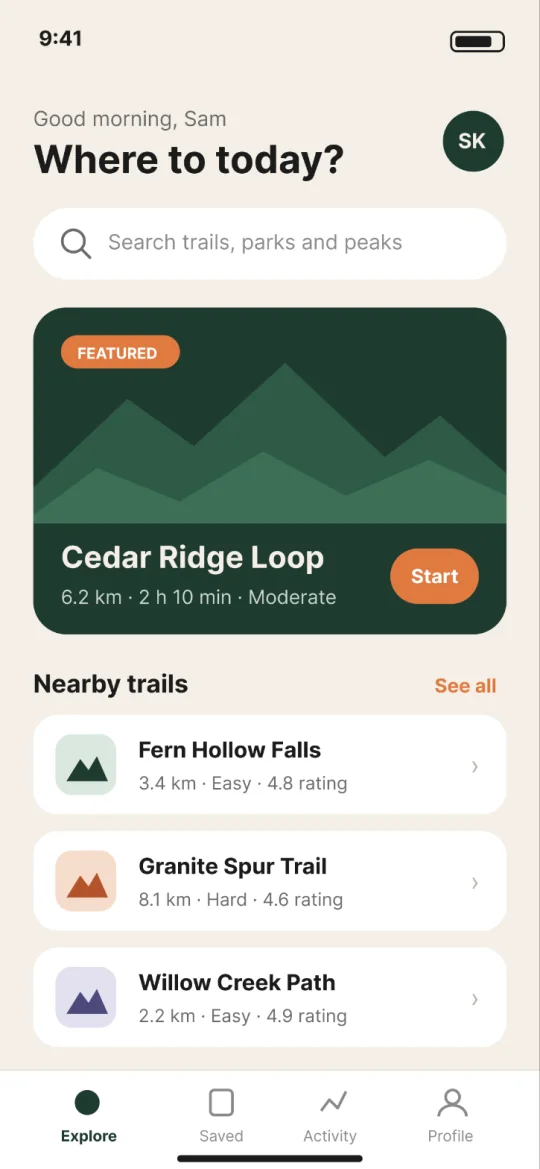
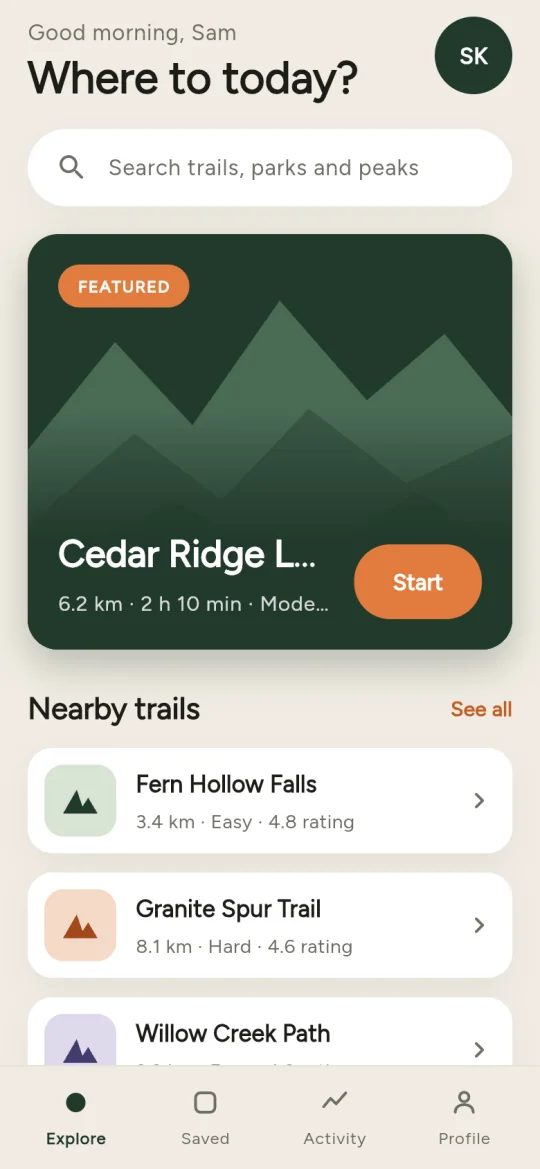
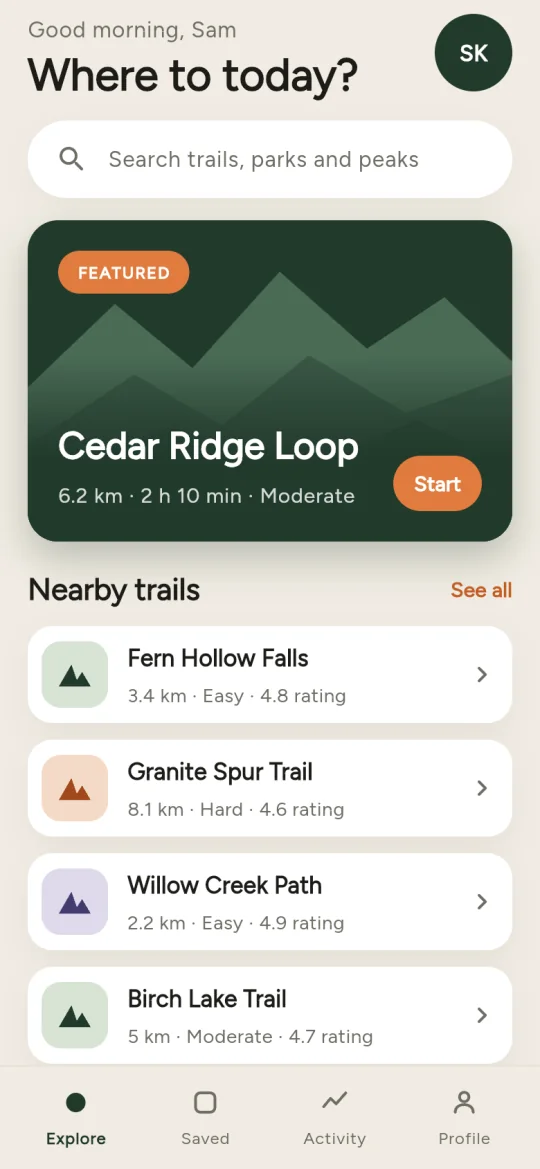
How this demo was made: the frame was exported from Figma as an image and attached in chat, and FlutterGo rebuilt it with real Flutter widgets. The From Figma import reads the same frame straight from your file, with its text, colours and images. Either way the match is close, not pixel-exact: the first build cut off the trail name, and one message fixed it. That message is under Refine the Generated Flutter Interface.
Connect once, paste a link, and the agent builds the screens in a queue. The pull is free. Building the screens is agent work and spends credits like any chat turn: 1 credit per command.
Connect your Figma account once under Integrations, then Figma. It is an OAuth connection to your own account, so private files you can open in Figma work. FlutterGo is not a Figma plugin; there is nothing to install. On the home composer, choose "From Figma", paste a figma.com design, file or proto link, add your notes after it and start the build.
FlutterGo pulls the file through the Figma REST API and shows progress as screens and assets are counted. Every top-level frame on each page becomes a screen. The importer saves a PNG of each frame, the placed images, each text's size and weight, and a token bag under figma/. The pull is free.
The agent builds the screens one at a time from each frame's PNG and plan, with real Text, buttons and lists instead of one big image. After each screen, the agent checks it against the Figma PNG and fixes the mismatches it finds before moving on. The match is close, not pixel-exact, so refine the rest by chat.
The file has six screens: Onboarding, Sign in, Home, Search, Detail and Profile. Keep every label as real text. Use Inter from Google Fonts for now; we will add our licensed font files later. The bottom bar on Home is the app shell: reuse it on Search and Profile and wire the tabs. Leave sign-in as a screen only; we connect Supabase after the import.
Type those notes after the Figma link, in the same box, before you start the build: what to change, what stays text, which font to load. Inside an existing project, Attach Figma link in chat does the same job.
From Figma design to Flutter widgets: the importer records what it can read, and the agent builds from that record plus a PNG of each frame.
| In Figma | In Flutter | Notes |
|---|---|---|
| A top-level frame on a page | A screen, built from its PNG and plan | Frame names become screen names. |
| Text runs with size and weight | Real Text widgets, using the size and weight read from Figma | Keep text as text, not outlines. |
| Solid fills, strokes, corner radii | Colours, borders and rounded corners | Gradient fills are listed as unsupported in figma/OVERVIEW.md; blend modes are not read. |
| Images placed in the frame (photos, illustrations, logos) | Image files in figma/assets/images/ (up to 48 per import), used with Image.asset | Vector icons are not exported as files; check them in the preview. |
| Colours, typography, spacing, radius | A token bag saved with the project | Read once from the frames at import; later Figma changes are not re-synced. Shadows are not read. |
Every screen is built from real widgets, never one big image with tap areas, so each label and button stays editable.
Generated screensText uses the size and weight read from Figma, in a system or Google font the agent can load.
Generated screensUp to 48 placed photos, illustrations and logos arrive as real files, not screenshot regions; vector icons do not, so check them in the preview.
Generated screensComponent instance references are recorded at import; this is not a complete component conversion, so ask in chat to keep a shared widget in one place.
Generated screensThe importer works from top-level frames, layer names and what it can export. A tidy file gives the agent a better plan.
Make each screen one phone-sized frame at the top level of its page, named as you want the screen named. Every top-level frame or component becomes a screen, including a cover frame. Keep anything else off the top level, or import a copy of the file with only the screens. Frames inside a Section or a group are not top-level, so move screens out of them before you import. Name layers and components too; the names feed the plan.
Before you importThe agent rebuilds each layout from the frame’s PNG and plan, at the frame’s phone size. Do not rely on gradients or blend modes. Plan small phones, tablets and overflow as chat requests after import.
Before you importKeep text as text, not outlines, so it becomes real Text widgets. Have any custom font files ready to add after import. Connect the Figma account that can open the file.
Before you importThe generated screens are a starting point. Edit them by chat, open any file with Show code, or use the Edit/inspect mode for visual tweaks.
Common requests after a Figma import:
On Explore, match the Figma frame more closely: make the Start button the frame's size (64 by 40) so "Cedar Ridge Loop" and "6.2 km · 2 h 10 min · Moderate" fit on one line without being cut off, and fit all three trail rows above the bottom tabs, as in the frame.
The agent edits the Dart for those screens, the change hot-reloads into the phone preview, and you compare again. Each command spends 1 credit; Fix with AI costs nothing. Ship → Share gives your designer a link to the running preview.
A Figma to Flutter converter, this one included, gives you screens, not backend logic. Sign-in, data, payments and rules are implemented and tested separately, and FlutterGo helps with each.
A sign-in frame becomes a sign-in screen, not a working account system. The same goes for a list that should load from a database, or a checkout that should charge a card.
Two guides walk through this split for a whole type of app: the ecommerce app builder and the booking app builder.
From Figma to Dart: a standard Flutter project with the design context saved beside it. On Pro and up, you take it anywhere.
flutter run. Cancel later and the code you synced or downloaded is still yours.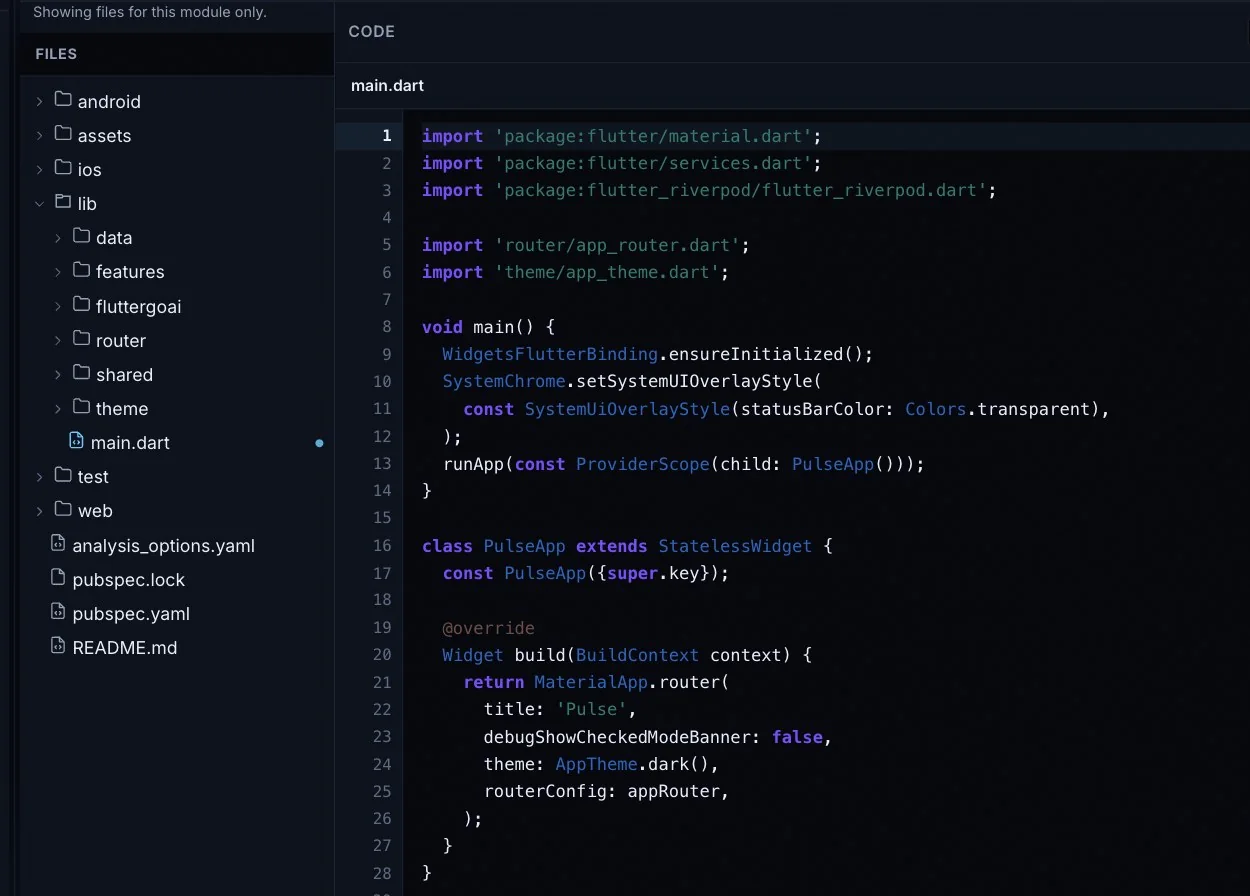
The docs cover export and download and GitHub sync. See plans and included features.
Read these before you paste a link.
Short answers to what designers and developers ask before a first import.
Yes, the screens. Connect your Figma account once, then paste a figma.com link with "From Figma". The agent generates Flutter code from Figma frames one screen at a time, checking each against its PNG. The pull is free; building the screens spends credits like any chat turn, 1 credit per command.
Yes, when the Figma account you connect can open them. The connection is OAuth to your own account, and FlutterGo pulls the file through the Figma REST API. Design, file and proto links are accepted.
Up to 48 photos, illustrations and logos placed as images are downloaded into figma/assets/images/ and used with Image.asset. Vector icons are not exported as files, so check them in the preview. Text layers are read with their size and weight and built as real Text widgets, so keep text as text rather than outlines. The agent loads system and Google fonts; add custom font files afterwards.
Yes, by chat. Ask for spacing, typography, overflow handling, navigation or other screen sizes, and the change hot-reloads into the phone preview. "Show code" lets you edit every file.
No. Nothing in the design becomes backend logic. Sign-in, APIs, persistence, payments and business rules are implemented and tested separately. FlutterGo helps: connect Supabase for auth and data, use the Stripe setup form for payment keys, or point the app at your REST API. See Backends.
Yes, on Pro and up. Download a ZIP of the project under Ship, or sync it to a private GitHub repository in your account. Open it in Android Studio or VS Code and run flutter run. Downloaded and synced copies are yours to keep if you cancel.
No. The match is close, not pixel-exact. The agent is told to compare each screen with its Figma PNG and fix the mismatches it finds, so expect a few adjustments. Gradient fills are listed as unsupported in figma/OVERVIEW.md; blend modes and shadows are not read, so refine them by chat.
Your design, as real Flutter screens.Connect Figma, paste the link and watch the first screen build in the phone preview.