AI Android App Builder: From Prompt to a Play-Ready AAB
What an AI Android app builder must hand you for Google Play in 2026: a signed AAB targeting API 36, 16 KB page support, and the account steps still on you.
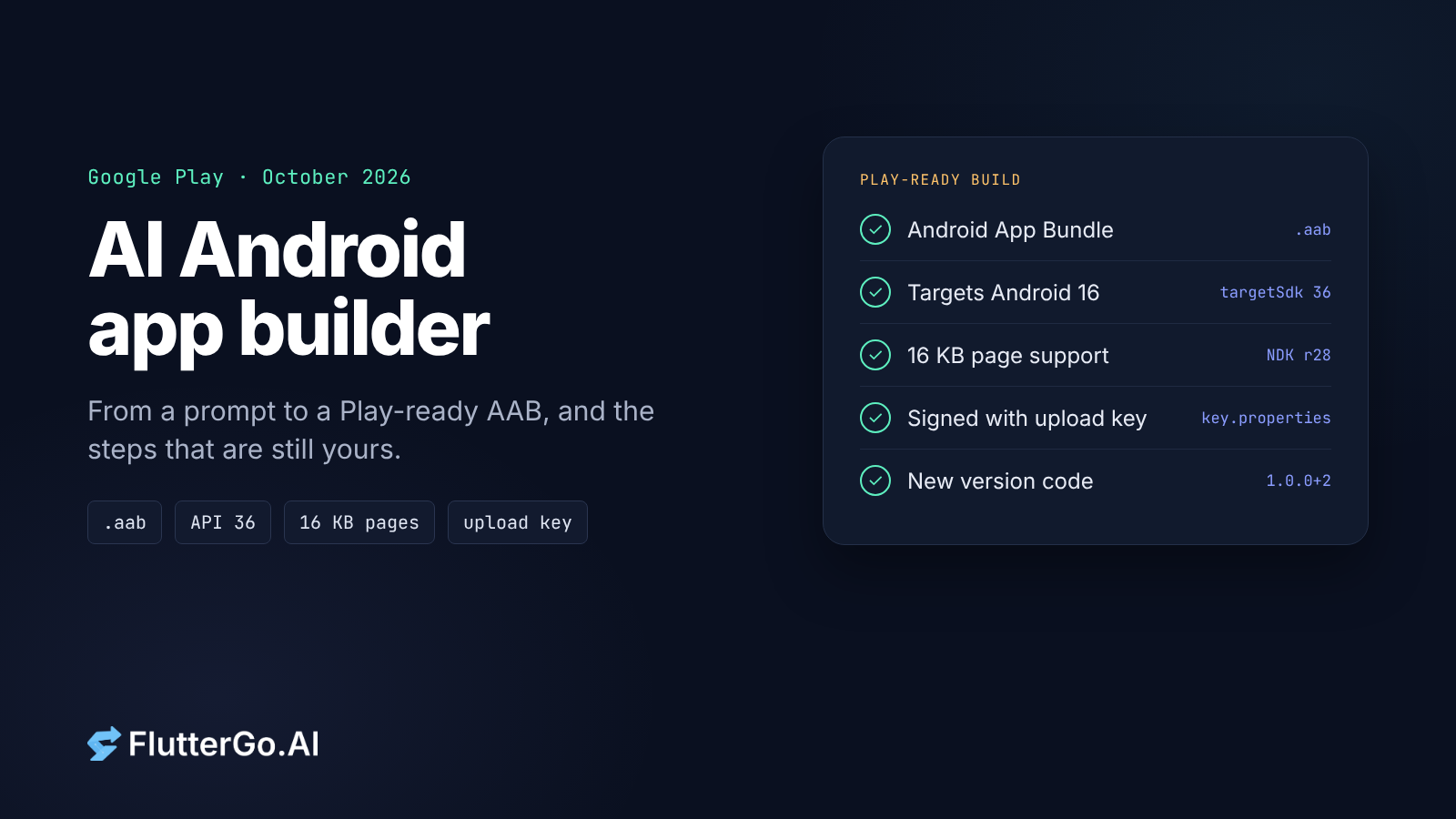
An AI Android app builder is only as useful as the file it hands you at the end. A preview in the browser proves the idea works. Google Play wants something stricter: a signed Android App Bundle (AAB), built to target Android 16 (API level 36), from an app that supports 16 KB memory pages, uploaded by a developer account that has finished Google's checks.
This guide explains what "Play-ready" means in October 2026, which parts of the path from prompt to AAB a builder can do for you, which parts are still yours, and the questions to ask before you trust any builder with an Android release. We build FlutterGo, an AI Flutter app builder, so the last section maps FlutterGo onto this path. The checklist itself applies to any tool.
Google Play's requirements in October 2026
These are the rules a build has to meet before Play will accept it. Each one links to Google's own page.
| Requirement | The rule today | How to check a Flutter project |
|---|---|---|
| App format | New apps must publish as an Android App Bundle. Google has required this since August 2021. (Android Developers) | flutter build appbundle produces an .aab. An APK alone is not enough for a new app. |
| Target API level | From 31 August 2026, new apps and updates must target Android 16 (API 36). Developers can request an extension to 1 November 2026. (Play Console Help) | targetSdk in android/app/build.gradle.kts. The Flutter 3.47.7 template sets it from flutter.targetSdkVersion, which is 36. |
| 16 KB memory pages | Apps targeting Android 15 (API 35) or higher must support 16 KB page sizes on 64-bit devices. From 1 February 2027, updates that don't can't be released. (Android Developers) | Flutter 3.38 moved to NDK r28 for 16 KB compatibility; the 3.47.7 template defaults to NDK 28.2. Plugins that ship their own native libraries need checking too. |
| Signing | Every bundle is signed with your upload key. New apps are enrolled in Play App Signing automatically, and Google signs what users install with the app signing key. (Play Console Help) | A key.properties file and an upload keystore, kept out of source control. |
| Version code | Play won't accept a version code you've already used, and Android's docs say each release should use a greater value. (Android Developers) | Flutter sets versionCode and versionName from version: 1.0.0+1 in pubspec.yaml. (Flutter docs) |
The defaults in that table come from the Flutter 3.47.7 SDK itself. Its Gradle plugin (FlutterExtension.kt) sets compileSdkVersion 36, minSdkVersion 24, targetSdkVersion 36 and ndkVersion "28.2.13676358", and the app template reads all four. If a generated project overrides any of these, that override is what Play sees.
We covered the format question in more depth in AAB vs APK, and the API 36 deadline in what Flutter apps have to change for API 36.
From prompt to AAB: five stages
Every AI Android app builder takes you through the same five stages, whether it shows them to you or not. The difference between tools is how many of them it does, and how much of the result you can see and keep.
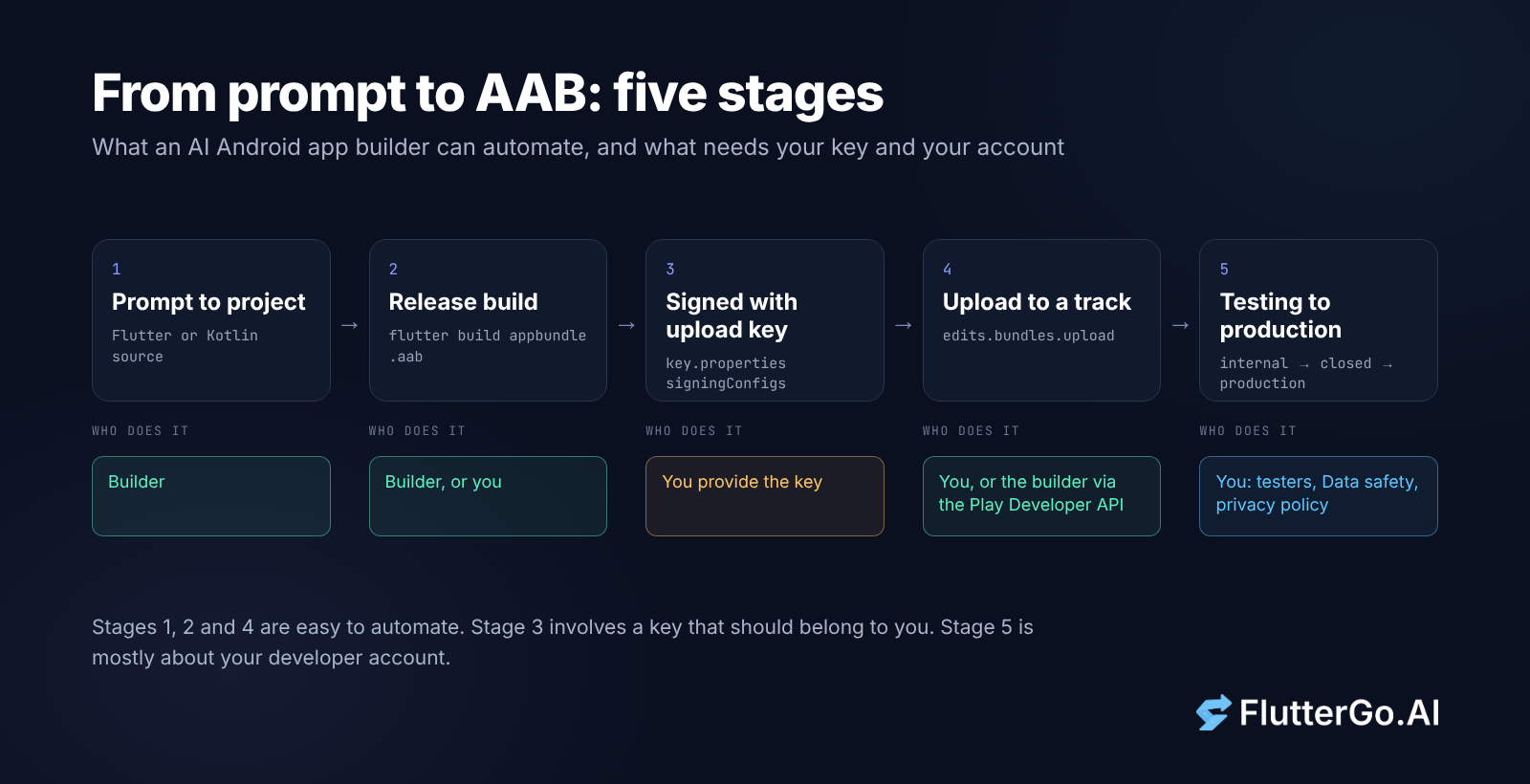
- Prompt to project. The builder turns a description into source code. For a native Android build this should be a real project, Flutter or Kotlin, not a web page in a wrapper.
- Project to release build. Someone runs the release build. For Flutter that's
flutter build appbundle, which writes the bundle tobuild/app/outputs/bundle/release/. It needs the Android SDK, which is why builders run it on their own servers. - Signing. The bundle is signed with your upload key. The Flutter docs show the standard setup: create the key with
keytool, pointkey.propertiesat it, and reference it from asigningConfigsblock inbuild.gradle.kts. - Upload to a track. The signed bundle goes to a Play Console track. You can drag it into the Play Console, or a tool can upload it through the Google Play Developer API (
edits.bundles.upload), which is how builders and CI systems publish without anyone opening the console. - Testing to production. The release moves from internal testing to closed testing to production. For many new developers, this is the slowest stage, for reasons covered below.
Stages 1, 2 and 4 are easy to automate. Stage 3 involves a key that should belong to you. Stage 5 is mostly about your developer account, which no tool can do for you.
Signing: the part you shouldn't hand over blindly
Android uses two keys. The upload key signs the bundle you send to Google. The app signing key is held by Google and signs the files that reach users' phones. Since new apps are enrolled in Play App Signing automatically, losing your upload key is no longer the disaster it once was: you can ask for an upload key reset in the Play Console and register a new one.
That still leaves two practical questions for any builder:
- Who created the upload key, and can you get it? If the builder generated it, make sure you can download the keystore and its passwords. If you might move the app to your own CI later, you'll need them.
- Where do the secrets live? The Flutter docs are blunt: keep
key.propertiesprivate and don't commit it to public source control. A builder that syncs your project to GitHub should not put the keystore or its passwords in the repo.
Set up your own signing once and you can build the same app anywhere. Our Flutter CI/CD guide shows that setup in a pipeline.
The account steps no builder can do for you
A perfect AAB can still sit in internal testing for weeks if the account isn't ready. These steps are about you, not your code:
- Register as a developer. Google charges a one-time US$25 registration fee. (Play Console Help)
- Run a closed test, if you have a new personal account. Personal accounts created after 13 November 2023 must run a closed test with at least 12 testers who have stayed opted in for at least 14 days in a row before applying for production access. (Play Console Help) That's two weeks you can't compress, so start recruiting testers while the app is still being built.
- Use internal testing for the first builds. An internal test can have up to 100 testers, and a new bundle reaches them within minutes. Google notes that internal tests might not be subject to the standard policy or security reviews, so a bundle that installs fine there can still be rejected later in review. (Play Console Help)
- Complete the Data safety form and add a privacy policy. Every app published on Play must complete the Data safety form, and Google says a privacy policy is required to complete it. Apps active only on internal testing tracks are exempt. (Play Console Help) If your generated app uses Firebase, analytics, or a crash reporter, list what they collect, not only what your own code does.
- Know about developer verification. On 30 September 2026, Google's developer verification protections began for users in Brazil, Indonesia, Singapore and Thailand on certified devices running Android 7 or later, and Google plans to expand verification globally in 2027. Google says Play registers 99% of apps automatically. (Android Developers) We explained what Flutter teams should do in our developer verification post.
For the full Play Console walkthrough (store listing, content rating, screenshots), see publishing a Flutter app to Google Play, start to finish.
Seven questions to ask any AI Android app builder
Use these to compare tools before you've spent a week prompting one. Most can be answered from the tool's own docs, or by exporting a test project and reading two files.
- Does it produce an AAB, or only an APK? An APK is fine for sideloading onto your own phone. A new Play app needs an AAB.
- What does
targetSdksay in the exported project? Openandroid/app/build.gradle.kts. Anything below 36 can't be submitted as a new app or update after 31 August 2026 without an extension. - Which Flutter (or Android Gradle Plugin) version builds it? Older toolchains can miss the 16 KB page-size work. Check the version the builder uses, then check any plugins with native code.
- Who holds the upload key? You should be able to get the keystore and passwords, or use your own.
- Can you export and build the project yourself? If the builder disappears or changes its pricing, can you run
flutter build appbundleon your own machine and ship the next update? Our code ownership piece goes deeper on this. - How does it upload? Through the Play Developer API to a track you choose, or only as a file you download? Both work. Automatic upload saves time on every update.
- What's in the code? State management, navigation, and how secrets are handled. Read it once, because you'll maintain it.
FlutterGo's Android path
The FlutterGo homepage describes the Android path like this (quoted on 10 October 2026):
- FlutterGo generates "Dart with Riverpod and go_router" and a project you can "open, edit, export as a Flutter project or sync". Plans include "Download code", and GitHub sync starts on the Starter plan.
- Builds run on FlutterGo Cloud: "Release APK, built on FlutterGo Cloud" and "AAB and IPA, on FlutterGo Cloud", "release APK, AAB and IPA, no Mac required."
- Publishing goes through Google's own API: "Signed builds go to TestFlight and Google Play through the official store APIs, from the same workspace you built in." For Android the homepage lists a "signed AAB", the "internal track" and "staged rollout".
- The Android inputs are a "Service account JSON" (for the Play Developer API) and an "Upload keystore + key.properties", "saved in FlutterGo and reused on every deploy".
- Pricing on that date: a store deploy costs 2.5 credits (5 for both stores), "once per project per 24 hours". The Free plan has 5 credits a month, and the homepage says that's "enough to build a first app and preview it running".
- "You own the source code, and it stays yours even if you cancel."
Mapped onto the five stages, FlutterGo covers 1, 2 and 4 itself. You provide the signing key and the service account, and stage 5 (testers, Data safety, privacy policy) is still on you, as it is with every builder.
Two things we'd still check on any build, ours included: open the exported project and confirm the targetSdk and Flutter version, and read the generated state management rather than assuming it. In one of our own tutorial builds, a generated app used a ChangeNotifier controller rather than Riverpod, so the code is worth reading before you rely on a description of it.
Common questions
Can I upload an APK to Google Play instead of an AAB?
Not for a new app. Google has required new apps to publish as Android App Bundles since August 2021. APKs are still useful for installing a test build directly on a phone; flutter build apk --split-per-abi makes one smaller APK per CPU architecture.
Do I need a Mac to build and ship an Android app? No. The Android build needs the Android SDK, which runs on Windows, Linux or macOS, and cloud builders run it on their own servers. A Mac is only needed for iOS, and some builders work around that too.
How long does it take to get from prompt to production? The build can take minutes. The account usually takes longer: a new personal developer account has to run a closed test with 12 testers for at least 14 days before it can apply for production. Plan for at least two weeks, plus review time.
Next step
If you want to see the path end to end, describe your app to FlutterGo, preview it, then open the exported project and run the seven questions above against it. When you're ready for the store, our guide on taking an AI-built app from idea to store listing covers the listing, icons and screenshots.