
Build an Interval Workout Timer with FlutterGo, Then Check Its Timer Code
A hands-on FlutterGo tutorial: one prompt to a working Flutter interval timer, four bugs found by testing, one follow-up fix, and a timer code review.
A timer app looks simple until you write one. It has to count down accurately, move through phases in the right order, survive Pause and Skip, and record what actually happened. That makes it a good test for an AI app builder.
In this tutorial we build Pulse, an interval workout timer, from one prompt in FlutterGo. Then we test it like a user, fix the four bugs we found with one follow-up prompt, and read the timer code to find what testing can't show.
Everything below happened on October 1, 2026, in the FlutterGo studio. The screenshots and the demo video come from that session.
Key takeaways
- One prompt produced a working Flutter timer with presets, a phase-colored countdown ring, Pause/Skip/Reset, an editor and a history screen
- Testing found four real bugs, including a Save button that silently failed. One follow-up prompt fixed all four in under two minutes
- The timer counts with
Timer.periodic, which is fine for a demo but drifts when the app is paused or backgrounded. Reading the code is how you find that
Try Pulse yourself: open the live app. This is FlutterGo's public share link for the fixed build from this tutorial. It runs in the browser, so it works on a phone or a laptop and needs no install or sign-in.
Time: about 30 minutes, most of it waiting on the first build. You need: a FlutterGo account. No local Flutter install is required.
Step 1: Describe the timer in one prompt
Open FlutterGo and type the app into the box on the studio home screen. For a timer, the important part is the behavior, so spell out the phases and the controls. Here's the exact prompt we used:
An interval workout timer called Pulse. Screens: a Workouts list with a few
presets (Tabata 20/10 x8, HIIT 40/20 x10, EMOM 60s x12); a Workout editor to set
name, work seconds, rest seconds, rounds and a warm-up; and a full-screen Timer
screen with a big countdown ring, the current phase (Warm-up, Work, Rest, Done),
round X of Y, and Start/Pause, Skip and Reset buttons. The ring color changes by
phase and the last 3 seconds of each phase show a bold countdown. Dark,
high-contrast sporty design.
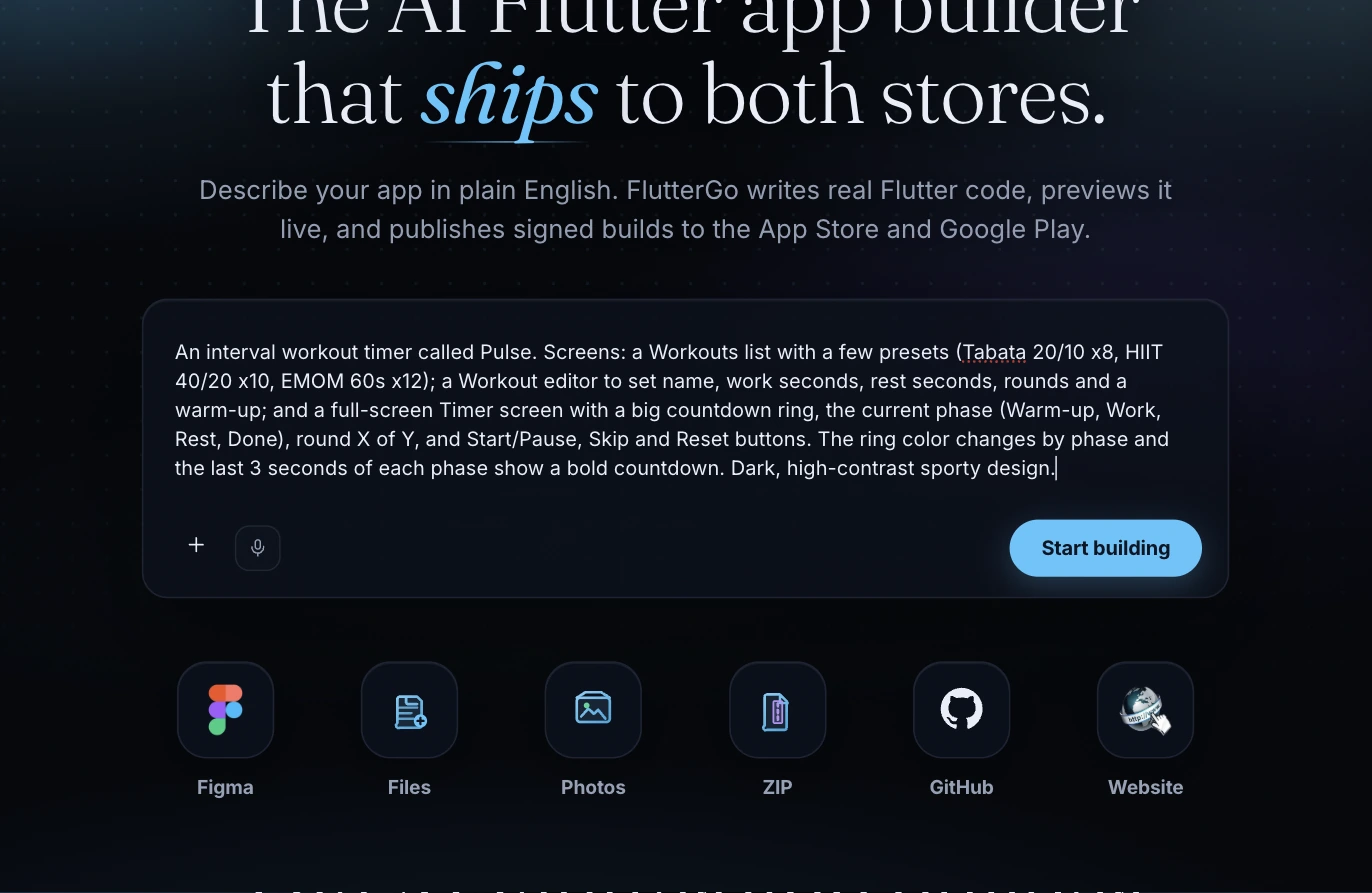
The prompt names the presets with real numbers, which gives the agent concrete data to build and gives you something to check later. It also lists every phase and every control. Leave one of them out and you're relying on the agent to guess it.
Click Start building. When FlutterGo asks where data should live, choose Skip for now. Pulse doesn't need a backend, so it keeps everything in memory.
Step 2: Let it build, then run the preview
The workspace opens with the chat on the left and an iPhone 16 Pro preview on the right. Our first build finished in 12 minutes 46 seconds. Then FlutterGo ran flutter analyze on the project before building the preview. Once that passed, Run app compiled the web preview.
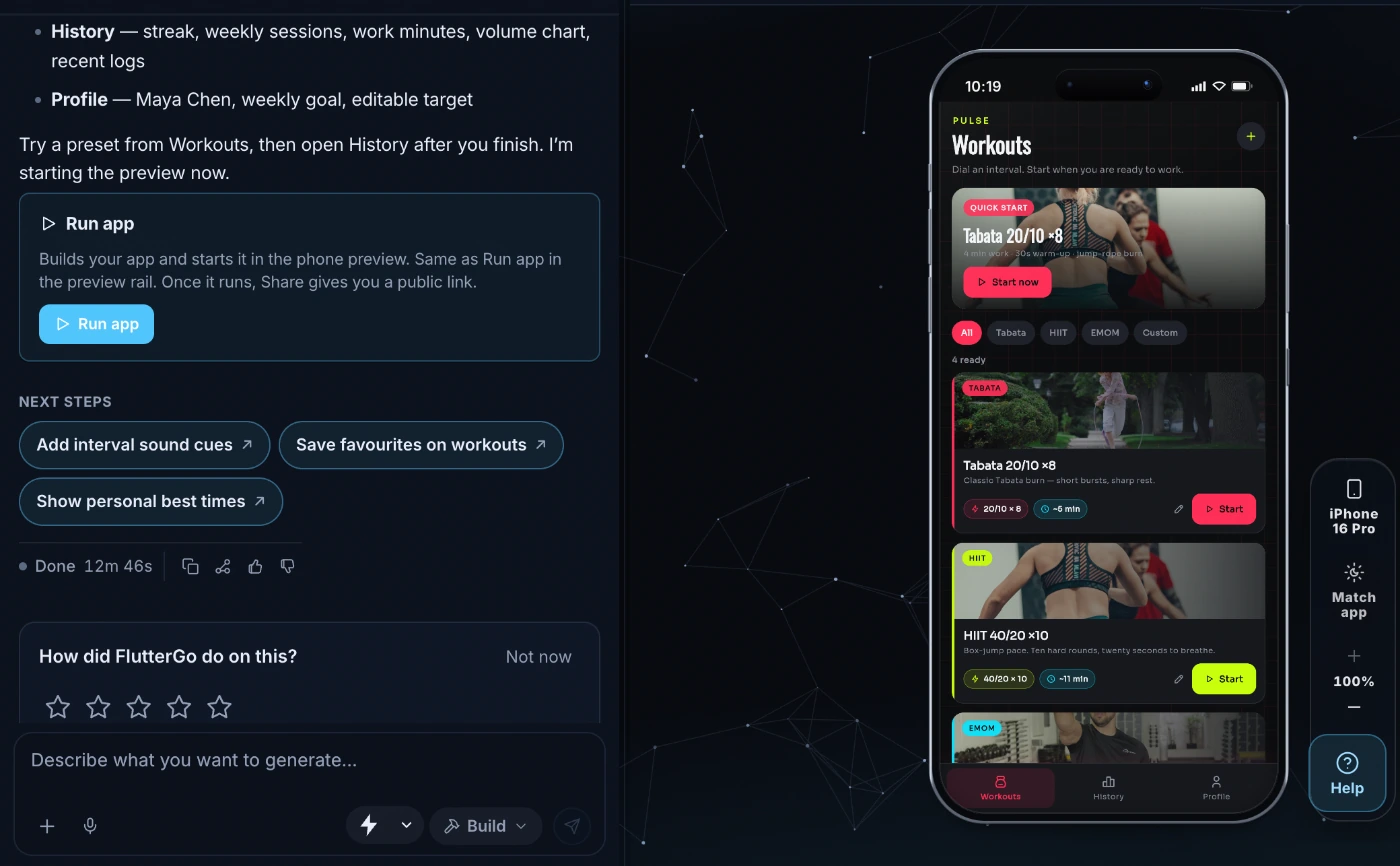
FlutterGo's summary listed five areas: Workouts, Editor, Timer, History and Profile. We only asked for the first three. It also added a fourth preset, Sprint Ladder 30/15 ×6, and filled History and Profile with sample data for a made-up user called Maya Chen. That's helpful for a demo, but you'll want to remove it before shipping.
Step 3: Test the timer like a user
Open a preset and run it. Then poke at every control you asked for, not just the happy path.
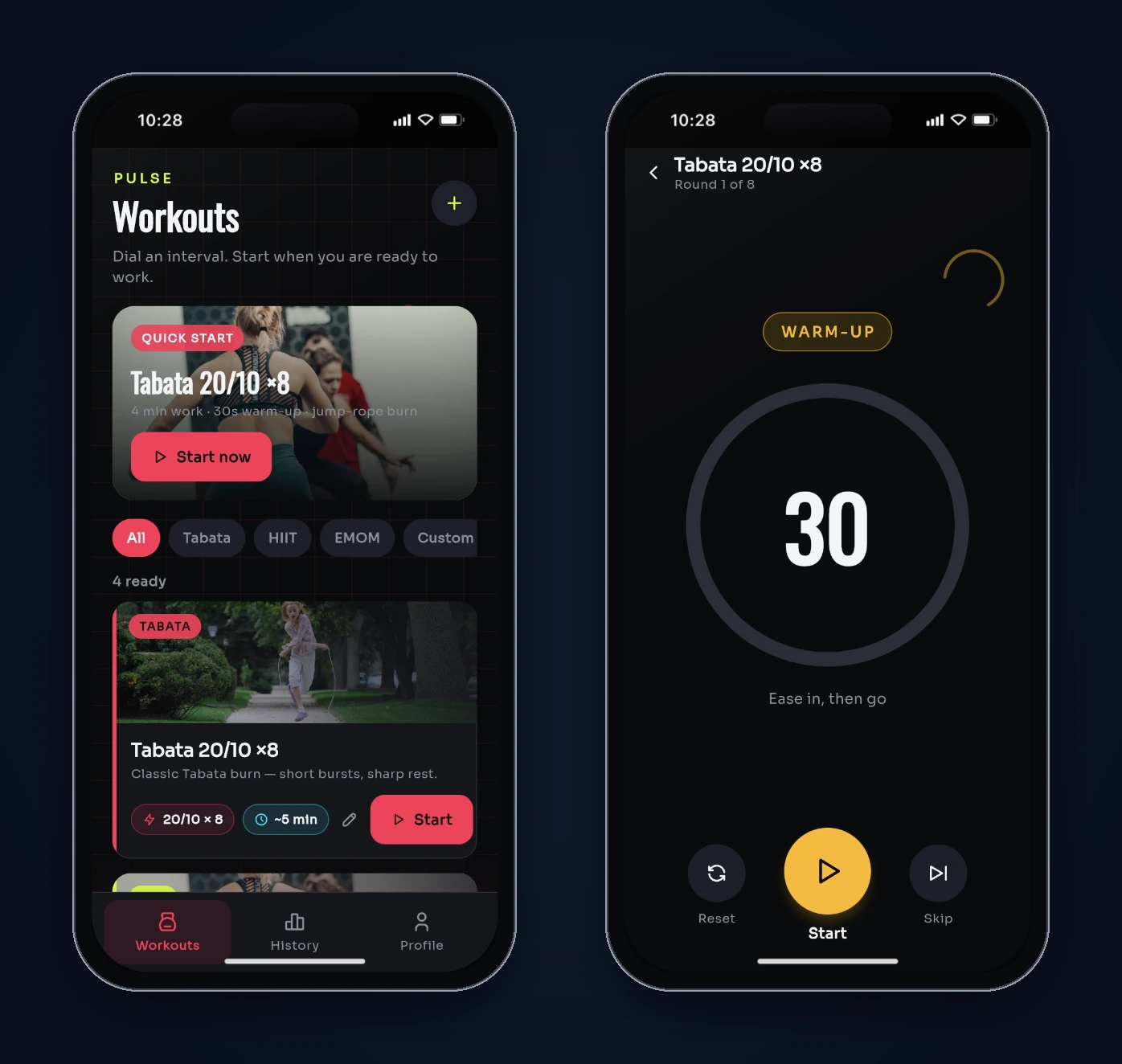
Here's what worked on the first build:
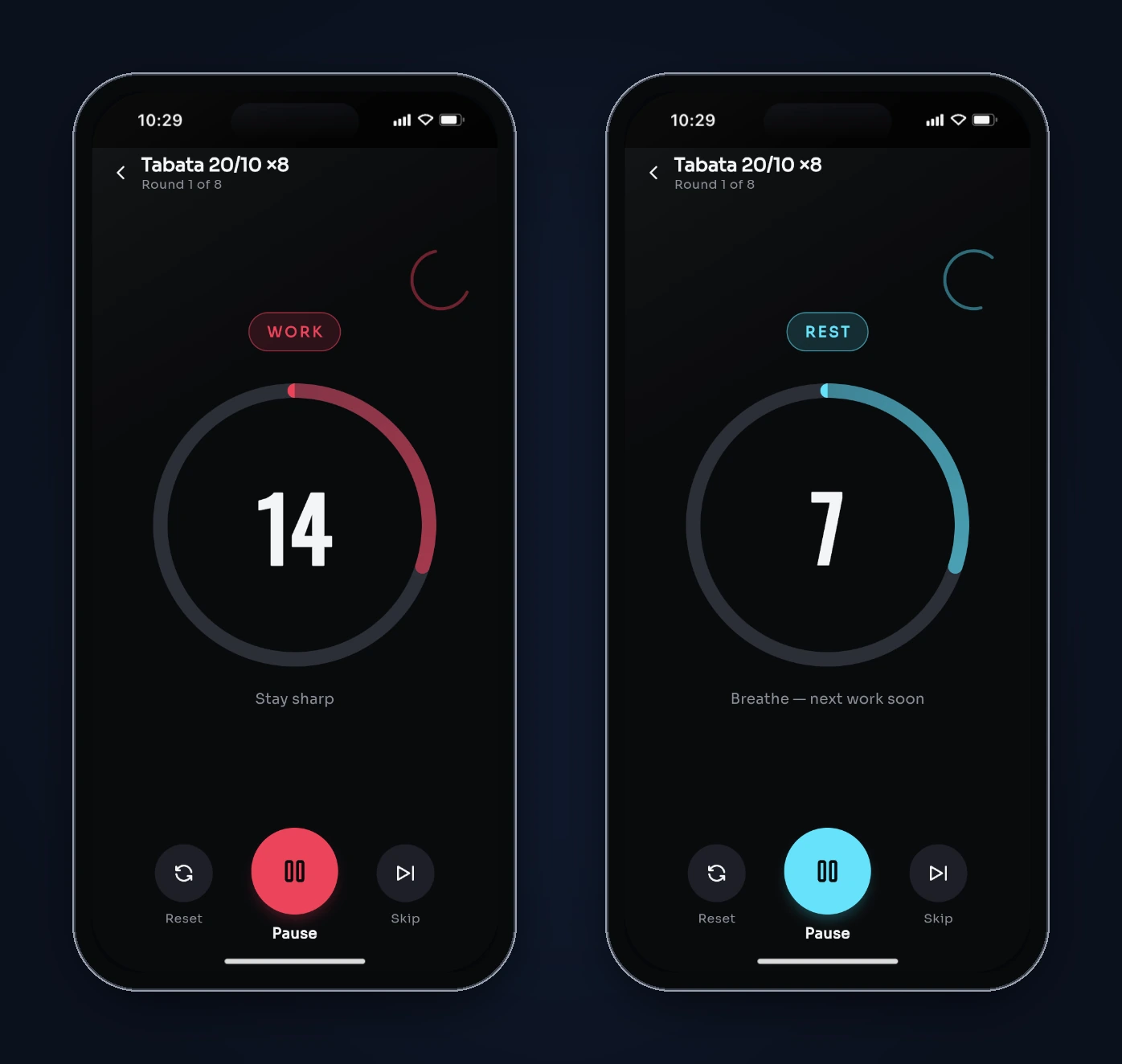
- Phases in order. Tabata 20/10 ×8 ran a 30-second warm-up (amber), then 20 seconds of Work (red) and 10 seconds of Rest (cyan), and repeated.
- Round counter. The header moved from Round 1 of 8 to Round 2 of 8 at the start of each new work phase.
- Pause. Pause froze the countdown and switched the button label back to Start.
- Done state. After the last rest, the ring turned lime and showed NAILED IT and Session complete.
Then we tried the edges, and four things broke.
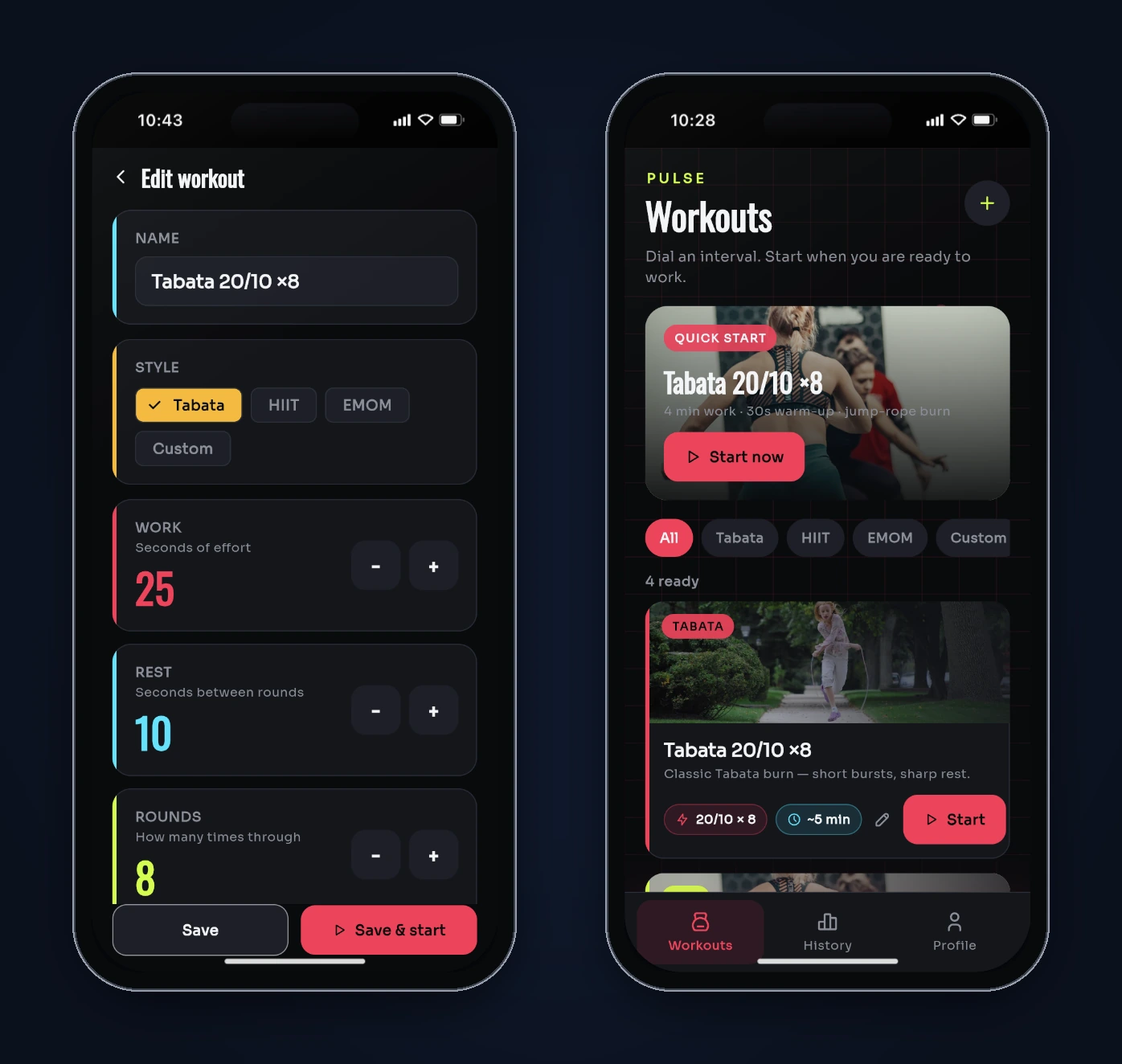
Bug 1: Save on a preset did nothing. We opened the Tabata editor, raised Work from 20 to 25 and tapped Save. The screen didn't close. After we went back, the card still said 20/10. The browser console showed why:
Unsupported operation: '[]=': Cannot modify a constant list
Bug 2: Skipping logged a full workout. We tapped Skip through every phase without doing a single second of work. Pulse said NAILED IT, and History added "Today · 8 rounds · 72 kcal".
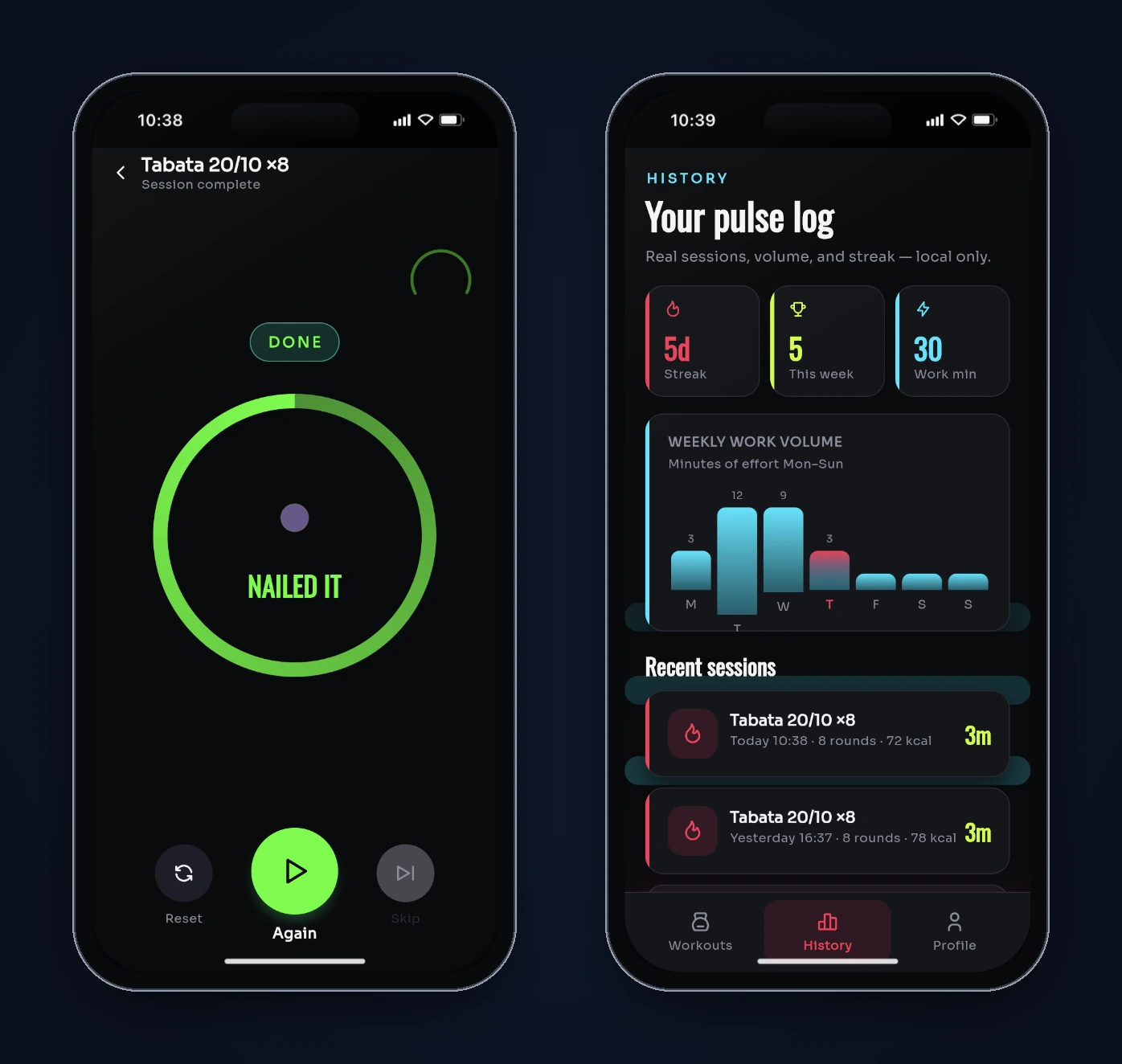
Bug 3: The Quick start card had the wrong number. It said "4 min work" for Tabata 20/10 ×8. Eight 20-second rounds is 2:40 of work. Four minutes is the work plus the rest, before warm-up.
Bug 4: The chart overflowed its card. In History's Weekly work volume, the tallest bar pushed its day label below the bottom of the card (you can see the stray "T" in the screenshot above).
None of these show up on the first screen. You only find them by using the app and trying things a real user would do.
Step 4: Fix all four with one follow-up prompt
Put all your fixes in one message. Describe each bug by what you saw. If you've seen the cause, like the console error, include it.
Four fixes: 1) Editing a preset and tapping Save does nothing. The console says
"Cannot modify a constant list" because presets() returns a const list. Copy it
into a growable list in PulseStore. 2) Skipping through every phase logs a full
session in History even though no work was done. Only log rounds whose work phase
actually ran, and don't log a session if none did. 3) The Quick start banner says
"4 min work" for Tabata 20/10 x8, which is 2:40 of work. Compute the line from
the workout, and always start the Tabata preset, not whatever is first in the
list. 4) On History, the tallest bar in Weekly work volume pushes its day label
below the card. Keep all bars and labels inside the card.
FlutterGo answered in 1 minute 48 seconds, said all four were fixed and hot-restarted the preview. Its file list also showed seven new asset files that its summary didn't explain: four navigation icons (nav_home.svg, nav_play.svg, nav_learn.svg, nav_pals.svg) and three Lottie files (empty.json, success.json, loader.json). Pulse doesn't have screens with those names. Check files like these before you commit, and delete the ones nothing uses.
Then test again. A summary saying something is fixed doesn't prove it. We repeated every failing step on the new build:
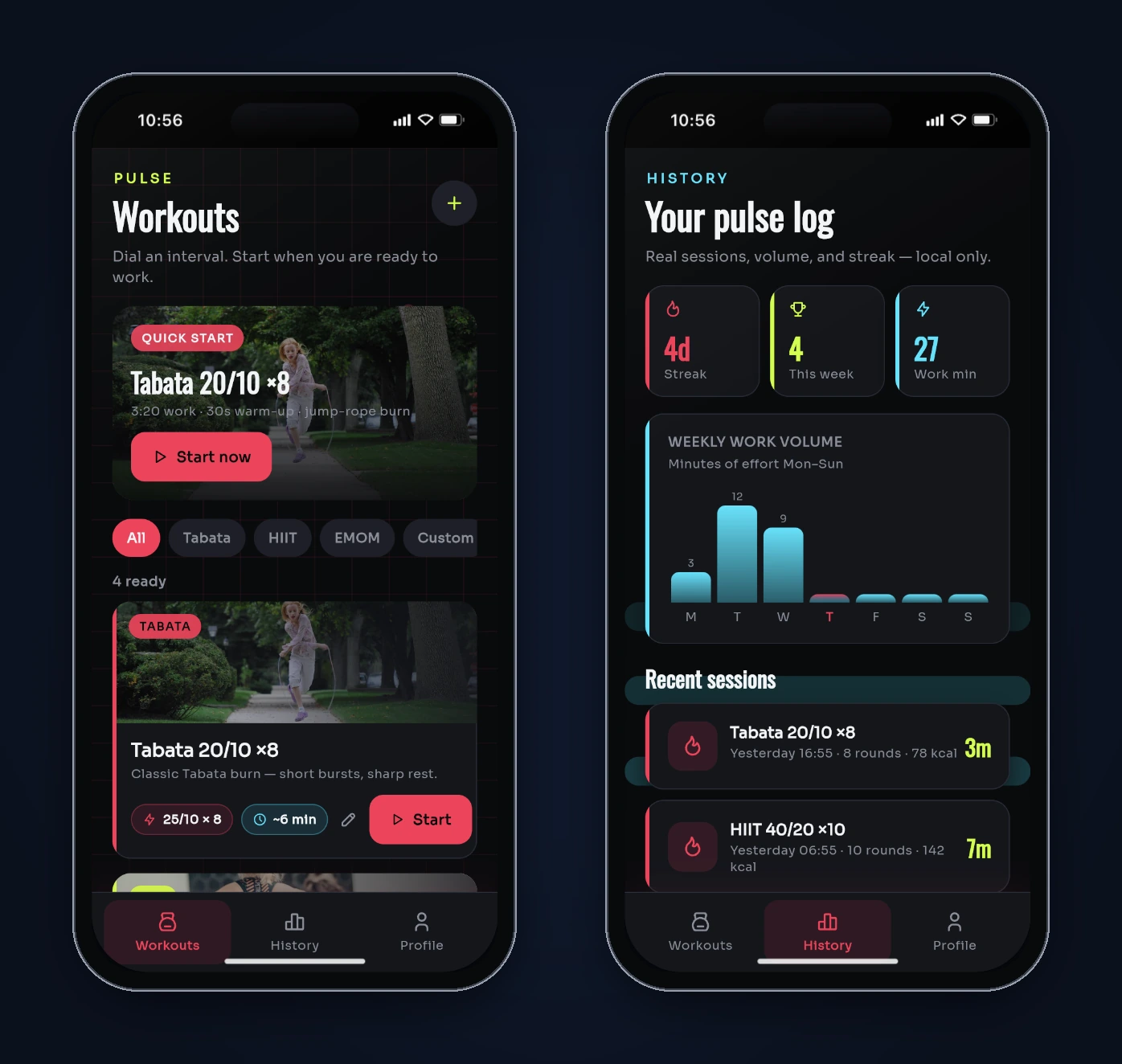
- Editing Tabata to 25 seconds and tapping Save closed the editor. The card now showed 25/10 × 8 and about 6 minutes.
- The Quick start line, now calculated from the workout, read 3:20 work (25 × 8).
- Skipping through every phase still ended on the Done screen, but History logged nothing new.
- All the chart's bars and labels stayed inside the card.
Step 5: Review the timer code
A preview can show you behavior. It can't show you how the timer is built. Open the files from the Show code panel, or use Download code or GitHub to get the whole project in your editor (export docs). Here's what we found in Pulse.
Structure. Code is split by feature: lib/features/ holds workouts, editor, timer, history, profile and a shell for the bottom tabs. Models and the store live under lib/core/. Routing is go_router with a StatefulShellRoute.indexedStack for the three tabs, plus top-level /editor/:id and /timer/:id routes.
State. All data sits in one PulseStore extends ChangeNotifier singleton. Screens subscribe with addListener in initState and call setState. That's plain, readable Flutter, and it's enough for an app this size. Our state management guide covers when to move to something bigger.
How the countdown works. The timer screen ticks with Timer.periodic(const Duration(seconds: 1), ...) and subtracts 1 from an integer each tick:
void _tick() {
  if (_secondsLeft > 1) {
    setState(() => _secondsLeft -= 1);
    if (_secondsLeft <= 3) {
      HapticFeedback.heavyImpact();
    }
    return;
  }
  HapticFeedback.mediumImpact();
  _advancePhase(workCompleted: _phase == TimerPhase.work);
}
This works while the app is in the foreground and nothing gets in the way, but it counts ticks, not time. Two problems follow:
- Pause loses part of a second. Pausing cancels the timer. Resuming starts a fresh one-second wait, so whatever was left of the current second is lost, or added, depending on how you see it.
- The countdown falls behind when the app can't run its timers. We saw this in the web preview. With the preview tab in the background, Chrome throttles timers to roughly once a second, and to once a minute after a page has been hidden for more than five minutes (Chrome's timer throttling rules). The countdown fell behind real time and then jumped ahead. On a phone, a backgrounded or locked app has the same problem.
The usual fix is to store when the current phase ends, then work out the seconds left from the clock each time you redraw. A Timer then only triggers repaints and no longer keeps the time. For a mobile build, also listen for app lifecycle changes so the phase moves on correctly when the user comes back. That's one more good follow-up prompt.
The bold countdown is there. We read this in the code because our screenshots never caught those three seconds. While the timer is running and three or fewer seconds are left, a boldEnd flag grows the number from 84 to 108 points, colors it to match the phase and shows PUSH under the ring. One catch: it's tied to _running, so pausing in the last three seconds switches the bold styling off.
Smaller things worth a follow-up:
- Preset names include their numbers. After we changed Tabata's work time to 25 seconds, the card still read Tabata 20/10 ×8 above a 25/10 × 8 chip. Build the name from the values or stop putting numbers in it.
- Done still says "NAILED IT" after you skip everything. The fix stopped the bogus History entry, but the celebration screen hasn't caught up.
- The analyzer flagged an unused variable (
restininterval_workout.dart, in the EMOM branch ofrestTotalSeconds). It's harmless, but a sign the logic there was rewritten partway through. - Dependencies.
pubspec.yamlpinsgo_router: ^14.8.1, and the current release on pub.dev is 18.0.2. Screens importpackage:flutter/material.dart. That still works, but Flutter is moving Material into the separatematerial_uipackage, so plan the Material and Cupertino migration for this code too. - Tests. The project ships one widget test that checks the app builds and shows "Workouts". The phase logic in
_advancePhaseis the code that most needs unit tests: warm-up into round 1, rest into the next round, the last rest into Done, EMOM with no rest, and Skip. Ask for those next.
A checklist for any timer you generate
- Name every phase and control in the prompt, with real numbers for the presets.
- Run a full session, then test Pause and Skip, including skipping all the way to the end.
- Check the numbers the app prints against arithmetic you can do yourself.
- Edit something and save it. Persistence bugs hide behind screens that look finished.
- Open the browser console while you test the web preview. It caught our Save bug instantly.
- Re-test after every fix, and look at the file list for things the summary didn't mention.
- Read how the timer keeps time. If it counts ticks instead of comparing against the clock, plan to change it before anyone relies on it in a workout.
Where to go next
Pulse is a solid first draft. It builds, every requested screen works, the four bugs we found were fixed in one pass, and the code is organized the way a Flutter developer would expect. Before anyone uses it in a real workout, it needs a clock-based countdown, lifecycle handling and a few unit tests around phase changes.
You can try the finished Pulse app here. To build your own, open the FlutterGo studio and start from the prompt above. Then go one step further than we did: connect GitHub, open the project locally, and ask for the clock-based timer.
Built and tested in FlutterGo on October 1, 2026. The app ran in FlutterGo's web preview in an iPhone 16 frame. We didn't install it on a physical device, and we didn't run flutter test outside FlutterGo. The demo video was assembled from real screenshots of this build. The phone screens weren't redrawn or edited.