
The code FlutterGo.AI writes is yours. It is real Flutter code that you can read, download and keep in your own GitHub account. Here we show the three ways to get at it:
| Way | What you get | Plan |
|---|---|---|
| Show code | Read the code inside the studio. | Every plan |
| Download code | The whole project as a ZIP file. | Pro and up |
| GitHub | The code in a private repository in your own GitHub account. | Pro and up |
You don't need to know Git or Flutter. The buttons do the work; this chapter explains what each one gives you.
What you need#
- A project that the agent has already built.
- To download the code or use GitHub: a plan from Pro up. On the Free plan you can read the code with Show code, but not download it.
How to do it#
1. Read the code with Show code#
Open your project. At the bottom of the right panel, click Show code. The code view opens, with a Files list on one side and the file you pick on the other. Click Hide code to go back to the preview.
You can read every file there, and change one if you need to. Most people ask the agent for changes instead.
2. Download the code as a ZIP#
- In the right panel, under Ship, click Download code.
- The button shows Preparing zip… while FlutterGo packs the project.
- Your browser saves a ZIP file named after your project, for example
recipe-box.zip.
On the Free plan, a small upgrade icon sits next to Download code. The button's tooltip says: "Source download is included from the Pro plan. Upgrade to export your project as a zip." Clicking it opens Plans & billing with Pro picked.
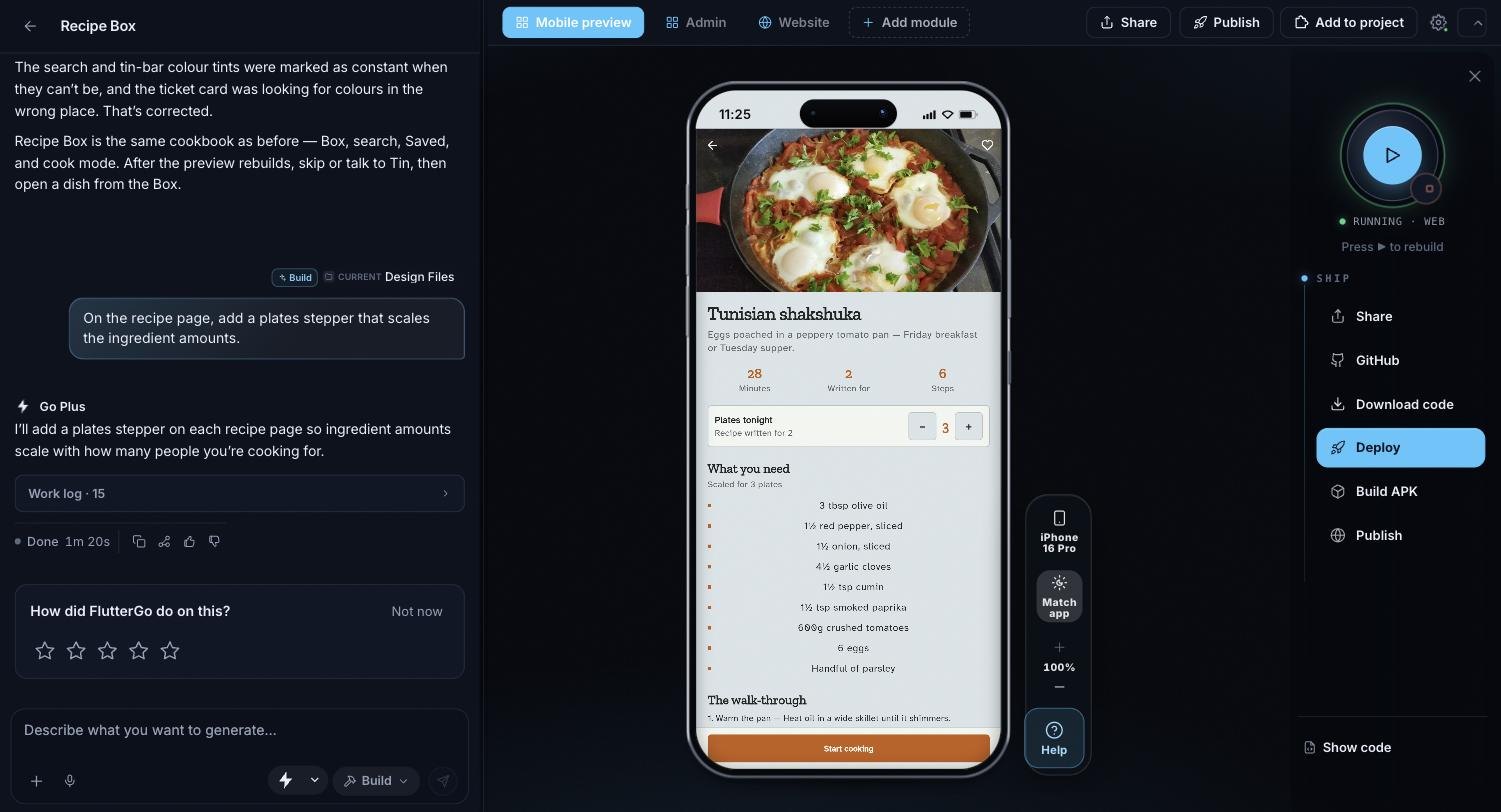
Download code sits in the Ship list, between GitHub and Deploy.
Tip: You can also ask in the chat: "download the code". The agent presses Download code for you. A chat message costs a credit; the button itself does not.
3. Keep your code on GitHub#
- In the right panel, under Ship, click GitHub.
- Connect your GitHub account, then click Create repo & push code. FlutterGo creates a private repository in your account and pushes the project.
- After later changes, open Ship → GitHub again and click Push.
A ZIP is a copy of one moment; GitHub keeps every version.
Nothing is pushed on its own: each push is your click. Save your code to GitHub walks through every step, including Fetch and branches.
In a Website project#
In a Website project, use the bar under the website preview, on the Website tab. Download code (the download icon) downloads the whole project as a ZIP, and GitHub (the GitHub icon) opens the GitHub panel. Both come with Pro and up. On the Free plan they show a small sparkle badge, and you can read the code with View code.
What's in the download#
The ZIP holds your whole project: the Flutter app (the lib, android, ios and web folders, pubspec.yaml and your assets), plus the folders of any website or admin panel in the project.
Some files are left out on purpose:
- Secret files:
.envfiles (a.env.examplestays), signing keys and keystores, service-account files and Firebase config files such asgoogle-services.json. - Build output and installed packages, such as
buildandnode_modulesfolders. - FlutterGo's own
.fluttergofolder.
To build the app on your own computer, add your own .env and signing files to the unzipped folder.
Troubleshooting#
Problem: Clicking Download code opens Plans & billing. Possible causes: Your plan is Free. Downloading the code comes with Pro and up. Solution:
- Read the code with Show code for now, or
- Upgrade in Plans & billing, then click Download code again.
Problem: "Could not download the project source. Try again." Possible causes: The download was interrupted, or the project is very large. Solution:
- Click Download code again.
- A project over 200 MB cannot be downloaded. Ask the agent to remove big files the app doesn't need, such as large videos.
- Still failing? Contact support with the Help button.
Problem: The downloaded app can't find its keys. Possible causes: Secret files like .env are never put in the ZIP. Solution:
- Create the
.envfile again on your computer, with your own keys.
FAQ#
Who owns the code FlutterGo.AI writes? You do. Download it, or push it to your own GitHub repository, and it is yours like any other code.
Can I download my code on the Free plan? No. On Free you can read every file with Show code. Download code and GitHub come with Pro and up.
Does downloading cost credits? No. Download code uses no credits. Asking the agent to download it is a chat message, which costs a credit.
What happens to my code if I cancel my plan? Code you pushed to your GitHub repository stays yours. Download code and GitHub need a Pro plan or higher again.
Can I edit the code by hand? Yes. Change a file in Show code, or work on your computer: push from FlutterGo, edit, push from your computer, then click Fetch in Ship → GitHub. See Save your code to GitHub.
Why is my .env file missing from the ZIP? Secret files are left out of every download and every push to GitHub. Add your own copy where you build the app.