
Watch it done (a step from Build your first app)
Watch: when the agent finishes, FlutterGo builds the preview on its own and the app opens in the phone frame.
FlutterGo runs your Android and iOS app right inside the browser. You don't need to install Flutter, Android Studio, or Xcode. Your app compiles in the cloud and appears in a phone frame on your screen.
Two areas do all the work. The stage in the middle shows your app in a device frame, with a small dock beside it for the device, the status bar, zoom and Help. The right panel holds the round run button, Analysis, the Ship actions and Show code.
This chapter explains every control, then walks you through the everyday loop: run the app, ask for a change, let FlutterGo check and rebuild it, and try the result.
What you need#
- A project with some generated code. While the agent writes the first version, the phone says "Writing your app…". If the preview says "Ask the agent to scaffold pubspec.yaml and lib/main.dart, then click Build.", send one prompt first (for example "create the app skeleton").
- Nothing to install. The preview runs in the cloud, and building it does not use credits.
- On the Free plan, credits on your account. The preview and its share link run only while you have credits left, and for 30 minutes after your last one. Paid plans keep the preview running at 0 credits. See Plans, credits & billing.
Your workspace at a glance#
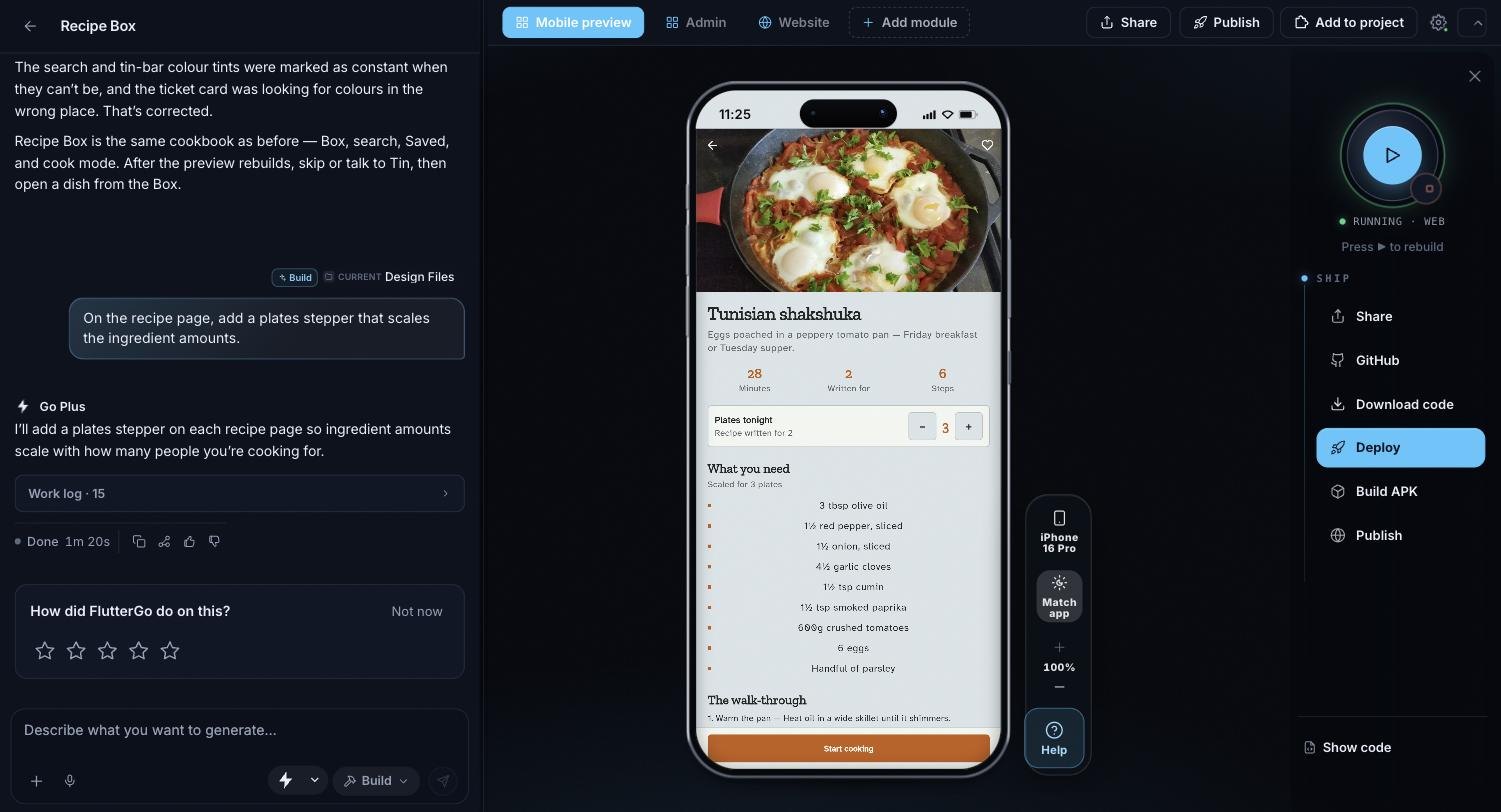
Everything lives on one screen: the chat, the top bar, the phone with its dock, and the right panel.
| Area | Where | What happens there |
|---|---|---|
| Chat | Left | Talk to the AI agent. Every change to your app starts here. |
| Top bar | Above the preview | Mobile preview and the other module tabs, Share, Publish, Add to project and the gear. See The studio dashboard. |
| Stage | Middle | Your app in a device frame, with the dock beside it. |
| Right panel | Right | The run button and Stop, Analysis, Ship and Show code. |
Tip: Want more room for the phone? The × at the top of the right panel (Hide controls) folds it away, and Show controls brings it back. Hide toolbar, the arrow at the right end of the top bar, folds the top bar into a small Show toolbar tab.
The right panel#
The run button and Stop#
The round button at the top of the right panel builds your app and starts it in the phone frame. Its label follows the state:
| Label | When | What it does |
|---|---|---|
| Run app | Nothing has run yet | Builds your app in the cloud and opens it in the phone frame. |
| Rebuild | After a run, a stop, or a failed build | Builds the latest code again and reloads the phone. |
| Building app… | During a build | Wait. The first build takes a minute or two. |
The small square on the edge of the button is Stop ("Stop the preview"). It ends the preview, and the public share link with it.
Under the button, a status line says what is happening, for example Running · web, Build failed, Stopped, or Writing code… while the agent works. The run button and the Ship actions wait until the agent is done.
Tip: You rarely need to press it. After the agent changes your app, FlutterGo checks the code and rebuilds the preview by itself. Opening a project does not start a build: if the phone says Preview is paused, press the run button once.
Analysis#
FlutterGo checks your code with flutter analyze before each build and after every change the agent makes. While it works, the Analysis box at the top of the right panel says "Running flutter analyze…". If it finds errors, it shows how many:
- Click the count to open the Project issues list. Click an issue to open that file at the right line.
- Fix with AI sends the errors to the agent. Fixing build errors does not use a credit.
- Check again runs the check once more, for example after you changed code yourself.
When the code is clean, the box goes away.
Ship#
The Ship list takes your app beyond the preview:
| Button | What it does | Plan |
|---|---|---|
| Share | A public link to the running preview, with a QR code. See Sharing your project. | Every plan (on Free, while you have credits) |
| GitHub | Pushes your code to a private repository in your own GitHub account. See Save your code to GitHub. | Pro and up |
| Download code | Your project's source as a ZIP. See Your code: export & download. | Pro and up |
| Deploy | Publishes to Google Play or the App Store. See Publishing to Google Play and Publishing to the App Store. | Pro and up |
| Build APK | An installable Android file, built in the cloud (Step 6 below). | Starter and up |
| Publish | Lists your app in the public Explore gallery. | Every plan, project owner |
When your plan doesn't include Download code, Deploy or Build APK, a small upgrade button sits next to it (for example Upgrade to Starter). GitHub shows an upgrade card instead.
The stage and its dock#
The dock beside the phone holds everything about the stage itself:
| Control | What it does |
|---|---|
| Preview device (shows the current device, for example iPhone 16 Pro) | Picks the frame: iPhone Duo, iPhone 16 Pro, iPhone 16 Plus, iPhone 16, Pixel 9 Pro, iPhone SE, Android, iPad Pro 11″ or Web / PWA. |
| Phone chrome (shows the current style, for example Match app) | Sets the status-bar colors: Match app, Light, Dark or Royal. Match app uses the color the agent wrote in your app's theme. |
| + and − around the percentage | Zoom the device in and out. |
| Help | Message FlutterGo support on WhatsApp or by email, or open the guides. |
On a phone, the studio drops the device frame and the dock. Open on phone opens the running app full screen, and Ship opens the Ship actions, with Help.
How to do it#
Step 1, Run the app#
When the agent finishes your app, FlutterGo builds the preview by itself. To start it yourself, press the run button at the top of the right panel (Run app). While it builds, the button says "Building app…". When it finishes, your app appears in the phone frame.
Tip: The first build can take a minute or two. Keep the tab open while it runs.
Step 2, Ask for a change#
Ask the agent for a change in the chat, for example "make the app bar purple". When the agent is done:
- FlutterGo checks the code ("Running flutter analyze…").
- If the code is clean, the preview rebuilds by itself. The phone shows "Updating your app…" over the last screen while it rebuilds.
- Your app restarts on its first screen, with the change.
Every rebuild in the cloud starts the app again from its first screen. There are no Hot reload or Hot restart buttons: if you ask the agent for "hot reload" or "hot restart" in the chat, it rebuilds the preview the same way. Like every chat message, that costs 1 credit.
Step 3, Fix errors with Analysis#
If the check finds errors, Analysis shows how many. FlutterGo often sends them back to the agent on its own. If they are still there when the agent is done, click Fix with AI. Pressing Rebuild while errors remain also sends them: "Sent 5 errors to the agent to fix (no credit charge)". When the agent is done, FlutterGo checks again and rebuilds the preview.
Success: You rarely need to fix errors yourself, and fixing build errors does not use a credit.
Step 4, Try other devices and sizes#
Use the dock beside the phone. Click the device button (iPhone 16 Pro, for example) and pick another frame: iPhone SE for a small phone, iPad Pro 11″ for a tablet, or Web / PWA for a browser window. Use + and − to zoom.
Step 5, Open it on your phone#
- Under Ship, click Share. The first time, FlutterGo explains that the link is public: click Create public link.
- The panel shows "Preview is live · Public", a QR code ("Scan to open on a phone"), the link with Copy, Email me the link, Open and Stop sharing.
- Scan the QR code with your phone's camera, or send the link to a teammate.
Important: Anyone with the link can open your running preview. Click Stop sharing when you're done. Stopping the preview doesn't take back a link you already sent: it keeps showing the build you shared. See Sharing your project.
Step 6, Build an APK for Android phones#
Build APK makes an APK in the cloud: a file people install on normal Android phones. They don't need FlutterGo or an account. A test APK is included from the Starter plan; a signed release APK (and the .aab for Google Play) needs Pro.
- Under Ship, click Build APK. It costs 1 credit, and the credit comes back if the build fails.
- The button shows Building APK…. Other preview actions pause until it's done.
- When it's ready, FlutterGo emails you a download link that works for 7 days, and a Download APK button appears next to Build APK.
- Open the email on your Android phone and tap Download APK, or download the file and send it to your testers.
If the build fails, a line under Ship says why, often with Fix with AI. When the agent has fixed the code, FlutterGo builds the APK again (again 1 credit, refunded if it fails).
Important: An APK is for installing directly. To publish on Google Play, use Deploy: see Publishing to Google Play. There is no iPhone (IPA) download. iPhones get your app through TestFlight: see Publishing to the App Store.
Website projects#
If you picked Website on Home, the website is the product. The project opens on its Website tab, which shows the site and its own public preview link, on every plan. The phone preview, the run button and the app's Ship actions belong to the mobile app on the Mobile preview tab, and in a Website project the mobile app needs the Pro plan. See Building a website.
Show the code#
Show code, at the bottom of the right panel, opens your project's files and a code editor beside the preview. Hide code closes it again. The code is standard Flutter (Dart) code.
You can edit a file yourself too. Your changes save as you type, and FlutterGo checks them with flutter analyze and rebuilds the preview. On Pro and up you can take the code with you: Download code under Ship, or GitHub.
Common mistake: Leaving errors behind after editing code by hand. Analysis then lists them, and a rebuild stops with "3 analyze errors — fix or send to AI before build" while FlutterGo sends the errors to the agent. Click Fix with AI, or undo your edit.
Troubleshooting#
Problem: The preview won't start or looks stuck. Possible causes: The agent is still writing code; a first build is still running; another job (an APK build or a deploy) is using the builder; on the Free plan, no credits left. Solution:
- Read the status under the run button. Writing code… means the agent is still working: wait for it. A banner such as "Building Android APK…" with "Other actions paused" means another job is running.
- Click Stop, then the run button (Run app or Rebuild).
- If Analysis shows errors, click Fix with AI.
- Still stuck? Tell the agent in the chat, for example "the preview is stuck, please check it and rebuild".
- On the Free plan, if a message says you are out of credits, buy a credit pack or upgrade. The preview runs only while you have credits.
Problem: The phone says "The build did not finish". Possible causes: An error in the code, or a problem on FlutterGo's builder. Solution:
- Click Fix with AI on the phone. It does not use a credit.
- When the agent is done, click Rebuild.
- If it says "The builder ran out of disk space", the problem is on FlutterGo's side, not in your app. Wait a moment, then click Rebuild.
Problem: The build finishes but the screen is blank (white or gray). Possible causes: The app hit an error while starting. Solution:
- Look under the run button. If it says Runtime errors (browser console), click Fix with AI next to it.
- Otherwise click Rebuild.
- Still blank? Tell the agent what you see, for example "the preview is a blank white screen after the last change".
Problem: Build APK doesn't start or fails. Possible causes: Your plan doesn't include APK builds; no credits left; errors in the code. Solution:
- "Android APK builds are included from the Starter plan": upgrade to Starter or higher.
- "Building an APK needs 1 credit and you have none left": buy a credit pack or upgrade.
- An analyze error message, or a failure line under Ship: click Fix with AI. FlutterGo builds the APK again once the code is clean.
FAQ#
Do I need to install Flutter on my computer? No. FlutterGo builds and runs everything in the cloud.
Where are Hot reload, Hot restart, Clean and Pub get? The cloud studio doesn't have them. FlutterGo takes care of packages when it builds, and every Rebuild restarts the app from its first screen. If you ask the agent for "hot reload" or "hot restart", it rebuilds the preview.
Why is the run button greyed out? The agent is still writing code, another job (an APK build or a deploy) is running, or the project has no app code yet. Wait for the status line to change, or ask the agent to create the app first.
Does the preview cost credits? No. Building and running the preview is free. On the Free plan, though, the preview and its share link run only while you have credits, plus 30 minutes after your last one. Paid plans keep them running at 0 credits.
Can I test on my real phone? Yes. Share gives a link and a QR code that open the app in any phone's browser. On Starter and up, Build APK gives an installable Android file. For iPhones, publish a TestFlight build (Pro and up). FlutterGo has no emulator or iOS Simulator of its own.
How long does the APK download link work? 7 days. After a successful build you can also use Download APK under Ship.
Where does my code live? In your FlutterGo project: open it with Show code. On Pro and up you can download it or push it to your own private GitHub repository. See Save your code to GitHub.