
Build a Reading List App with FlutterGo, Then Review the Code It Wrote
Build a Flutter reading list app with FlutterGo from one prompt, test it in the preview, fix bugs with a follow-up, and review the generated Dart.
Most AI app builder tutorials end the moment the first screen appears. This one keeps going. We'll build a small reading list app called Shelfie from a single prompt, click through it in the preview to see what actually works, fix the bugs we find with a follow-up prompt, and then open the generated Dart to review it like a pull request from a new teammate.
Everything below was done on September 30, 2026, in the FlutterGo studio. The screenshots are from that session, and the bugs are the ones we really hit.
What you'll build
- A Flutter app with a tabbed shelf (Want to Read, Reading, Finished), a book detail screen with page logging and a star rating, and an Add Book form
- Navigation built on go_router, and state held in a single
ChangeNotifier - A short, repeatable checklist for testing and reviewing whatever the AI generates
Time: about 15 minutes. You need: a FlutterGo account. No local Flutter install is required to follow along.
Step 1: Describe the app in one prompt
Open FlutterGo and type your idea into the box on the studio home screen. Be concrete about screens and data. You don't have to be exhaustive. Here's the exact prompt we used:
A reading list app called Shelfie. Screens: My Shelf with tabs for Want to Read,
Reading and Finished; a book detail screen with personal notes and a 1-5 star
rating; and an Add Book form (title, author, total pages). Books in Reading show
a progress bar for pages read. Warm, paper-like design with a serif heading font.
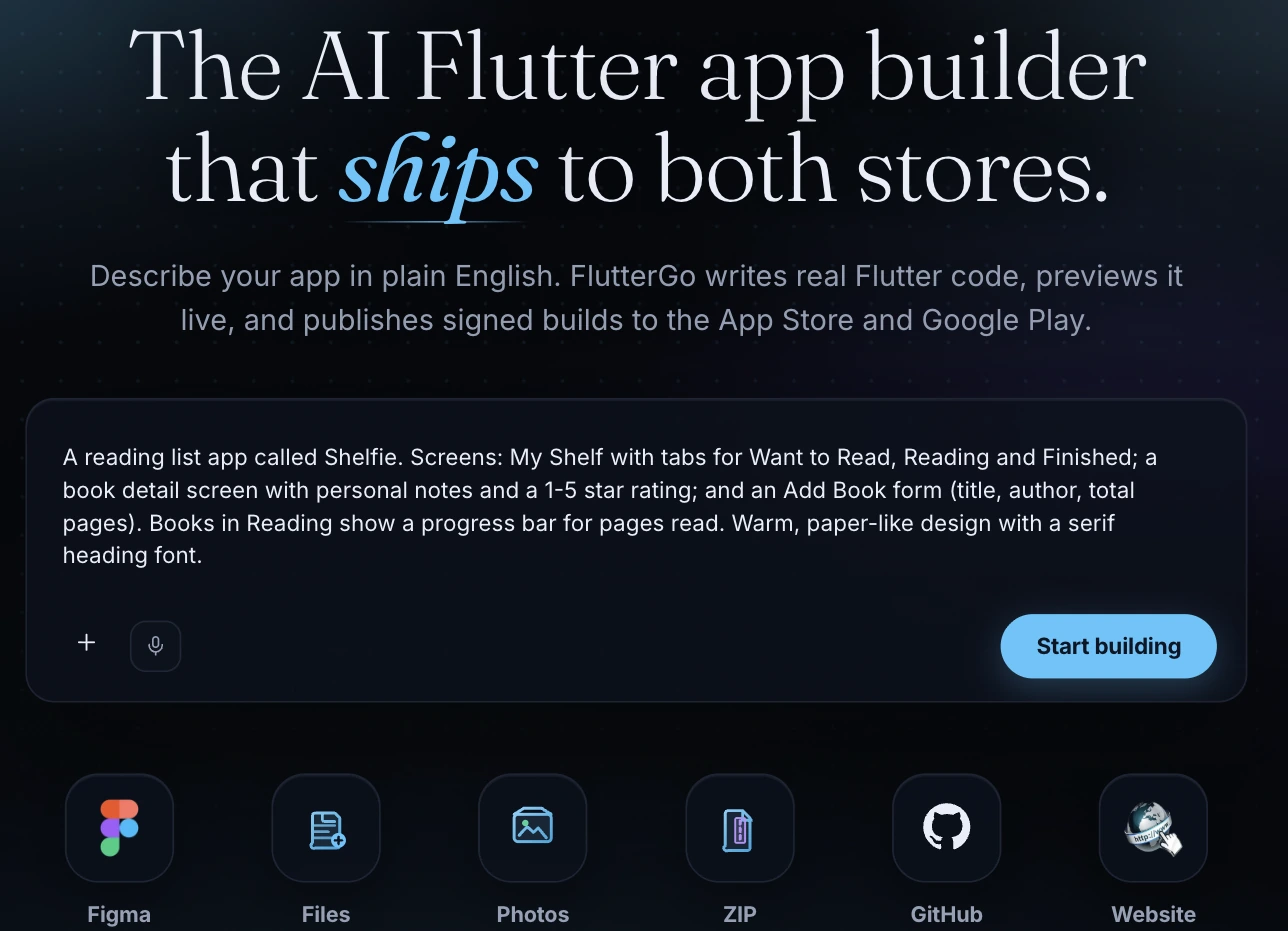
Three things make a prompt like this work well. It names every screen. It names the fields the Add Book form needs. And it describes one behavior that ties the data together, the progress bar for books you're reading. The styling line is optional but saves you a round of "make it warmer" later.
Click Start building. FlutterGo asks where data should live: connect Supabase for auth and a Postgres database, or Skip for now and design the screens first. We skipped. That means the app runs on in-memory sample data, which is fine for a first pass and easy to wire up to a backend later. If you want real persistence from day one, see building full-stack Flutter apps with Supabase.
Step 2: Watch the plan, design and build
The workspace opens with the chat on the left and an iPhone 16 preview on the right. While it builds, the progress card shows the stages it's working through (Plan, Design, Screens, Preview) and which file it's editing.
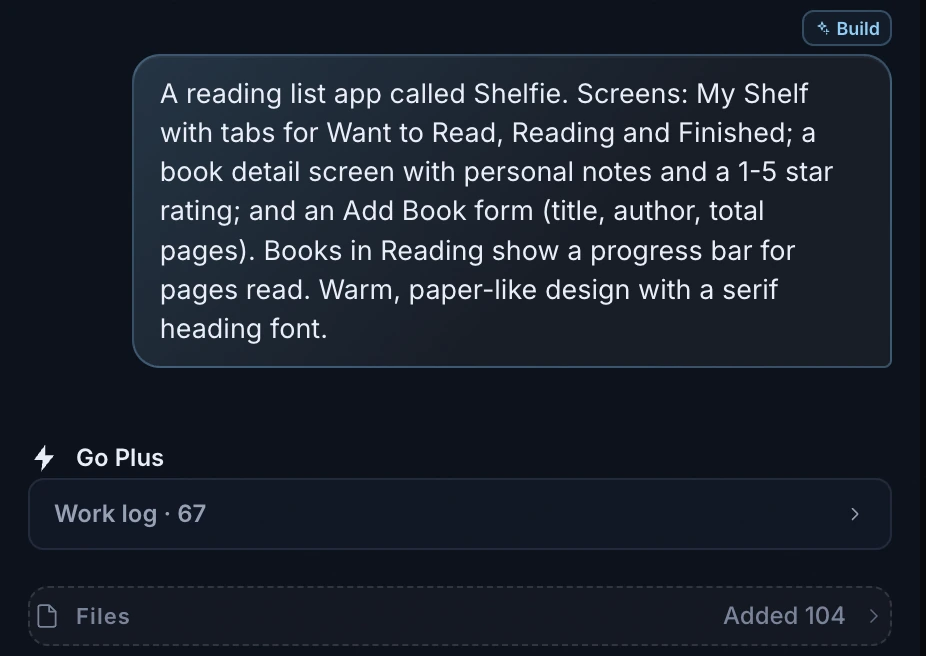
In our run, the first build took a few minutes and finished with 104 files added: Dart sources, an Android and web scaffold, a Lottie animation and a handful of photos for book covers. The agent also added two screens we didn't ask for, Progress and Profile. That's worth noticing. AI builders tend to fill gaps generously, and part of your job is deciding what stays.
Step 3: Let auto-repair do its job, then read what it fixed
Before the preview ran, FlutterGo flagged two analyzer errors in its own code and fixed them:
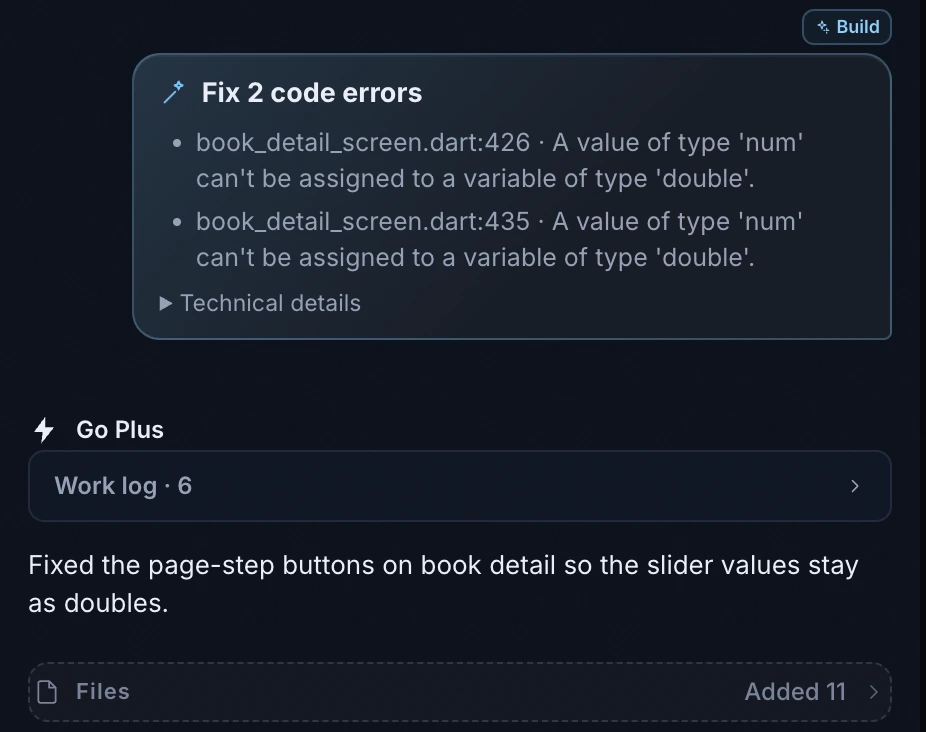
Don't skip past this card. It tells you something real about the code. The page-step buttons computed the new value like this:
final next =
    (_draft + 10).clamp(0, book.totalPages.toDouble()).toDouble();
num.clamp is declared to return num (Dart API), so without the trailing .toDouble() the result can't be assigned to a double field. The repair appended it. It's a small fix, but it's a good sign that the build pipeline runs the analyzer instead of hoping. We've written more about how FlutterGo detects and fixes errors in generated code.
Step 4: Test the app like a user would
When the preview says Running, click through every flow you asked for. Don't just look at the first screen.
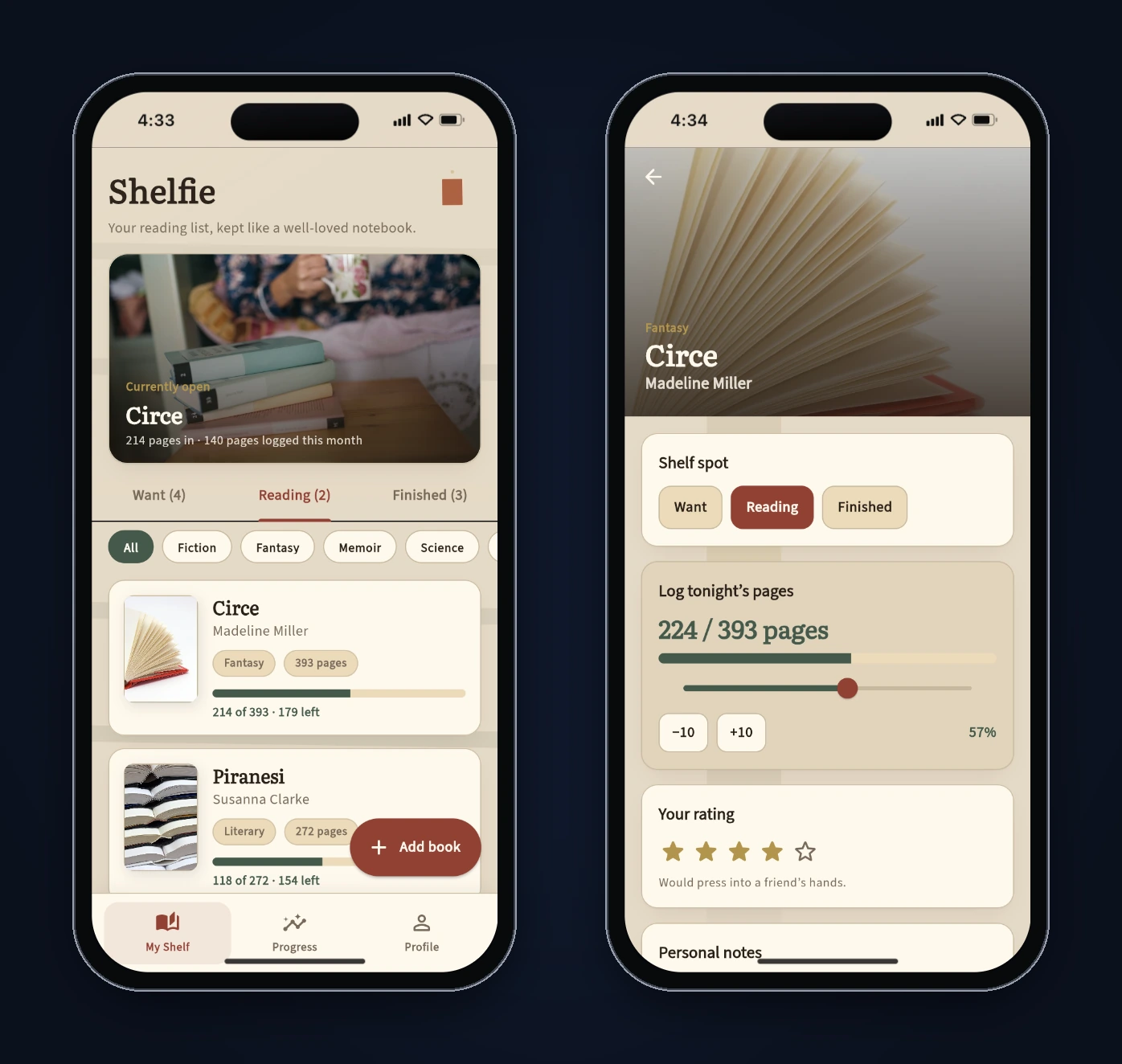
Here's what we checked, and what happened:
- Book detail and page logging. We opened Circe, which showed 214 of 393 pages (54%), and tapped +10. It went to 224 of 393 (57%), and the slider moved with it.
- Rating. We tapped the fourth star. The rating saved, and a short caption appeared under the stars.
- Shared state. Back on My Shelf, the Circe card showed the new page count and a 4★ badge. That confirms both screens read from the same state object, not separate copies.
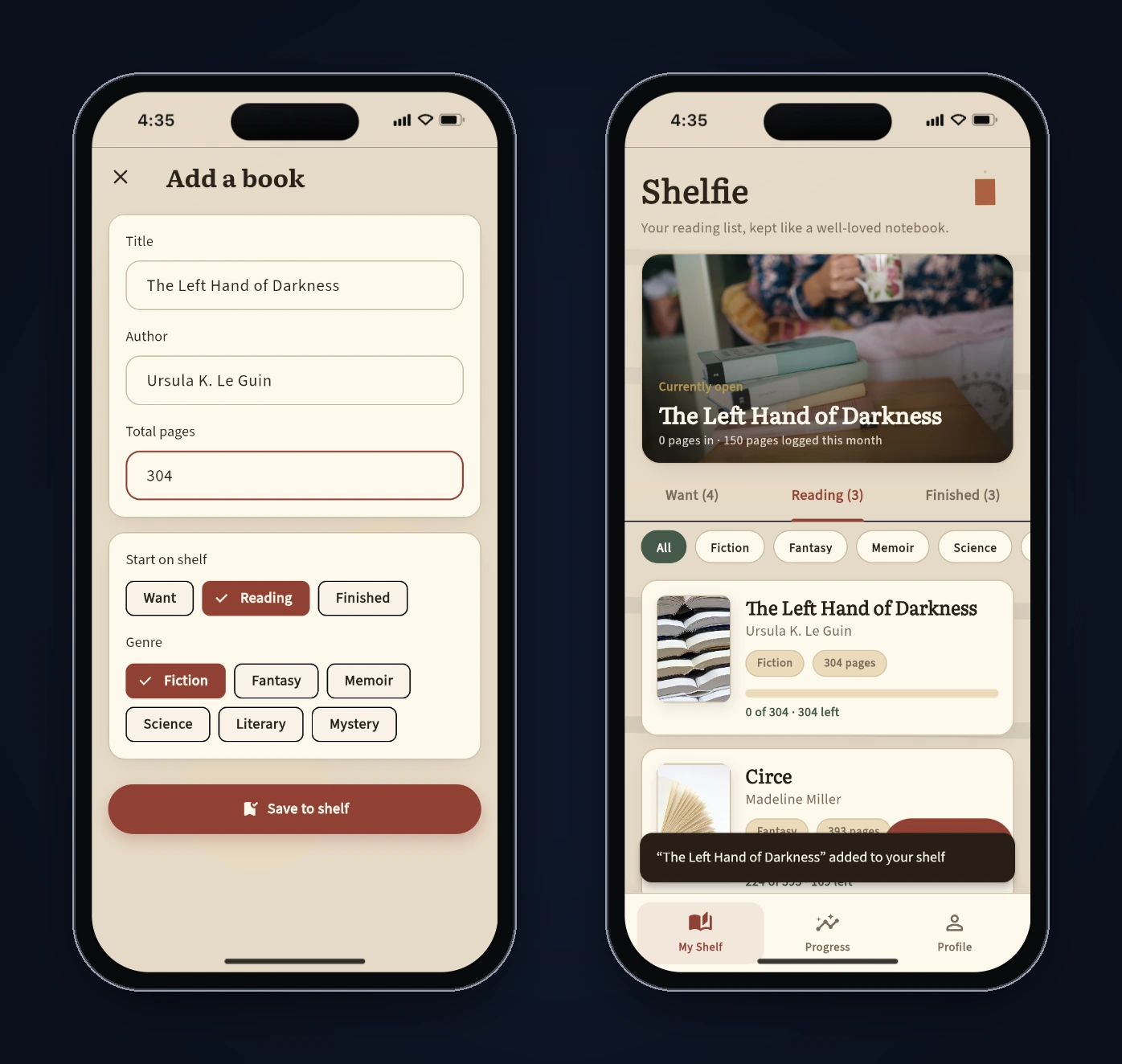
4. Add Book. We added The Left Hand of Darkness by Ursula K. Le Guin, 304 pages, straight onto the Reading shelf. It saved, a snackbar confirmed it, and the Reading count went from 2 to 3.
That last test surfaced three problems:
- On the Add Book form, the selected genre chip was white text on light grey, hard to read, while the selected shelf chip looked fine.
- The hero card said "1 pages in".
- A new book added to Reading started at page 1 instead of 0, which explains the "1 pages" line.
None of these would show up in a screenshot of the first screen. You only find them by using the app.
Step 5: Fix what you found with one precise follow-up
Batch your fixes into one message and describe each bug by what you saw, not by how you think the code works:
Three fixes: 1) The selected genre chip on Add Book is white text on light grey
and hard to read. Give selected chips the same filled style as the selected shelf
chip. 2) The hero card says "1 pages in". Use "1 page" for singular. 3) A new
book added to Reading should start at 0 pages read, not 1.
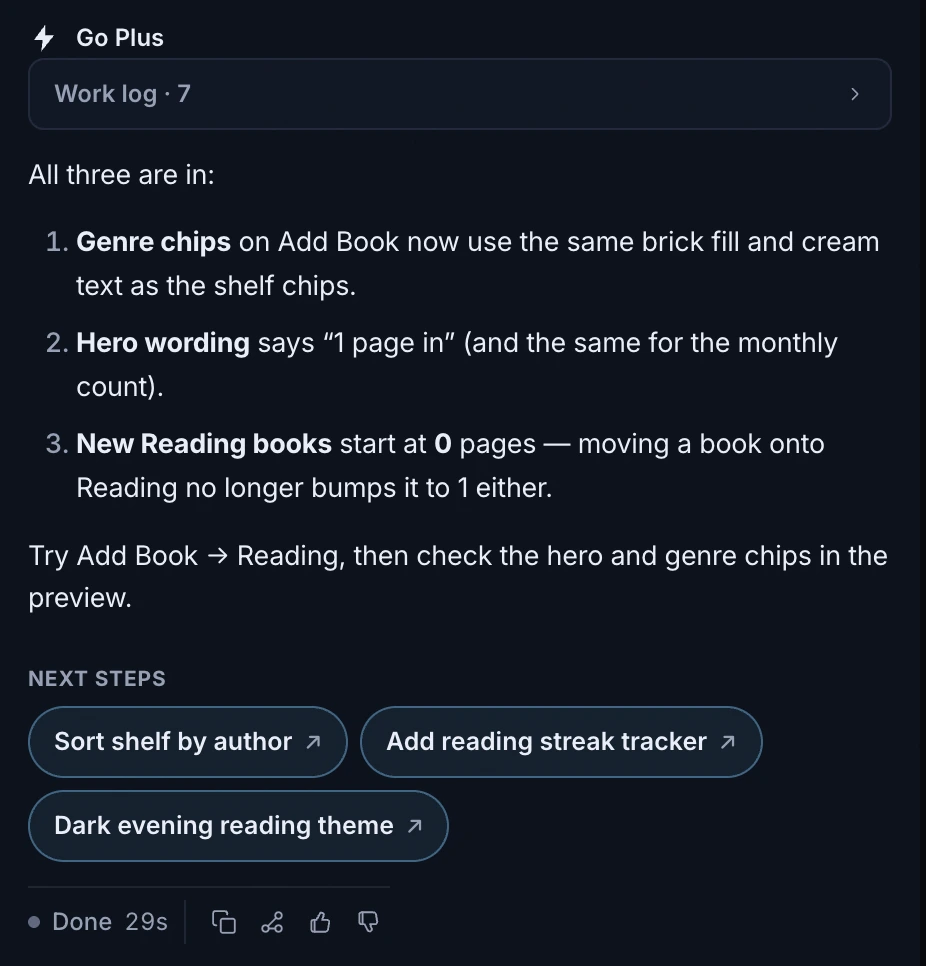
Then test again. Don't trust the summary on its own. We re-ran the same Add Book flow: the selected chips now used the same filled style, and the new book showed "0 pages in" and "0 of 304 · 304 left".
Step 6: Review the code it wrote
A working preview is only half the job. You can open any generated file from the Files list in the chat, and the toolbar under the preview has GitHub and Download code buttons when you want the whole project in your own editor (export docs). Here's what we found when we read Shelfie's source.
Structure. Code is split by feature: lib/features/shelf/, book_detail/, add_book/, plus lib/data/ for models and state, lib/router/ and lib/theme/. The pubspec.yaml pulls in go_router, google_fonts, lottie, intl and flutter_svg, with flutter_lints in dev dependencies.
Navigation. lib/router/app_router.dart uses go_router's StatefulShellRoute.indexedStack for the three bottom tabs, and separate routes for /book/:id and /add-book.
State. All app data lives in one ShelfController extends ChangeNotifier. It's created in main() and passed to screens through their constructors, and screens rebuild with ListenableBuilder. After our follow-up, addBook() sets pagesRead: 0 as asked. This is the same ChangeNotifier + ListenableBuilder pattern the Flutter architecture case study uses, which makes it easy for any Flutter developer to follow. If you'd prefer Riverpod or Bloc, a small app like this is the cheapest time to switch. Our guide to Flutter state management in 2026 covers the tradeoffs.
One bug the preview didn't show. The ShelfBook model's copyWith uses the common finishedOn: finishedOn ?? this.finishedOn pattern. That means copyWith(finishedOn: null), which setStatus() calls when a book moves back to Reading, can't clear the date. A book you move from Finished back to Reading keeps its old finish date. We didn't see that date anywhere in the Reading views during testing, so clicking through the app wouldn't have caught it. Reading the code did. It's a well-known Dart pitfall, and the usual fix is a sentinel value or a separate clearFinishedOn flag. You can ask FlutterGo for that fix in one line.
Tests. The project ships with one widget smoke test that pumps the app and checks that "Shelfie" appears. That's a start, not coverage. Asking for a unit test on ShelfController (add a book, log pages, change status) is a good next prompt.
A checklist you can reuse
Whatever you build with an AI app builder, run the same loop:
- Prompt with screens, fields and one behavior that ties the data together.
- Read the auto-repair card. It tells you where the generated code was fragile.
- Click through every flow, including adding, editing and going back.
- Batch bug fixes into one precise prompt, described by what you saw.
- Re-test after every fix. Summaries aren't verification.
- Read the state and model code, where bugs hide that the UI can't show you.
- Decide what to keep. Remove unrequested screens or keep them on purpose.
Where to go next
Shelfie is a solid first draft: it builds, the core flows work, and the code is organized the way a Flutter developer would expect. The remaining work is the work you'd do on any codebase, including one bug fix, a few real tests, and choosing a backend.
If you want to try this yourself, open the FlutterGo studio and start with the prompt above. Then go one step further than we did: connect GitHub, pull the project into your editor, and run flutter analyze and flutter test locally.
Built and tested in FlutterGo on September 30, 2026. The app ran in FlutterGo's web preview in an iPhone 16 frame; we didn't install it on a physical device for this article, and we didn't run flutter analyze or flutter test outside FlutterGo.