Flutter App Icons and Splash Screens in 2026: Replace the Defaults Without Fighting Android 12 or iOS
Replace Flutter's default app icon and splash screen on Android and iOS: adaptive and themed icons, the Android 12 splash, launch storyboards, and two packages.
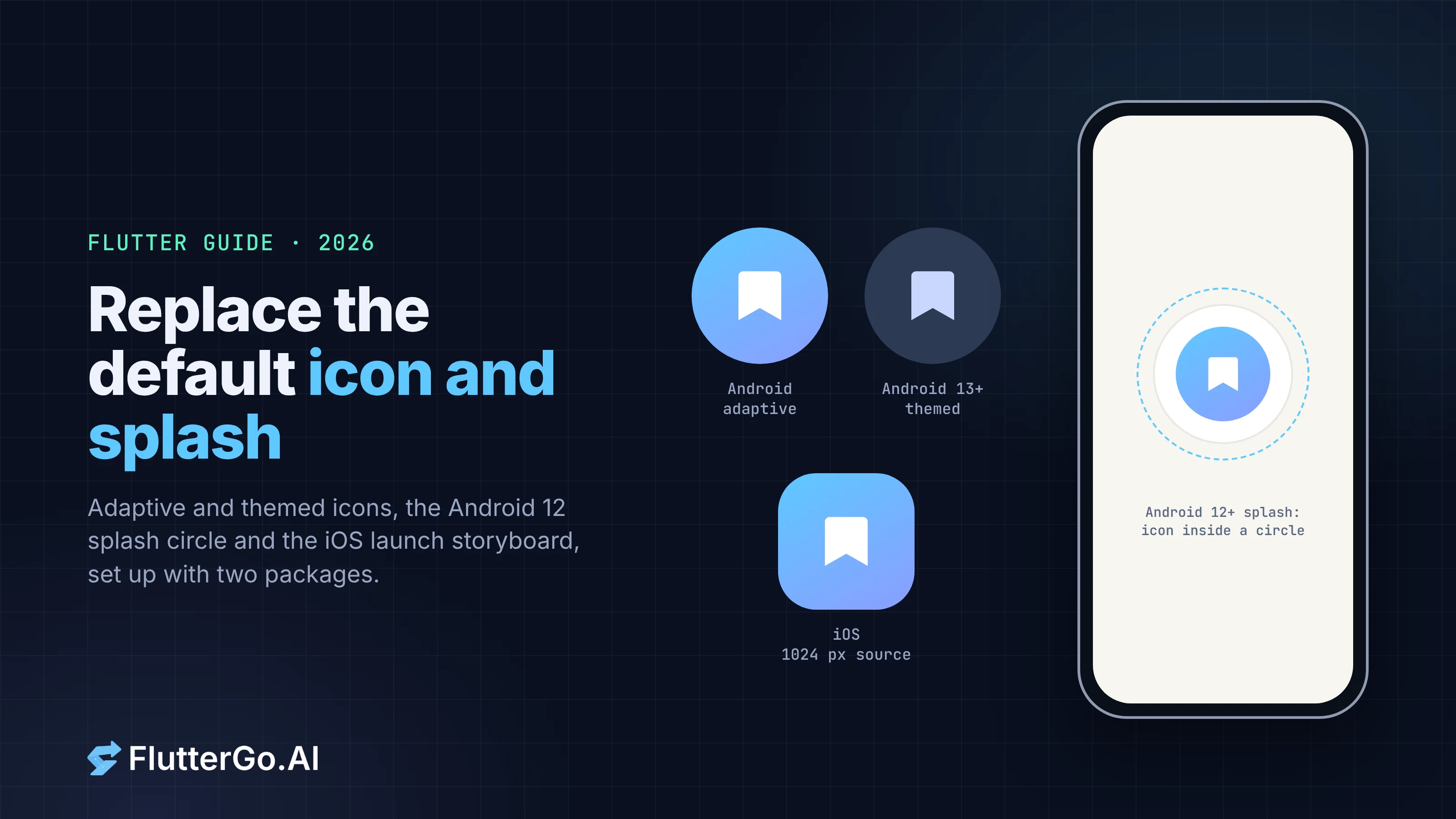
Flutter doesn't draw a splash screen. On Android, the first thing users see is a window drawn by the system from your launch theme, and on Android 12 and later that window always shows an icon in a circle. On iOS, it's LaunchScreen.storyboard, which every App Store app must have. App icons work the same way: the files live in the Android and iOS folders of your project, not in Dart.
So replacing the defaults means editing native files on two platforms. Two packages, flutter_launcher_icons and flutter_native_splash, generate those files from a few lines of YAML. This guide covers both and the platform rules they work within, which explain most of the "why does my splash look wrong" questions.
Key takeaways
- Flutter relies on each platform's native launch screen. The Flutter docs say so directly: you configure Android's launch theme and the iOS storyboard, not a Flutter widget.
- Start from a square 1,024 × 1,024 px icon with no rounded corners. Both platforms apply their own mask.
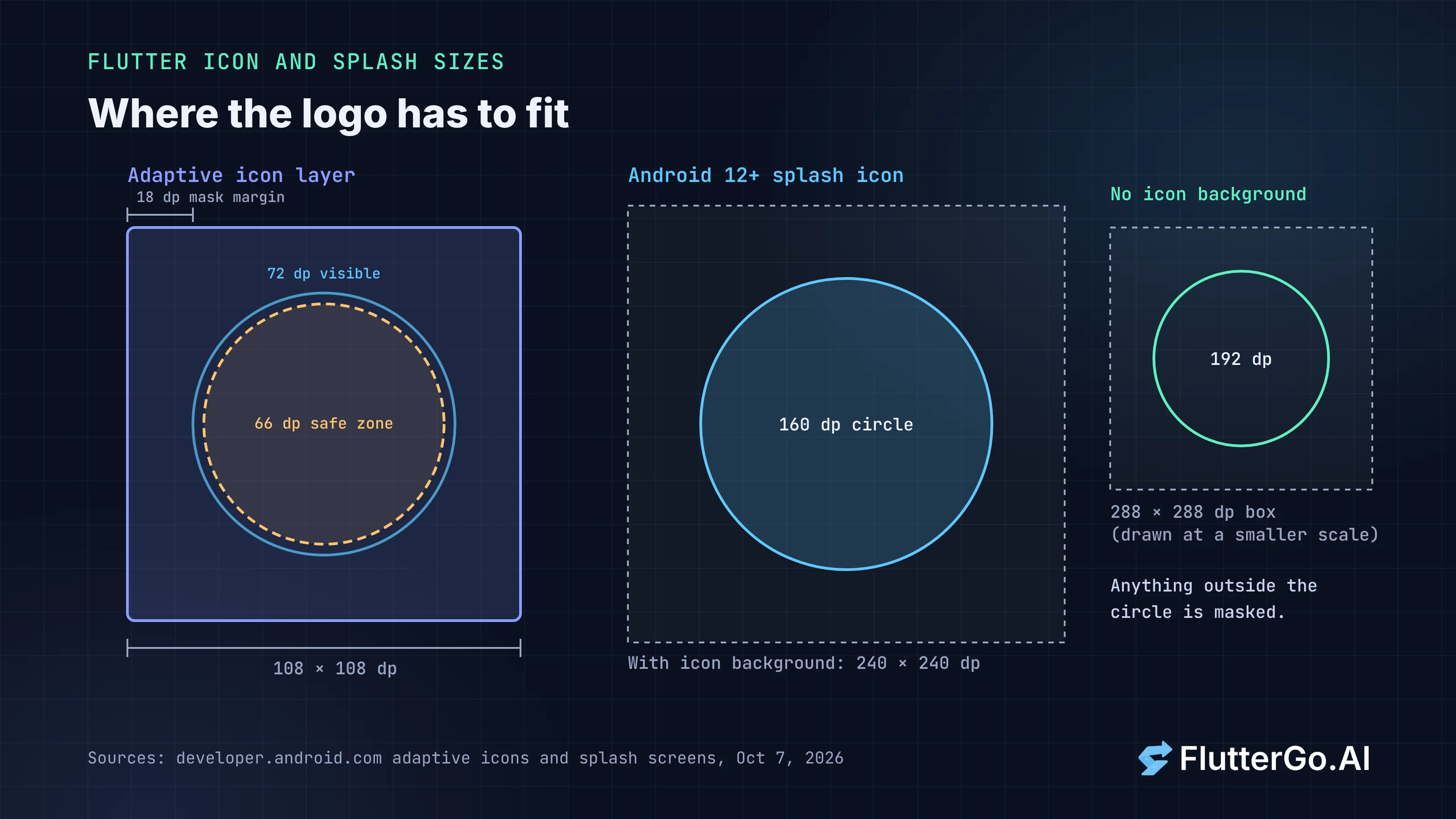
- Android adaptive icons are 108 × 108 dp layers; keep the logo inside the central 66 × 66 dp. Add a monochrome layer so the icon can be themed on Android 13 and later.
- On Android 12+, the splash icon sits inside a circle (160 dp across with an icon background, 192 dp without). Anything outside the circle is cut off, and a wide wordmark won't fit.
- Apple's guidance says the iOS launch screen should look like your first screen, without text or logos. A plain background colour usually does the job.
flutter_native_splashcan hold the splash on screen while your app initialises. Keep that wait short.
What you're replacing
A new Flutter project ships with placeholder icons and a blank launch screen on both platforms. Here's where each one lives.
| What | Android | iOS |
|---|---|---|
| App icon | android/app/src/main/res/mipmap-*/ plus, for adaptive icons, mipmap-anydpi-v26/ic_launcher.xml; referenced by android:icon in AndroidManifest.xml |
ios/Runner/Assets.xcassets, the AppIcon set |
| Launch screen | LaunchTheme in res/values/styles.xml, drawing @drawable/launch_background; Android 12+ uses the windowSplashScreen* theme attributes |
ios/Runner/Base.lproj/LaunchScreen.storyboard and the LaunchImage set in Assets.xcassets |
| After launch | NormalTheme, shown briefly after the splash and during orientation changes |
Your first Flutter frame |
You can edit all of these by hand, and the Flutter docs explain how (Android, iOS). The packages below write the same files for you, which is easier to repeat when the icon changes.
Design the icon once, at 1,024 px
Both platforms crop your icon to their own shape, so give them a square image and let them do the masking.
iOS. Apple's Human Interface Guidelines list 1,024 × 1,024 px as the layout size for iOS and iPadOS icons, and say to "Provide square layers so the system can apply rounded corners." Users can choose default, dark, clear or tinted icons on the Home Screen, and current system icons pick up Liquid Glass effects such as highlights and translucency. Apple's tool for layered icons is Icon Composer, included with Xcode.
Android. An adaptive icon has a foreground and a background layer, each 108 × 108 dp. Android's guidelines say the logo must fit inside a 66 × 66 dp safe zone, should be at least 48 × 48 dp, and the outer 18 dp on each side is reserved for masks and effects. An optional third, monochrome layer lets users theme your icon from their wallpaper colours on Android 13 (API level 33) and later. Android's docs also note that from Android 16 QPR 2 the system themes apps that don't provide one automatically, so supplying your own gives you control over how it looks.
In practice, design a 1,024 px square with the logo well inside the middle two-thirds, on a solid background. Export:
icon.png: the full icon, background included, for iOS and older Android.foreground.png: the logo alone on a transparent background, for the adaptive foreground.monochrome.png: a single-colour version of the logo on transparent, for Android themed icons.
Generate the icons with flutter_launcher_icons
flutter_launcher_icons (version 0.14.4 at the time of writing) reads a config block and writes every size into the Android and iOS folders. Add it as a dev dependency and configure it in pubspec.yaml:
dev_dependencies:
  flutter_launcher_icons: "^0.14.4"

flutter_launcher_icons:
  android: "launcher_icon"
  ios: true
  image_path: "assets/icon/icon.png"
  min_sdk_android: 21
  adaptive_icon_background: "#ffffff"
  adaptive_icon_foreground: "assets/icon/foreground.png"
  adaptive_icon_monochrome: "assets/icon/monochrome.png"
  remove_alpha_ios: true
Then run:
flutter pub get
dart run flutter_launcher_icons
What the keys do, per the package README:
image_pathis the main icon.adaptive_icon_backgroundcan be a colour or an image, andadaptive_icon_foregroundis the logo layer.adaptive_icon_monochromeis "the image asset which will be used for the icon foreground of the Android 13+ themed icon."remove_alpha_iosremoves the alpha channel from the iOS icons. Turn it on if your source PNG has transparency.- For iOS 18 and later dark and tinted icons, the package also takes
image_path_ios_dark_transparent(Apple recommends a transparent dark icon) andimage_path_ios_tinted_grayscale(a greyscale image;desaturate_tinted_to_grayscale_ios: trueconverts one for you).
The package README doesn't mention Icon Composer or the layered icon format (checked 7 October 2026). If you want the full layered Liquid Glass treatment on iOS, that's done with Apple's tooling in Xcode rather than with this package.
The Play Store listing needs its own icon: 512 × 512 px, a 32-bit PNG with alpha, up to 1,024 KB (Google Play preview assets). Export it from the same 1,024 px source.
What a Flutter splash screen looks like on each platform
Before configuring the splash, it helps to know what you're allowed to change.
Android 12 and later: an icon in a circle
From Android 12, the system shows a splash screen on every cold start (the app's process isn't running) and warm start (the activity isn't created). It never shows on a hot start. If you don't customise it, Android uses your theme's windowBackground if it's a single colour, and your launcher icon (Android splash screens).
You can change the background colour, the icon, an icon background colour and a branding image at the bottom. The icon has fixed proportions:
| Splash icon | Size | Visible area |
|---|---|---|
| With an icon background | 240 × 240 dp | A circle 160 dp in diameter |
| Without an icon background | 288 × 288 dp | A circle 192 dp in diameter |
Everything outside the circle is masked. This is why a wide logo or wordmark ends up cropped: on Android 12+ the splash is an icon, not a full-screen image. If you want the wordmark, put it in the branding image slot, which flutter_native_splash documents as 800 × 320 px.
Android 11 and earlier: your launch theme
Older versions draw @drawable/launch_background from LaunchTheme, which can be a full layer-list with a centred bitmap. That's where a full-screen splash image still works.
iOS: a storyboard that should look like your first screen
Apple requires a launch screen storyboard for App Store apps, and the Flutter docs repeat it: "All apps submitted to the Apple App Store must provide a launch screen with an Xcode storyboard." Apple's launch guidelines are stricter than most people expect:
- "Design a launch screen that's nearly identical to the first screen of your app or game."
- "Avoid including text on your launch screen, even if your first screen displays text."
- "Don't advertise." Apple says the launch screen isn't a branding opportunity and to avoid logos "unless they're a fixed part of your app's first screen."
So a centred logo on iOS works against Apple's own guidance. The approach that fits both platforms: use the same background colour as your first screen, show the icon on Android (where the system shows one anyway), and keep the iOS storyboard to that background colour, or to the logo only if your first screen shows it in the same place.
Generate the splash with flutter_native_splash
flutter_native_splash (version 2.4.8, published 29 May 2026) writes the Android themes, the Android 12 attributes, the iOS storyboard and a web splash from one config. Put it in pubspec.yaml or a flutter_native_splash.yaml file at the project root:
flutter_native_splash:
  color: "#F7F5F0"
  color_dark: "#121212"
  image: assets/splash/logo.png
  image_dark: assets/splash/logo_dark.png

  android_12:
    color: "#F7F5F0"
    color_dark: "#121212"
    image: assets/splash/android12_icon.png
    icon_background_color: "#FFFFFF"
    icon_background_color_dark: "#1E1E1E"
Then generate the native files:
dart run flutter_native_splash:create
Two things trip people up here:
- The top-level
imagedoesn't apply on Android 12+. The README is explicit that Android 12 and later need theandroid_12section. Without it, newer phones show the default launcher icon instead of your image. - The Android 12 image has its own proportions. The package documents them in pixels: 1,152 × 1,152 px inside a 768 px circle without an icon background, or 960 × 960 px inside a 640 px circle with one. That's four times the dp sizes in the table above. Use a separate, tightly cropped asset for
android_12.image, not the full-screen splash image.
If the iOS storyboard should stay a plain colour (per Apple's guidance), drop image and keep color, and set the Android 12 image separately. Check the README for the platform-specific keys before you rely on them; the package is updated often.
Keep the splash while the app initialises
By default the native splash disappears as soon as Flutter draws its first frame. If you load settings or open a local database before showing the first real screen, you can keep the splash up until that's done:
import 'package:flutter/material.dart';
import 'package:flutter_native_splash/flutter_native_splash.dart';

void main() {
  final WidgetsBinding widgetsBinding =
      WidgetsFlutterBinding.ensureInitialized();
  // Keep the native splash on screen after the first frame.
  FlutterNativeSplash.preserve(widgetsBinding: widgetsBinding);
  runApp(const MaterialApp(home: HomeScreen()));
}

class HomeScreen extends StatefulWidget {
  const HomeScreen({super.key});

  @override
  State<HomeScreen> createState() => _HomeScreenState();
}

class _HomeScreenState extends State<HomeScreen> {
  @override
  void initState() {
    super.initState();
    _loadLocalData();
  }

  Future<void> _loadLocalData() async {
    try {
      // Read preferences, open a local database, and so on.
      await Future<void>.delayed(const Duration(milliseconds: 300));
    } finally {
      // Runs on success and on failure, so the splash can't get stuck.
      FlutterNativeSplash.remove();
    }
  }

  @override
  Widget build(BuildContext context) {
    return const Scaffold(body: Center(child: Text('Home')));
  }
}
The delayed call stands in for your own loading code. The finally block matters: if remove() is skipped because loading threw, the app stays on the splash. Use the time for local work such as reading preferences, not network requests. A slow connection turns a held splash into an app that looks frozen.
Doing it by hand
If you'd rather not add a dependency, the Flutter docs show the manual setup (Android splash screen, last updated 31 July 2026). For Android 12 and later, the launch theme sets the two splash attributes:
<style name="LaunchTheme" parent="@android:style/Theme.Black.NoTitleBar">
    <item name="android:windowSplashScreenBackground">@color/bgColor</item>
    <item name="android:windowSplashScreenAnimatedIcon">@drawable/launch_background</item>
</style>
The docs note that apps which also support versions before Android 12 need different resources for those versions, and that the activity declares NormalTheme with a meta-data entry named io.flutter.embedding.android.NormalTheme. Its background shows briefly after the splash, so make it a solid colour close to your app's background.
On iOS, open ios/Runner.xcworkspace in Xcode, select Runner/Assets.xcassets, and drop your images into the LaunchImage set, or edit LaunchScreen.storyboard directly (iOS launch screen).
Check it on real launches
Hot reload won't show any of this. The native files are only read when the app starts.
- Android: force-stop the app, then open it from the launcher to get a cold start. Test on Android 12 or later and on an older version if you support one, in light and dark mode. On Android 13 or later, switch on themed icons in the device settings and check that the monochrome layer looks right on the home screen.
- iOS: the Flutter docs say to verify a new launch image with a hot restart, not a hot reload. Check the Home Screen icon in default, dark and tinted modes.
- Both: look for a colour jump between splash and first screen. It's the most common thing users notice, and it's fixed by matching the splash background to your first screen's background exactly.
These checks are worth doing before you take store screenshots, since the icon appears on the listing and in every TestFlight and Play testing build. If you're planning a launch, our guide to taking a startup app from idea to store listing covers the rest of the listing.
Where this fits in an AI-built app
When FlutterGo, our AI Flutter app builder, generates an app, you get a regular Flutter project. The icon and splash steps above apply to it the same way they apply to a project you started with flutter create: export the project or open it from your GitHub repo, add the packages, run the two commands, and commit the generated files. If you're getting ready to ship, our guide to publishing a Flutter app to Google Play and the eight App Store rejections we see most cover the next steps.
FAQ
Does Flutter have its own splash screen? No. The Flutter docs state that Flutter relies on the platform's native launch screen: Android's launch theme (and the SplashScreen API on Android 12+) and the iOS launch storyboard.
Why is my splash image cropped or replaced by the app icon on Android 12?
Android 12 and later show an icon inside a circle, not a full-screen image, and use your launcher icon unless you set one. With flutter_native_splash, set the image in the android_12 section and size it for the circle.
What size should a Flutter app icon be?
Start from a 1,024 × 1,024 px square. That's Apple's layout size, and flutter_launcher_icons generates the smaller sizes from it. For Android adaptive icons, keep the logo within the central 66 × 66 dp of the 108 × 108 dp layer.
How do I keep the splash screen visible while my app loads?
Call FlutterNativeSplash.preserve(widgetsBinding: ...) in main() and FlutterNativeSplash.remove() once initial loading is done. Keep the wait short and remove it on errors too.
Should my iOS launch screen show my logo? Apple's guidelines say no unless the logo is a fixed part of your first screen. A launch screen matching your first screen's background is the safer choice.
Versions and platform rules checked against docs.flutter.dev, developer.android.com, Apple's Human Interface Guidelines and the two packages' pub.dev pages on 7 October 2026. Code samples follow those docs; they weren't compiled for this article.